What pinning does on Samsung
Samsung's One UI includes a built-in Pin action. When you pin a notification, that card stays at the very top of the notification shade and is not pushed down by newer alerts. It is handy for a tracking number, a one-time code, or a reminder you cannot act on yet.
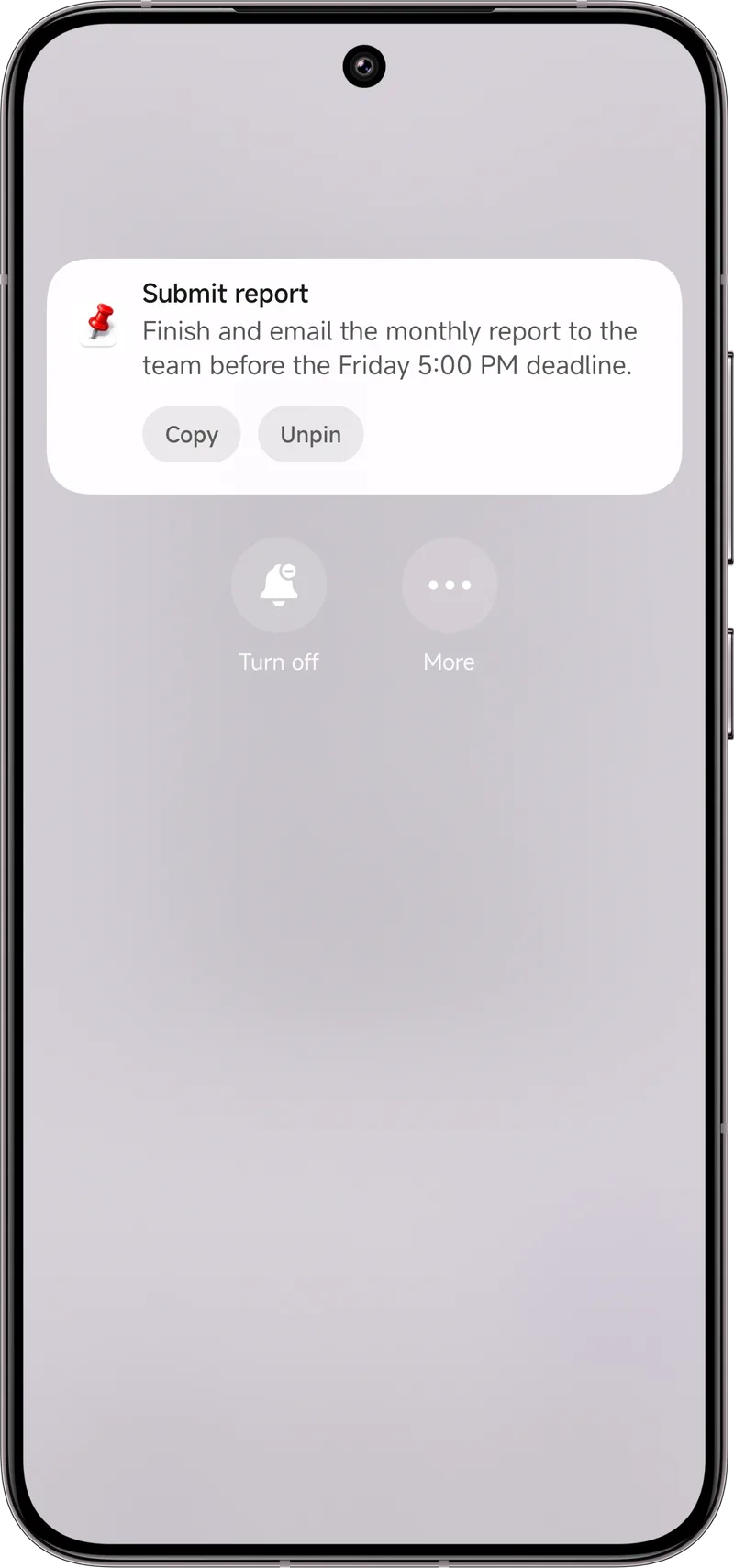
Step-by-step: pin a notification
- Swipe down from the top to open the notification panel.
- Press and hold the notification you want to keep.
- Tap Pin (it may sit inside a “More” or gear menu depending on your One UI version).
- The card moves to a pinned area at the top. To release it, press and hold again and choose Unpin.
Where the built-in pin falls short
The built-in pin has limits: a pinned card still disappears if the app itself cancels the notification, and it is cleared after a restart. You generally cannot pin more than a couple at once, and there is no way to add a note. For truly important items those gaps matter.
A stronger option: Dingpin
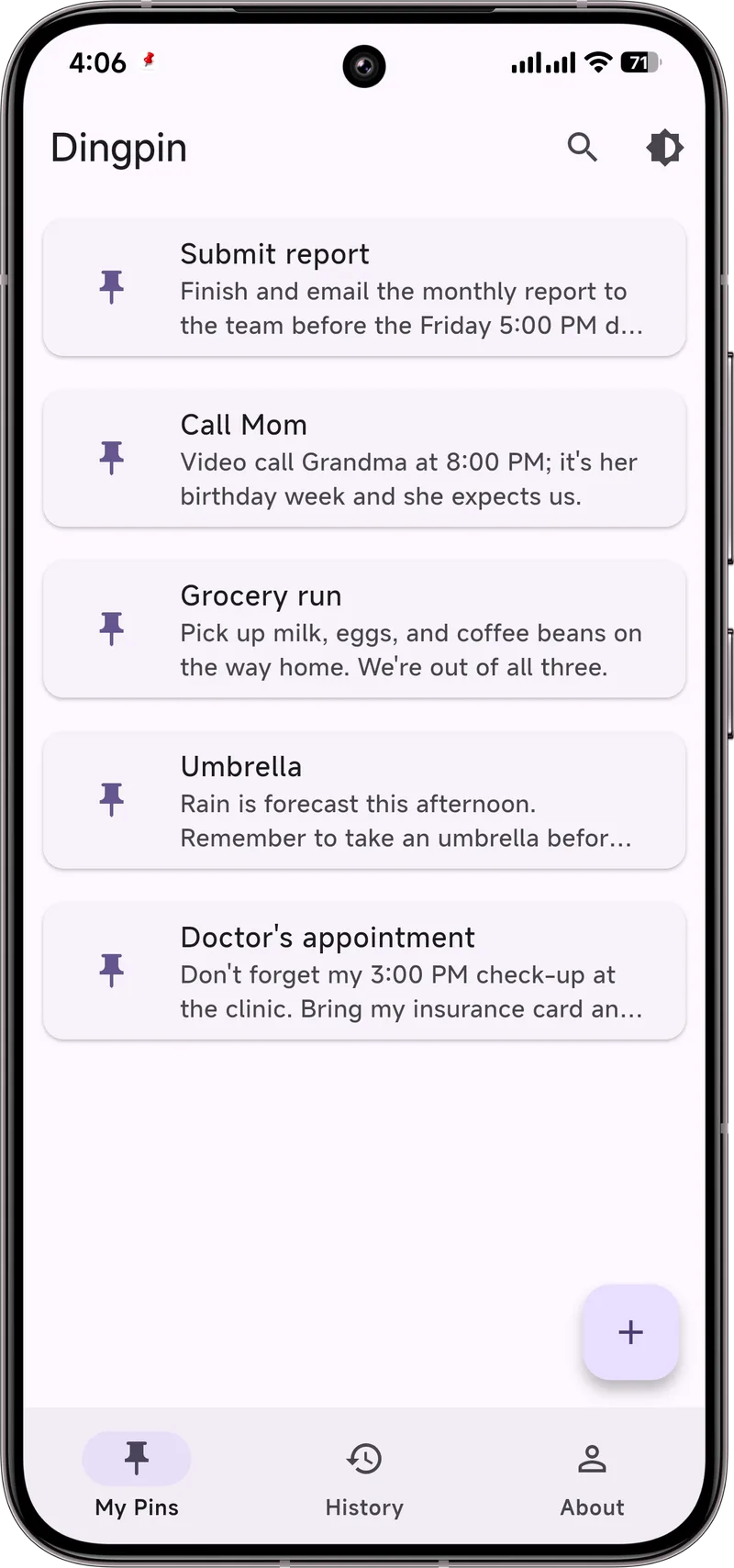
Dingpin is a free Android app built for exactly this. It lets you pin many notifications at once, keeps them above the noise, and lets you add a short note so you remember why you pinned it. No account, no cloud — everything stays on your phone.
Pin with Dingpin in seconds
- Install Dingpin and grant notification access when asked.
- Open your notification shade and press and hold any notification.
- Choose Pin. The item is saved in Dingpin and stays put.
It works the same on Samsung, Pixel, Xiaomi, and any Android 8 or newer phone.
Pinning in One UI
Samsung's One UI offers a built-in pinning feature that locks one notification at the top of the shade until you unpin it. It is a system-level feature, separate from Dingpin's pinning (which works across all Android phones with similar behavior). To use Samsung's built-in pinning:
- Swipe down twice from the top of the screen to fully expand the notification shade.
- Tap the three-dot menu in the top-right corner of the shade.
- Choose Pin to top (or similar — One UI versions vary).
- Select the notification you want pinned.
Samsung's pin vs. Dingpin's pin
The two behave similarly but have different scopes:
- Samsung's built-in pin. Works only on Samsung phones. Pins one notification at the top of the shade. The pinned item is the actual system notification, so it still gets updated if the underlying alert updates.
- Dingpin's pin. Works on any Android phone (Samsung, Pixel, Xiaomi, others). Captures the notification into Dingpin's History tab and keeps it pinned at the top of the shade. Useful even after the original notification is dismissed.
For most Samsung users, Dingpin is more versatile because it also gives you a searchable history and export options.
How to pin with Dingpin on a Samsung
- Open the notification shade by swiping from the top.
- Find the notification you want to pin.
- Tap the notification's pin icon, or long-press → Pin (Dingpin handles the rest).
- The notification is now stored in Dingpin's History tab and stays at the top of the shade.
What pinning does on a Samsung
When you pin a notification on One UI:
- It stays at the top of the shade above all other alerts.
- Clearing the shade does not remove the pinned notification.
- It survives reboots and most system cleanups.
- You can unpin it by tapping the unpin icon on the notification.
Good Lock's role
Some Samsung power users install Good Lock to customize One UI further. The "Notification Star" module in Good Lock adds a star icon to notifications; starred items behave similarly to pinned ones. If you use Good Lock, you may prefer stars over the standard pin button.
When not to pin
Pinning is great for static alerts (codes, addresses, appointments) but less useful for:
- Active chat conversations where new messages replace the old.
- Live sports or stock alerts where the latest update is what matters.
- Notifications you only need for a few seconds (a one-time verification code you are about to paste).
For those cases, leave the notification unpinned and rely on the shade or Dingpin's History tab. See also: how to pin notifications on Android, Good Lock notifications, and best notification apps for Samsung.