Swiped away a one-time password, a delivery update, or a message on your Galaxy, then wished you could get it back? Samsung ships a built-in Notification History log that quietly records recent alerts — even the ones you dismissed. Here is how to switch it on and what it can (and cannot) recover.
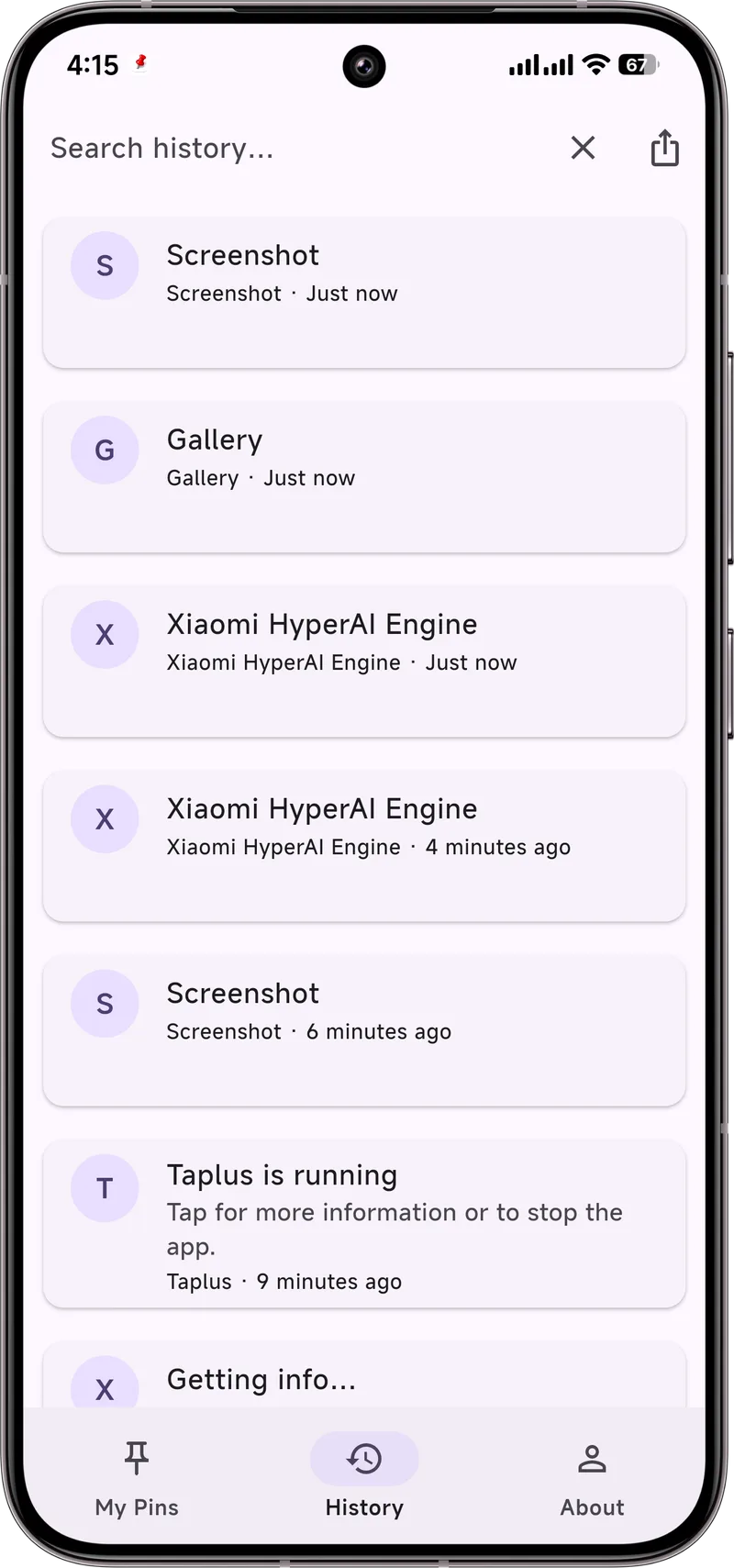
What Samsung keeps (and why it helps)
Since Android 11, every compatible phone has had a notification history feature, and Samsung's One UI builds on it. When enabled, your phone saves a timestamped record of recent notifications — messages, app alerts, system updates — so you can scroll back through what you cleared. It is the fastest way to recover an alert you accidentally removed without installing anything extra.
Turn on Notification History (One UI)
On most modern Galaxy phones (One UI 4 and later, Android 12+):
- Open Settings.
- Tap Notifications.
- Tap Advanced settings.
- Tap Notification history.
- Toggle on Enable Notification History.
On older One UI 3 builds the option sits one level shallower — Settings → Notifications → Notification history — and behaves the same. Once enabled, new alerts start accumulating immediately. It is worth turning on now even if you don't need it yet; the log only captures alerts that arrive after you enable it.
View cleared notifications
There are two ways to reach the log:
- From the shade: open the notification panel and look for a small clock or "History" icon near the bottom. Tap it to jump straight into the log.
- From Settings: Settings → Notifications → Notification history (or Advanced settings → Notification history).
Entries appear in reverse chronological order, each showing the app name, a timestamp, and the banner preview that was on screen. Tap an entry to expand it. For a long log there is no built-in search, so you scan manually — a good reason to act quickly after a dismissal.
Limits you should know
- Only after enabling: nothing dismissed before you turned it on is saved.
- Roughly a 24-hour window: Samsung treats it as a rolling buffer, not a permanent archive.
- Preview only: you see the sender and an opening line, not the full conversation.
- Some alerts are excluded: notifications from apps without support, and certain system alerts, may not appear.
Make it stick with Dingpin
The built-in log is handy but short-lived. Dingpin keeps a longer, searchable, and exportable history of your notifications, and lets you pin the ones that matter so they stay at the top instead of scrolling away. It works the same across Galaxy, Pixel, Xiaomi, and other Android 8+ phones, with no account required.
Where to find it
Samsung's notification history lives at Settings → Notifications → Advanced settings → Notification history. The exact path varies by One UI version, but the option is always under the Notifications section. Make sure the toggle is on.
What gets recorded
Samsung's notification history records the same things Android's stock version does — most notifications posted by apps, with a 24-hour retention. Things that are excluded or hidden:
- Sensitive content (some banking and OTP alerts) until you tap to reveal.
- Notifications from apps where you have explicitly disabled history tracking.
- Persistent foreground-service notifications (music, navigation) by default.
Limitations of the system log
Same as stock Android:
- Only the past 24 hours.
- No search.
- No export.
- Only records after you enable the toggle.
One UI quirks
Two Samsung-specific behaviors:
- Battery optimization. Aggressive HyperOS-style battery optimization can pause the history feature on Samsung too. Check Settings → Battery → Battery usage → [app] for any app you want notifications from.
- Good Lock's Notification Star. Works alongside the system history. Starred notifications persist across reboots and clear-alls — useful in addition to the system log.
When the system log is not enough
For longer retention and search, a third-party app like Dingpin is the answer. It captures notifications from the moment it has Notification Access and keeps them indefinitely. See also: Good Lock notifications and recovering notification history.
Official documentation
If you want to check anything against the source, these are the pages this guide is based on:
FAQ
Does Samsung keep notification history forever?
No. Samsung's Notification History only stores alerts for roughly 24 hours after you turn it on, and it only logs notifications that arrived after enabling it.
Can I recover a notification I cleared before enabling history?
No. The log starts empty the moment you enable it; anything dismissed or cleared beforehand is gone and cannot be retrieved on-device.
Does Notification History show the full message text?
No. It keeps the banner preview that was on screen when the alert arrived — typically the sender name and an opening line — not the full conversation or message body.