You swiped away a notification too fast. Maybe it was a one-time password you needed to copy, a delivery update with an address, or a message you meant to read properly. By the time you reach for it, the shade is empty and the notification is gone — no undo, no "recently deleted" folder.
The good news: Android has had a built-in notification history since version 11. The less good news: it's off by default, has a 24-hour limit, and is buried in settings. This guide walks through every way to find a lost notification — with the built-in tool, brand-specific steps for Samsung, Pixel, and Xiaomi, and a better long-term approach using Dingpin.
Turn on built-in history (Android 11+)
Android's notification history records every notification that arrives after you enable it. Once on, you can go back and read what an app showed you, even if you dismissed it.
1. Open Notification History settings
Go to Settings → Notifications → Notification history. On some phones the path is Settings → Apps & notifications → Notifications → Notification history.
2. Toggle it on
You'll see a switch at the top. Turn it on. Android will start logging notifications from this moment forward — anything that arrived before you enabled it is already gone.
3. Review past notifications
Once enabled, the same screen becomes your history log. You'll see a reverse-chronological list of recent notifications: the app name, timestamp, and the text content. Tap any entry to expand it. Sensitive content — like OTP codes or message previews — may appear as "Content hidden" until you tap in to reveal it.
Important: This only works for notifications received after you enable it. If you're reading this because you just lost a notification and history was off, the built-in tool can't help retroactively. But turning it on now means you won't be in this situation again — and Dingpin can help even further.
Brand-specific paths
Phone manufacturers often rearrange Android's settings menus. Here's where to find notification history on the most common brands:
Samsung (One UI 5 / 6)
Settings → Notifications → Advanced settings → Notification history. Samsung calls it "notification history" but hides it under "Advanced settings" — easy to miss. Once on, you access the log from the same place. For a deeper Samsung-specific walkthrough, see our Samsung notification history guide.
Google Pixel (stock Android)
Settings → Notifications → Notification history. Pixel has the cleanest path — it's right there on the main Notifications page. If you don't see it, make sure you're running Android 11 or later. See our Pixel notification history guide for screenshots.
Xiaomi / Redmi / POCO (HyperOS / MIUI)
Settings → Notifications & control center → Notification history. On older MIUI versions, try Settings → Apps → Manage app notifications → Notification history. Xiaomi's implementation is sometimes restricted — certain app categories may not appear. See our Xiaomi notification history guide for details.
What the built-in tool can't do
Android's built-in history is better than nothing, but it has real limitations:
- 24-hour window. It only keeps roughly the last 24 hours of notifications. Older entries are silently dropped — there's no archive.
- No search. You can scroll through the list, but there's no search box. If you received 80 notifications today and need the one from a specific app, you'll be swiping for a while.
- No export. You can't save the history to a file, share it, or back it up. If you need a record for work or legal reasons, the built-in tool won't help.
- Only from when you enabled it. If history was off when the notification arrived, it's not there. There's no retroactive recovery.
- Sensitive content is hidden. OTPs and message previews show as "Content hidden" until you manually tap each one — frustrating when you're looking for a specific code.
- Some manufacturers restrict it further. Xiaomi and certain other brands may not log certain notification channels or system-level alerts.
For a one-time "what was that notification?" lookup, the built-in tool is fine. For anything you might need next week — a delivery tracking number, a meeting address, a confirmation code — it falls short.
Keep a permanent, searchable log with Dingpin
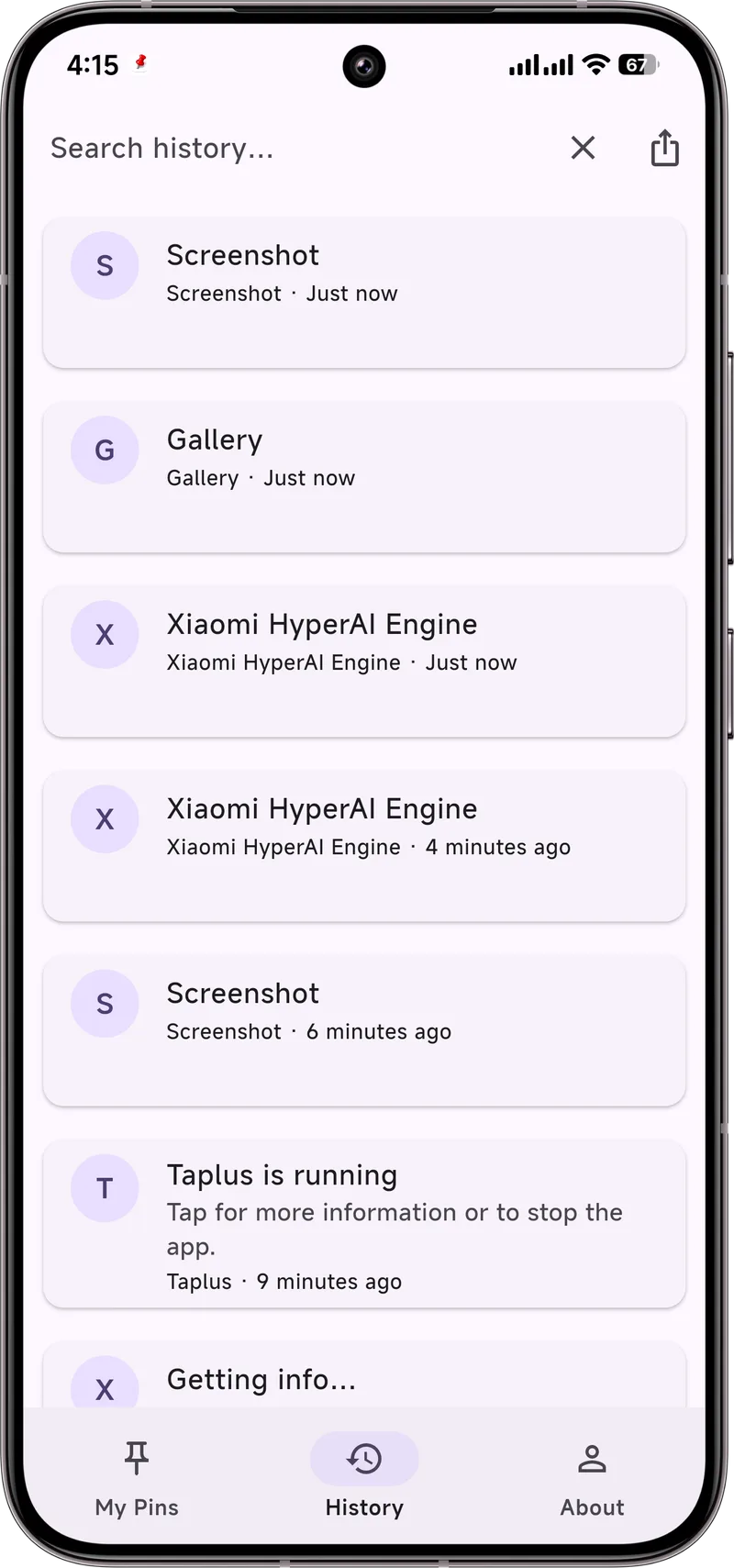
Dingpin is a free, open-source Android app that solves the limitations above. It listens for notifications (with your permission) and builds a searchable, exportable history — with no 24-hour cap.
How it works
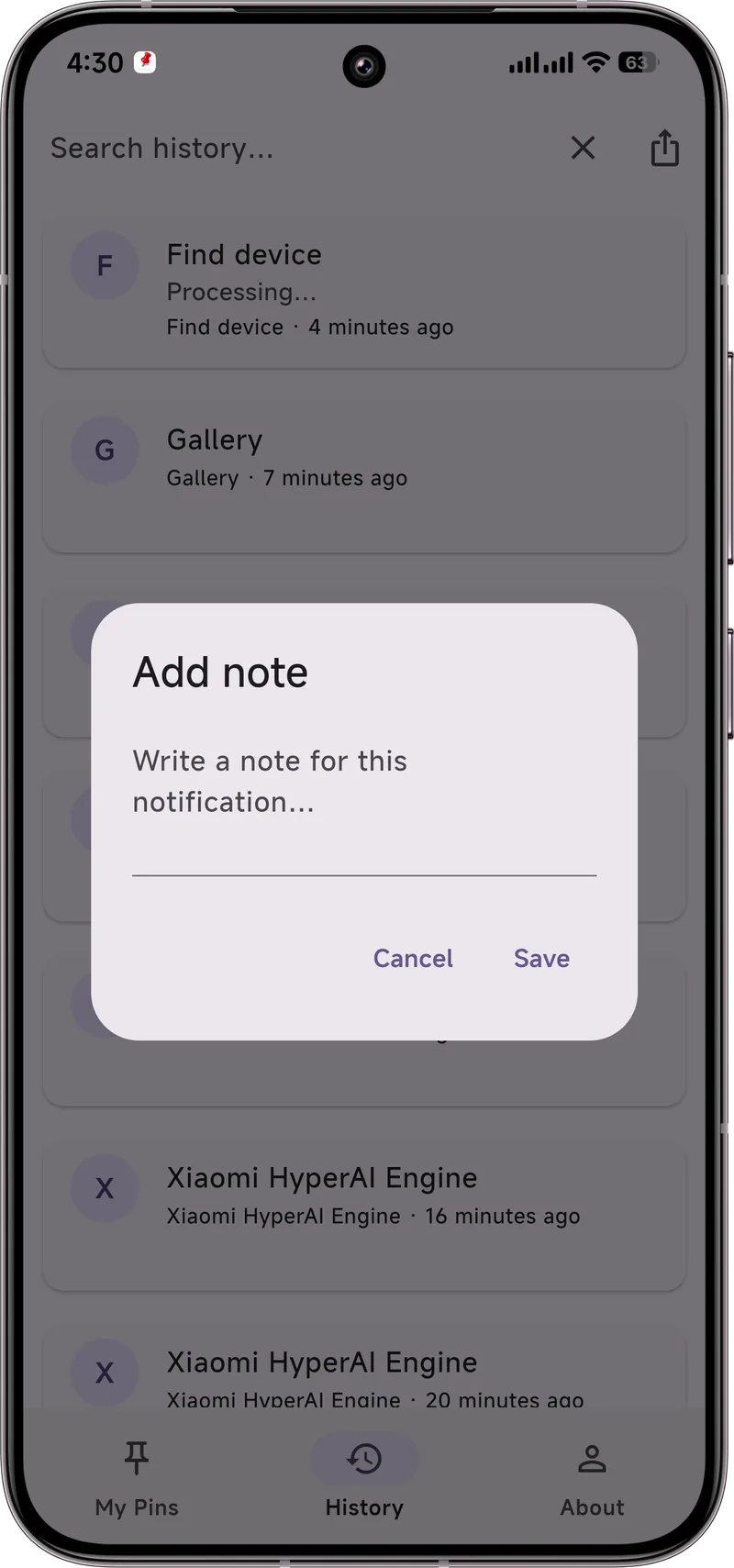
When you install Dingpin and grant notification access, it starts capturing every notification that arrives on your phone. Each one is stored with the app name, timestamp, full text content, and the option to add your own notes. You can search the entire history by keyword, filter by app, and export everything to a file.
Key advantages over the built-in tool
- No time limit. Your history stays until you clear it — not 24 hours, not a week, indefinitely.
- Searchable. Type "OTP" or "delivery" and find what you need in seconds.
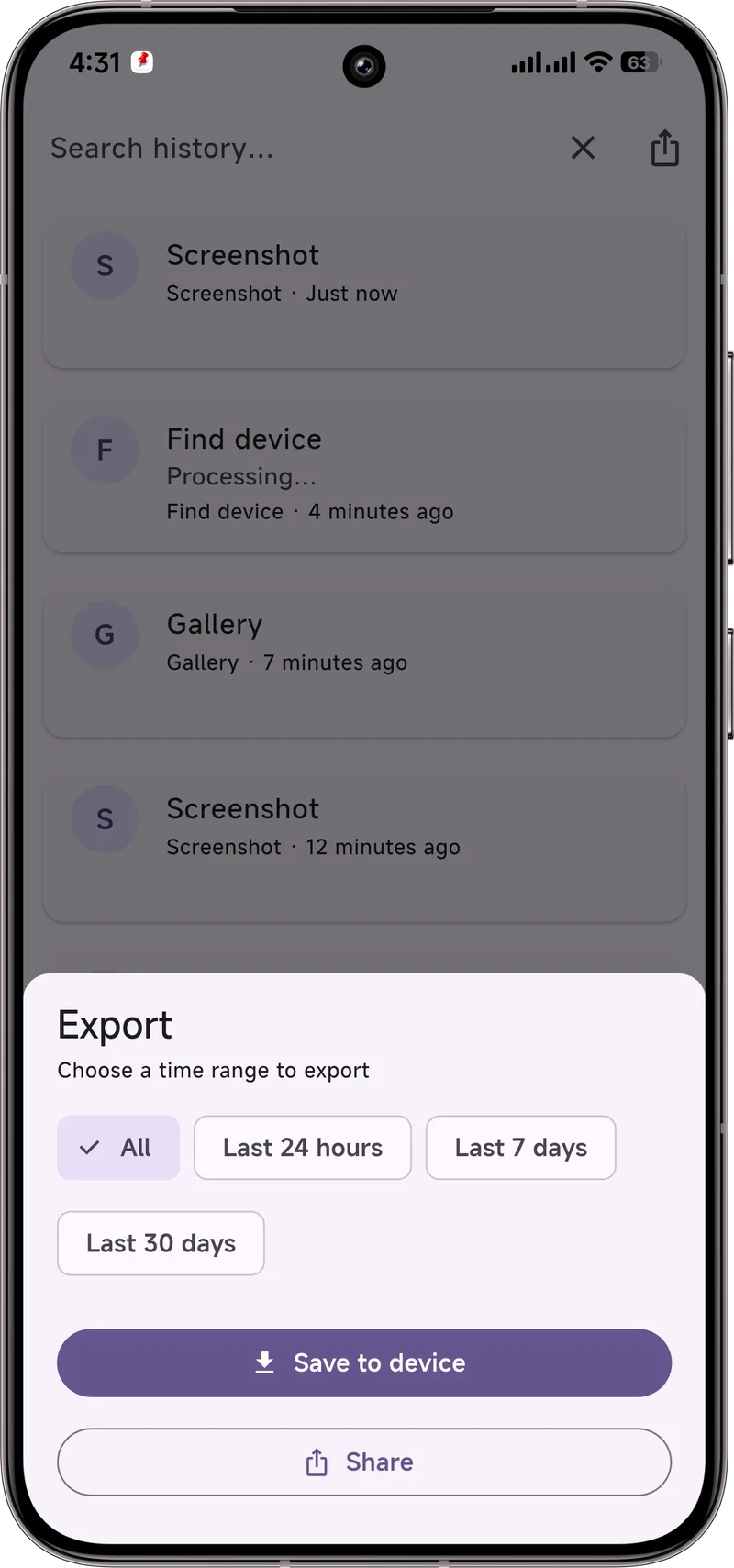
- Exportable. Save your history to a file, share it, or back it up. Choose a time range (today, this week, everything).
- Pin from history. Found the notification you lost? Pin it to the top so it stays visible — no more re-dismissing it.
- Add notes. Annotate any notification with context only you have ("this is the code for the bank login").
- Works across brands. Same experience on Samsung, Pixel, Xiaomi, and others — no manufacturer-specific quirks.
- No account, no cloud. Everything stays on your device. There's no server, no login, no data leaving your phone.
Recover dismissed or swiped-away notifications
When you swipe a notification away or tap "clear all," Android doesn't immediately delete it — but it doesn't make it easy to find either. Here's what actually happens:
If you had notification history enabled before you dismissed the notification, it will appear in the history log within seconds. Open Settings → Notifications → Notification history and scroll to find it.
If history was not enabled, the notification is gone. Android doesn't keep a hidden backup. This is the most common scenario — and it's why enabling history (or using Dingpin) proactively matters.
With Dingpin, dismissed notifications are captured automatically the moment they arrive — before you swipe them away. So even if you clear your notification shade, the full content is still in Dingpin's History tab. You can search for it, pin it, or export it at any time. For a deeper dive, see our guide on recovering dismissed notifications.
Never lose a notification again
Recovering a lost notification is a salvage operation. The better strategy is to never lose it in the first place:
- Enable notification history now. Even if you never use it, having it on means you always have a 24-hour safety net.
- Install Dingpin for the long-term log. It captures everything automatically, so you don't have to remember to "save" a notification. Just check the history when you need it.
- Pin important notifications. OTPs, delivery codes, meeting details — pin them the moment they arrive. Pinned items stay at the top of your shade until you unpin them, immune to "clear all."
- Export regularly if needed. If you use notifications for work (tracking numbers, client messages, confirmation codes), export your Dingpin history weekly. It takes ten seconds and gives you a permanent record.
- Don't rely on "recently deleted." Unlike photos or emails, Android notifications don't have a trash folder. Once they're gone from the shade and history is off, they're gone.
For more on why notifications vanish in the first place, see why notifications disappear on Android. If your notifications are arriving late (and then disappearing before you see them), check our guide on fixing delayed or missing notifications.