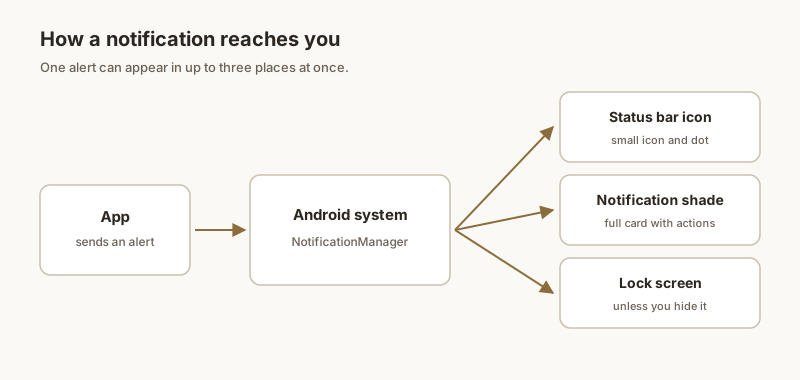
The notification shade is the panel that slides down from the top of your Android phone. Swipe down once from the top edge and you get the quick settings tiles; swipe down again (or swipe with two fingers) and you open the full shade with all your notifications. It is the single place where every alert lands.
Diagram: a single alert can surface in the status bar, the shade and the lock screen at once.
Notification shade vs. status bar
The thin status bar at the very top only shows tiny icons — a bell, a Wi-Fi symbol, a battery. The shade is what appears when you pull that bar down: the scrollable list of full notifications. People often say "status bar notifications" when they mean the shade, but they are two different things.
How to open it
Once: swipe down from the top to reveal quick settings.
Twice: swipe down again to expand the full notification list.
Two-finger swipe: opens the full shade in one move on most phones.
When the shade gets messy
With a dozen apps pinging all day, the shade fills up fast. Older alerts sink to the bottom and the one you cared about — an OTP, a parking spot, a reminder — scrolls out of sight. That is where pinning helps.
Keep what matters at the top
With Dingpin, pin a notification and it stays at the top of the shade until you clear it. The rest can scroll away; the important one holds its place.
How notifications get there
When any app posts a notification, Android routes it to the shade through the notification system. The shade displays the visible alert and stores it (along with the underlying notification data) until you swipe it away or the system removes it. The shade is the central, always-reachable view of everything your phone is trying to tell you.
Shade vs. notification history
The shade and the notification history are different:
Shade. Live alerts. Swipe to clear.
Notification history. Settings → Notifications → Notification history. A separate 24-hour log of what arrived, including alerts you already cleared.
If you dismiss an alert from the shade, it is gone from the shade but may still be in the history (until 24 hours pass). For a permanent searchable record, a third-party app like Dingpin is the answer.
Customizing the shade
A few settings affect what the shade looks like:
Number of visible notifications. Some launchers and brands let you set how many recent alerts to show without scrolling.
Snooze buttons. The default shade has a snooze option on each notification (long-press or slow-swipe).
Direct reply. Some apps add a quick reply field to their notification in the shade.
It is the panel that drops down from the top of the screen when you swipe down. It shows your full list of notifications, separate from the thin status bar at the very top.
What is the difference between the status bar and the notification shade?
The status bar is the narrow strip at the top showing small icons. The shade is the scrollable list of notifications you see after swiping the bar down.
How do I open the full notification shade?
Swipe down from the top once for quick settings, then again for the full list. On most phones a two-finger swipe opens the full shade directly.
Can I pin a notification to the top of the shade?
Yes. Dingpin lets you pin a notification so it stays at the top of the shade until you clear it, instead of sinking under newer alerts.
What is a media notification on Android?
It is the playback card with play, pause, and skip controls that appears in the notification shade while audio or video is playing.
Why does the media notification stay after I pause?
Media cards are persistent so you can resume playback quickly. They remain until you swipe the card away or the app fully stops.
How do I remove a media notification?
Swipe it away to stop the player and dismiss it. If it is stuck after playback ends, force-stop the app or clear its notifications in Settings.
Can I hide media controls on the lock screen?
Yes. Use Settings, Notifications, and the lock-screen options for that app, or hide sensitive content so the card shows without details.
What does Android 15 notification cooldown do?
When one app sends multiple alerts in a short span, cooldown briefly lowers their importance so they no longer pop up as heads-up banners. The alerts still arrive in the shade, but the repeated ones are silenced for a short window to reduce interruption.
Which phones have notification cooldown?
It ships with Android 15 (API 35) on phones running stock or near-stock Android, such as Pixel. OEMs like Samsung and Xiaomi may include, rename, or omit it depending on their skin and Android 15 rollout.
How do I turn off notification cooldown?
Open Settings → Notifications → Notification cooldown (or 'Alerts cooldown' under Advanced), then toggle it off. On some builds it is also reachable from the notification shade's settings gear. A per-app toggle is available on supported devices.
What does snooze do to a notification?
It hides the notification and brings it back after a set delay, such as 15 minutes or 1 hour, acting like a built-in reminder.
How do I snooze a notification on Android?
Swipe the notification partway to the side, or press and hold it, then tap the clock or snooze icon and choose a time.
Does snooze delete the notification?
No. Snooze hides it temporarily and shows it again later. Only dismiss deletes it for good.
Is snooze better than pinning?
Snooze returns on a timer. Pinning with Dingpin keeps the notification at the top until you clear it yourself, which suits things you must not forget.
What is a heads-up notification on Android?
It is the banner that briefly appears at the top of the screen for high-priority alerts like calls, alarms, and timers, separate from the items sitting in the notification shade.
Why do some notifications pop up and others don't?
Only notifications set to the urgent or 'make sound and pop on screen' importance level show a heads-up banner. Lower-importance notifications go straight to the shade without interrupting you.
How do I stop heads-up notifications?
Lower the app's notification importance in Settings, set its channel to Silent, or turn on Do Not Disturb. The alert then stays in the shade without the pop-up.
Can I keep a heads-up alert on screen longer?
The banner auto-dismisses after a few seconds by design. To keep an important alert visible, pin it with Dingpin so it stays at the top of the shade until you clear it.
What do the Android notification importance levels mean?
From most to least intrusive: Urgent (sound + popup, may bypass Do Not Disturb), High (sound + status bar), Medium (no sound, status bar only), and Low/Silent (no sound, minimized, may be hidden in a cluster). The level controls sound, heads-up popups, and whether the alert appears prominently.
Can I make one contact's messages urgent?
Yes — set that contact's conversation as a priority conversation in your messaging app, which raises its notification importance. You can also raise the app's channel importance in Settings → Notifications → [app] → [category].
Is importance the same as Do Not Disturb?
No. Importance is per-notification behavior (sound, popup, visibility). Do Not Disturb is a global silencer — but you can tell DND to allow only 'priority' (Urgent/High) alerts through, combining the two for a quiet-but-safe phone.
What is a notification channel?
A categorized stream of notifications from one app, each with its own sound, vibration, importance, and lock-screen visibility. Channels arrived in Android 8.
Why does one app have many channels?
Apps split alerts, such as security versus promotions, so you can keep critical ones loud and send marketing noise to a silent channel.
Can I change a channel's behavior?
Yes. Settings, Notifications, App notifications, tap the app, tap a channel, then adjust importance, sound, and lock-screen visibility.
Do notification channels stop alerts from scrolling away?
No. Channels control how an alert behaves. Pinning with Dingpin keeps a specific notification pinned at the top.
What does a floating notification mean?
A floating notification is the temporary banner that slides in at the top of your screen for an important alert. Android calls it a "heads-up notification." It is the same notification you would see in your shade, just shown in a more urgent, on-top-of-everything format for a few seconds.
Are floating notifications the same as chat bubbles?
No. A floating banner is a brief alert for any high-importance notification. A chat bubble is a persistent floating icon for one conversation. They look similar but are controlled in different settings.
Why do floating notifications pop up over other apps?
Because the app's notification is set to high importance. Android shows high-importance alerts as heads-up banners that appear above your current app. Lower the app's importance and the banner stops covering your screen, while the alert still lands in your shade.
Can I turn off floating notifications?
Yes. Lower the app's notification importance (or turn off "Pop on screen") in Settings → Notifications → App notifications. The banner stops appearing, but the notification still arrives in your shade.