Important notifications have a habit of sliding down the list the moment a new message arrives. A one-time password, a delivery code, or a reminder you wanted to act on later gets buried within minutes. Pinning keeps the ones that matter stuck at the top. Here is how to do it in 2026.
Why pin notifications at all
Most people pin notifications for a few repeat situations:
- One-time passwords (OTPs) you need to copy into another app.
- Addresses or order numbers you'll reference at the door.
- Reminders you don't want silently scrolled away.
- Long messages you're reading in pieces.
Can Android pin natively? (the catch)
Some Android versions and device skins let you snooze a notification or, in a few builds, press and hold to access a "history" view. But there is no reliable, built-in "pin to top" that survives new arrivals across all phones. Samsung, Pixel, Xiaomi, and others each behave differently, and the option is often buried or missing entirely.
That inconsistency is exactly why a dedicated app is the dependable answer.
The easy way: pin with Dingpin
Dingpin is a free Android app that gives every notification a persistent "pin" action. Once pinned, the item stays at the top of your list no matter how many new notifications come in. It works the same on Pixel, Samsung, Xiaomi, and others, and needs no account.
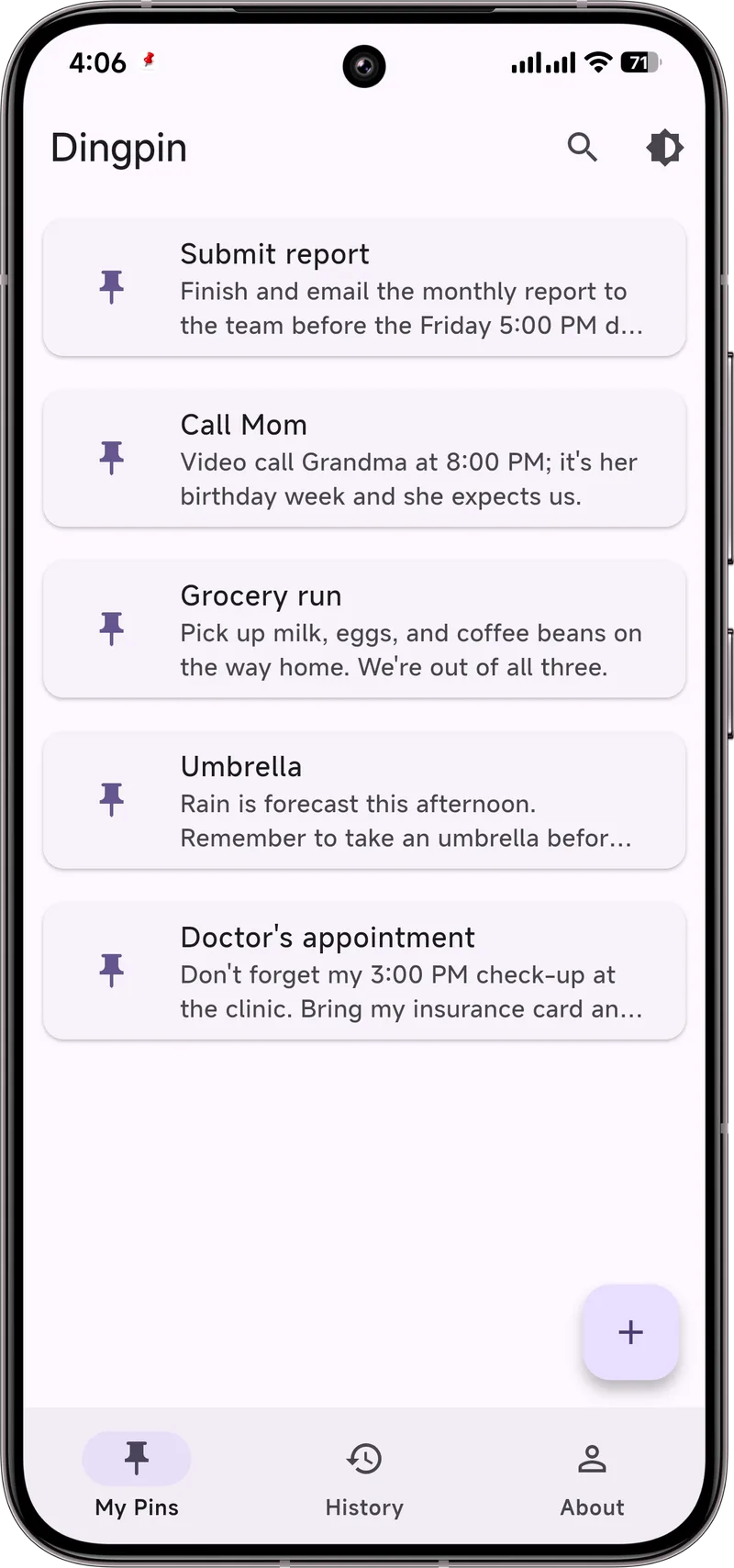
Step-by-step instructions
1. Install and grant notification access
Download Dingpin, open it, and tap to grant notification listener permission when prompted. This is what lets the app see and organize your notifications — all on-device.
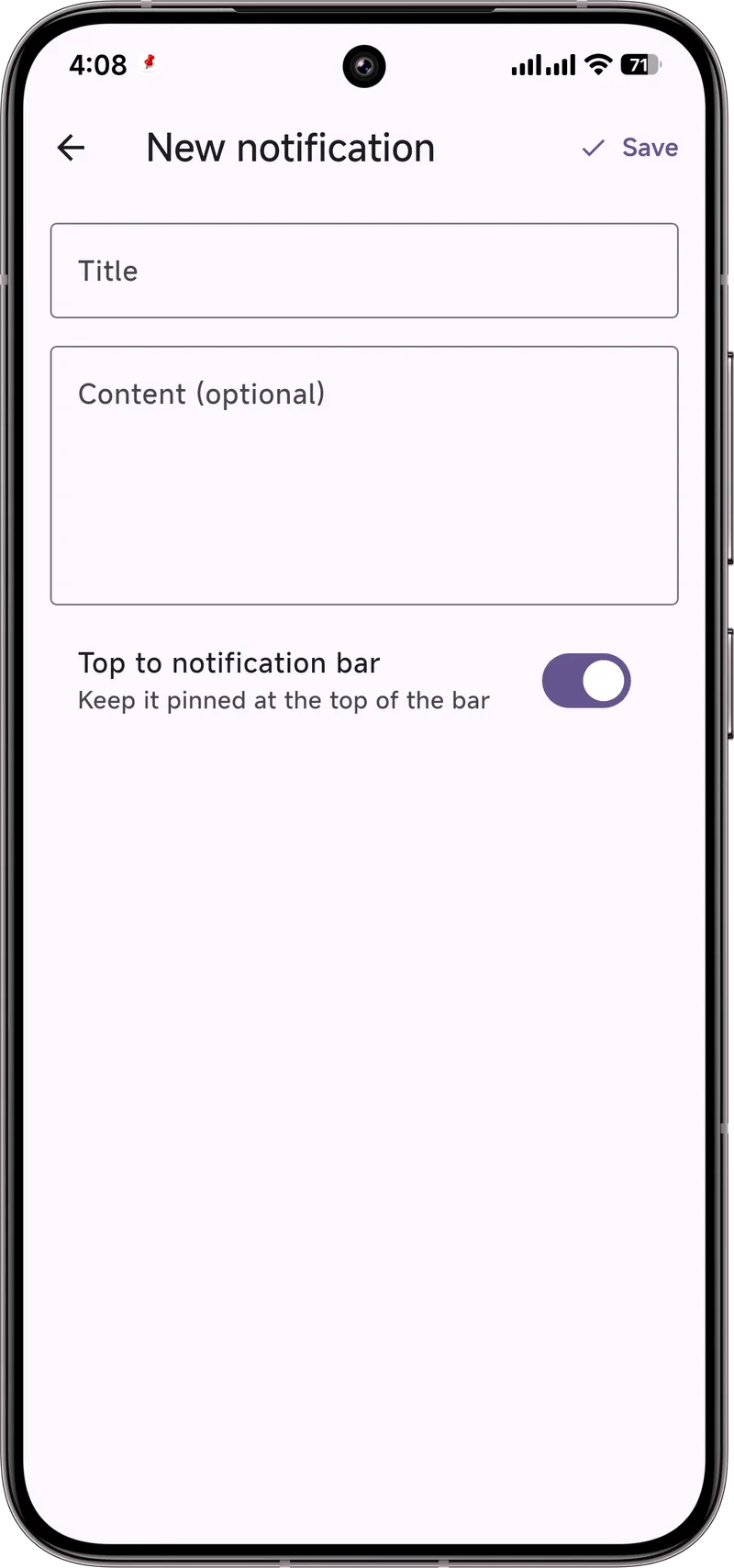
2. Pin a notification
In your normal notification shade, long-press any notification and choose the pin action (or open Dingpin and pin from the list). The item jumps to the top.
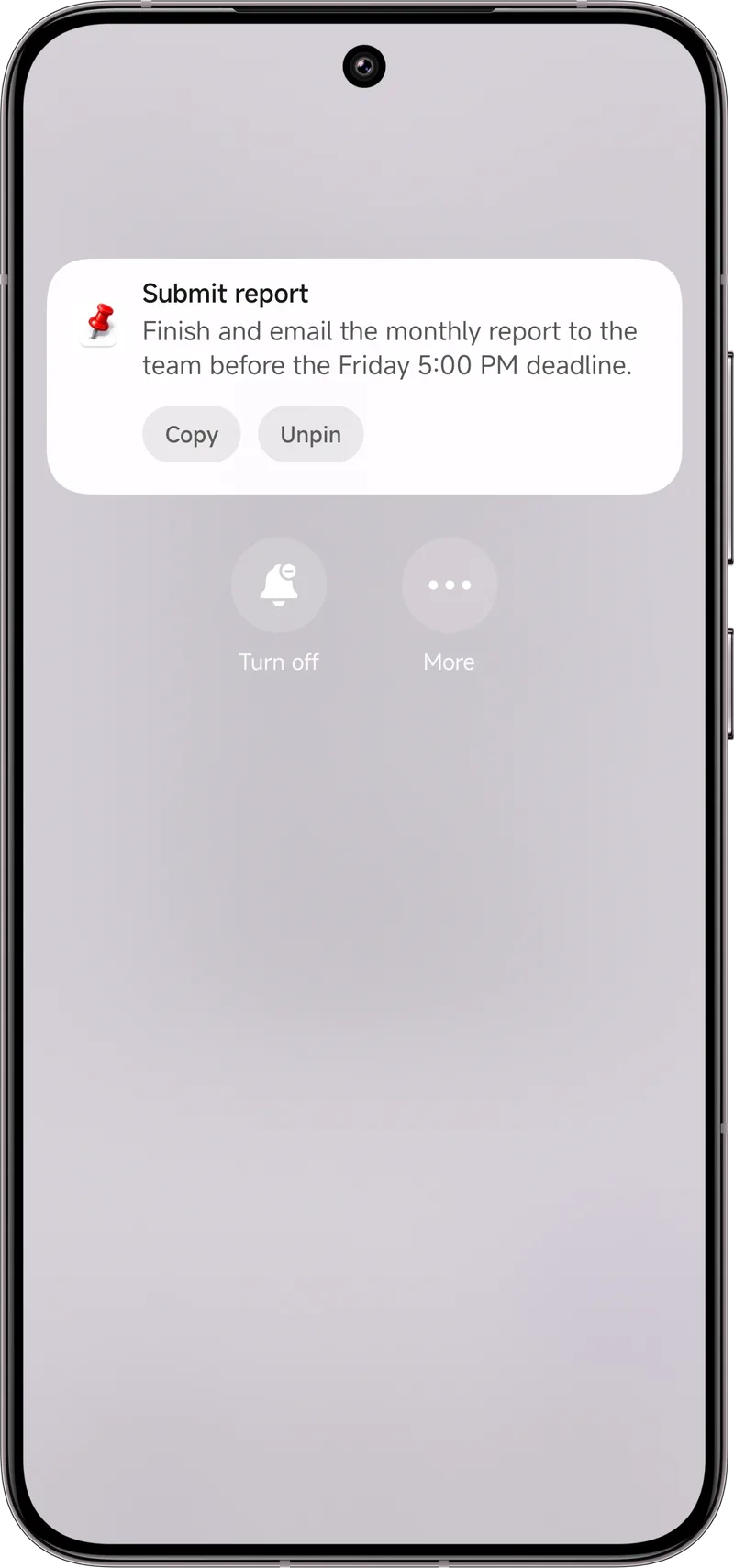
3. Keep it visible
Pinned items stay put. New notifications appear below them and never push them out of view.
4. Search and export
Use the search box to filter by keyword, and use the export option to save your history to a file when you need a code or link you saw earlier.
Why pin
Pinning keeps a notification at the top of the shade, immune to "Clear all," reboots, and accidental swipes. Use it for anything you might need later — a code, a tracking link, an address, an appointment. The pinned item stays until you explicitly unpin it.
The Dingpin method (works on any Android)
- Install Dingpin and grant Notification Access.
- When an alert arrives that you want to keep, open the shade, tap the pin icon on the notification.
- The notification stays at the top until you unpin.
The built-in method (where supported)
Some Android versions expose a built-in pin. Stock Android does not natively support pinning notifications, but Samsung's One UI and some OEM skins do. To check:
- Swipe down twice on the shade to fully expand.
- Long-press a notification and look for "Pin" or "Keep at top."
What pinning does (and does not do)
When you pin a notification with Dingpin:
- It moves to the top of the shade above all other alerts.
- It survives "Clear all" taps.
- It survives reboots.
- It is stored in Dingpin's History tab for later reference.
- You can add a note to the pinned notification for context.
Pinning does not change the underlying notification's behavior — if the sending app updates the notification, the pinned copy updates too.
What to pin and what not to
Pin static alerts (codes, tracking numbers, addresses, appointment details). Do not pin live conversations (chats that update frequently) — the pinned item updates but adds visual clutter. For live conversations, use the chat app's "pin conversation" feature instead.
How to unpin
Tap the unpin icon on the pinned notification, or open Dingpin's Pinned tab and tap the unpin action. The alert leaves the pinned state and returns to normal shade behavior.
For the broader story, see recovering notification history, saving notifications to read later, and pinning on Samsung.
Official documentation
If you want to check anything against the source, these are the pages this guide is based on:
FAQ
Does pinning drain my battery?
No. Dingpin only organizes notifications your phone already shows; it adds negligible overhead.
Will pinned items survive a reboot?
Pinned entries persist in the app's own list. The live system notification may clear on reboot, but your pinned record remains.
Is my data uploaded?
No. Notifications are handled on your device. There is no cloud sync or account.
Can I pin notifications on Samsung Galaxy?
Yes. The steps are the same on Samsung, Pixel, and most Android 11 and up. On some Samsung One UI versions, long-press the notification, then tap the three-dot menu or the pushpin icon. Dingpin works across brands and adds a persistent pinned list you can't lose by swiping.
Why do my notifications keep disappearing?
They get buried by newer alerts, cancelled by the app, cleared on restart, or removed when you swipe the shade clean. Pinning the important ones prevents all of those.
How do I stop a notification from being cleared?
Pin it. Samsung has a built-in Pin; on other phones use Dingpin to pin many notifications and keep them above the rest, even after a reboot.
Does raising importance help it stay?
It makes the alert loud and pop on screen, but it can still be buried by newer ones. Combine high importance with pinning for alerts you truly cannot miss.
What if I already cleared it?
Open notification history (Android 11+) to recover recently dismissed items, or check Dingpin if you had pinned it first.
How do I let only certain people call me on Do Not Disturb?
In DND settings allow exceptions for starred contacts and priority conversations. Those people ring through while everyone else is silenced.
What does 'allow repeat callers' do?
If the same number calls twice within about 15 minutes, the second call bypasses Do Not Disturb. It is a safety net for urgent calls from someone you did not pre-approve.
Can a text break through DND?
Yes, if the sender is in a priority conversation or is a starred contact allowed under your DND exceptions.
How do I remember to reply to an important message?
Pin it with Dingpin so it stays at the top of the shade as a visible reminder until you respond.
How do I save a notification to read later?
Pin it with Dingpin: press and hold the notification and choose Pin. It is stored separately and stays put even after you clear the shade.
Does Android have a built-in save feature?
Android 11+ keeps a notification history that logs dismissed items temporarily. It is a backup, not a curated list; Dingpin is better for intentional read-later saving.
Will a saved notification survive a restart?
A pinned notification in Dingpin does. Android's notification history is also retained across restarts but rolls off over time.
Where do my saved notifications go?
With Dingpin they are kept inside the app, sorted and note-able, so you can return to them whenever you are ready.