You saw the notification, then it was gone. Before blaming the app, know that Android itself is usually the culprit. Here is what is happening and what to do.
The real reasons
1. Notification limits (Android 12+)
Newer Android versions cap how many notifications an app can show at once. Once the limit is hit, older ones are silently removed.
2. Battery optimization
Manufacturers aggressively kill background work. If the source app is "optimized," its notifications may not arrive or may be cleared.
3. Do Not Disturb / routines
A DND schedule or a custom routine can auto-dismiss or hide notifications without you noticing.
4. "Auto-clean" in some launchers
Some OEM launchers clear the shade after a timeout or on lock.
Fixes that actually work
- Set the important app to Unrestricted battery usage (Settings → Apps → Battery).
- Turn off any launcher "auto-clear notifications" option.
- Check DND rules and remove auto-dismiss routines.
- On Android 11+, enable Notification history to at least recover what vanished.
A simpler fix: pin what matters
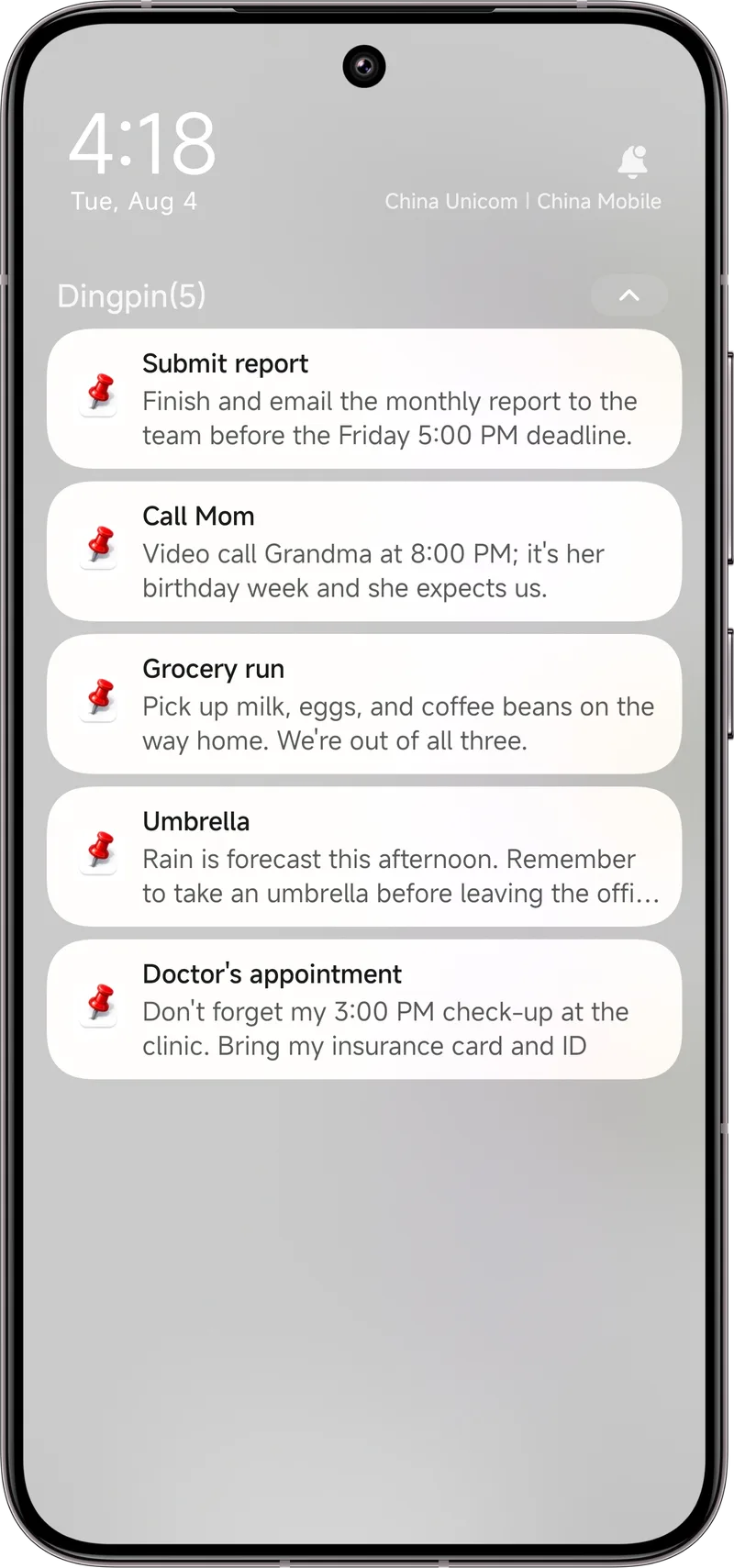
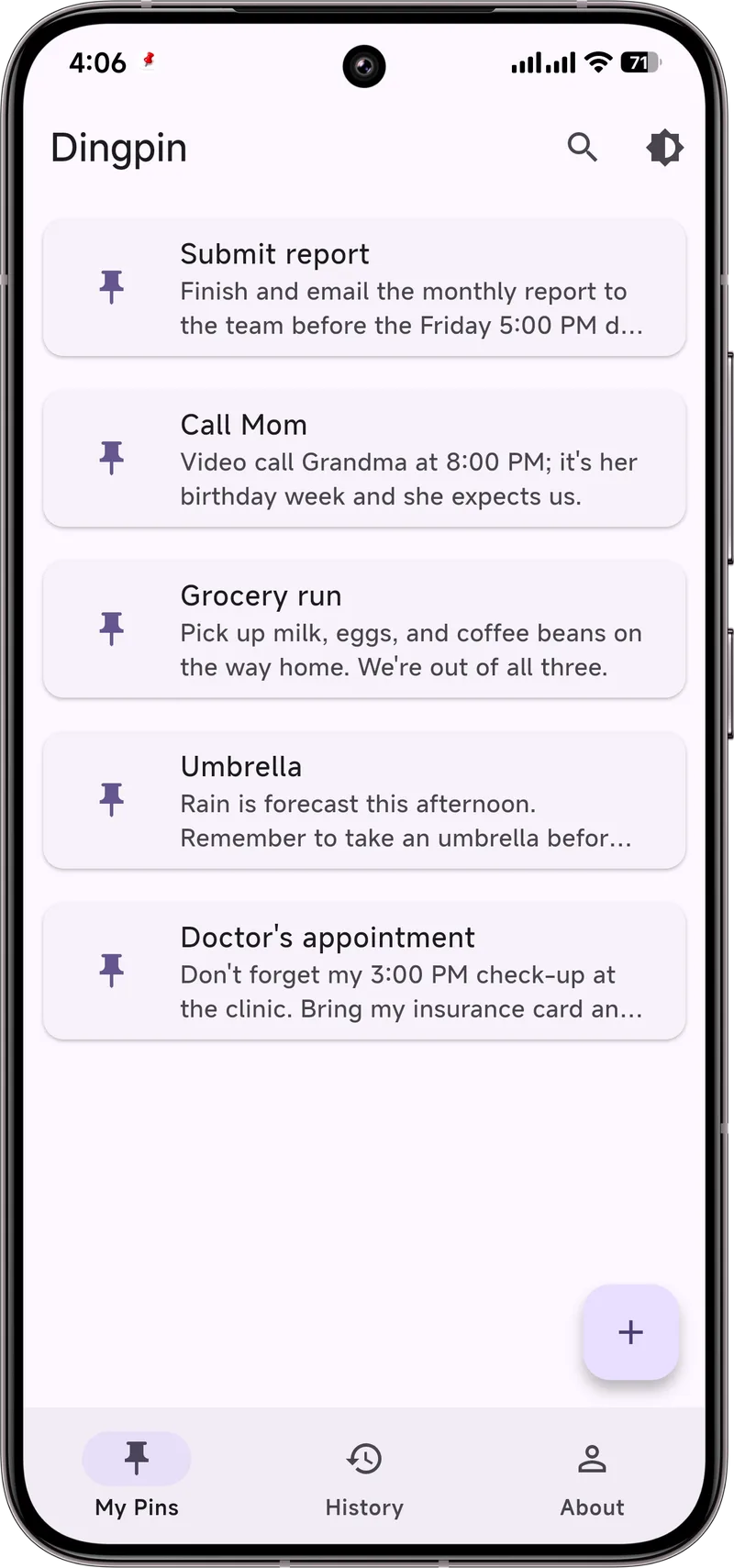
System tweaks help, but the durable fix is to stop relying on the volatile shade. With Dingpin, you pin the notification you care about and it stays at the top regardless of limits, reboots of the list, or new arrivals. Pair it with Android's notification history and you essentially stop losing things.
The most common reasons
Notifications can disappear for reasons that range from intentional to accidental:
- Swiped away by you, intentionally or not.
- Auto-dismissed because of a TTL (time-to-live) set by the app.
- Suppressed by battery optimization or Do Not Disturb.
- Cleared by tapping a notification action like "Mark as read."
- Replaced by a newer notification from the same app.
- Removed when you uninstall the app that posted it.
- Lost on reboot if the app did not repost it.
Notification TTL and expiration
Apps can set a TTL on their notifications. After the TTL expires, the system removes the notification automatically — even if you did not interact with it. Most chat apps set short TTLs (a few minutes) so old messages do not clutter your shade; productivity apps often use longer TTLs so reminders stick around.
When a newer notification replaces an older one
Most apps use "tagged" notifications so a new message replaces an old one in place. For example, if you have three unread messages from a chat, the system shows one notification reading "3 new messages." When a fourth arrives, that notification updates to "4 new messages." The earlier individual messages are not in your shade anymore — only the summary.
How DND interacts
Do Not Disturb does not delete notifications — it suppresses them. When DND is off again, all the alerts that arrived during DND appear at once in your shade. That is the explanation for the "20 new notifications" pile-up after a meeting. To prevent that:
- Use Focus Mode (Android 13+) to silence specific apps rather than global DND.
- Pin notifications so the critical ones stay visible regardless of DND.
How to prevent losing important ones
Two complementary habits help:
- Pin critical alerts immediately. Dingpin pins a notification in one tap, and it survives TTL expiration, replacement, reboot, and accidental swipes.
- Capture notifications in a searchable log. Android's built-in 24-hour log is too short; a third-party app gives you indefinite searchable history.
How to recover after the fact
If a notification is already gone and you want it back:
- Check Android's Notification History (Settings → Notifications → Notification history). Available for the past 24 hours only.
- Open Dingpin's History tab. Search by keyword, app, or sender.
- If neither has it, the alert is genuinely gone. Recovery options: check the sending service (your bank, your email, your courier's app).
For the broader story, see keeping important notifications from disappearing, recovering dismissed notifications, and pinning notifications on Android.