Seeing the message "Android is blocking this app's notifications at your request"? It almost always means the app's notification toggle got switched off — frequently by accident. Here is how to turn it back on, app by app, plus the trickier cases (websites and sideloaded apps).
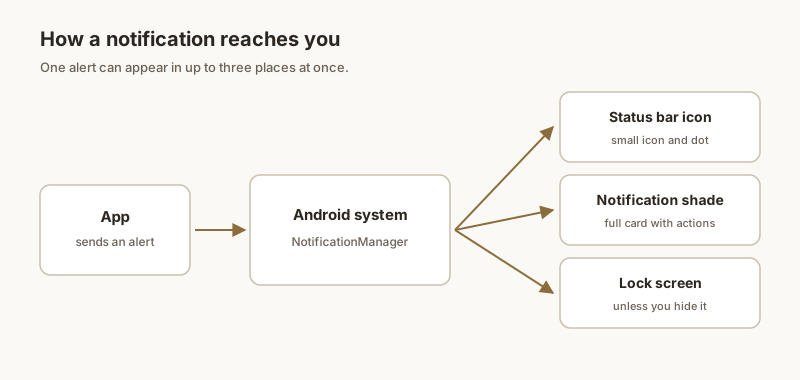
Method 1: Settings (the reliable way)
- Open Settings.
- Tap Notifications → App notifications (on some phones: Apps & notifications → [app] → Notifications).
- Find the app and make sure its master switch is on.
- Open the app's categories and confirm the ones you care about (Messages, Alerts) are enabled.
Method 2: From the app icon
A faster shortcut: from the home screen or app drawer, long-press the app icon → App info → App notifications, then toggle it on. This jumps straight to that app's settings without scrolling the full list.
Method 3: Websites & browsers
Notifications from a website (or Chrome) are controlled separately:
- Chrome: open the browser, Settings → Site settings → Notifications. Blocked sites are listed — tap one and turn it on.
- Also check Pop-ups and redirects if the site needs it.
- For social or web accounts, you can also re-enable alerts inside the site's own Account → Preferences → Notifications menu.
Method 4: Blocker & focus apps
Productivity or "focus" apps, and dedicated notification blockers, can silence other apps. If notifications vanished after installing one, open that app and turn off its blocking, or uninstall it. Then re-check the affected app's toggle (Method 1), since the block may have flipped it.
Method 5: Sideloaded apps (Restricted settings)
Apps installed from outside the Play Store are treated as less trusted, and Android may refuse to let them post notifications until you explicitly allow it:
- Settings → Apps, select the app.
- Tap the three-dot menu (top-right).
- Choose Allow restricted settings.
- Go back and enable notifications again.
Only do this for apps you trust. And remember: a blocked notification is different from a silenced one — see what silent notifications mean if the alert arrives but makes no sound.
Want a cleaner way to keep the alerts that matter visible? Dingpin pins important notifications to the top of your shade and keeps a searchable history — no digging through settings required.
Check the toggles first
Five places to look, in order:
- App notifications. Settings → Apps → [app] → Notifications → make sure the master toggle is on.
- Per-channel. Some apps have multiple channels; check that the relevant one is enabled.
- Do Not Disturb. Make sure DND is off or the app is exempted.
- Battery optimization. Set the app to Unrestricted.
- Background data. Some skins require background data to be allowed for notifications.
Per-app restart
If toggles look correct but notifications still do not arrive, force-stop and reopen the app:
- Settings → Apps → [app] → Force stop.
- Open the app fresh.
- Wait for any new messages and check whether they appear in the shade.
This re-registers the push notification token with the service.
Reinstall as last resort
If nothing else works, reinstall the app:
- Uninstall.
- Reinstall from the Play Store.
- Open the app and log in.
- Test with a fresh message.
A fresh install registers a clean push token with the server, which fixes most cases where notifications silently break.
After a system update
Major Android updates sometimes reset notification permissions or battery optimization settings. After every system update, audit your key apps (chat, email, calendar) and re-grant any permissions that got reset.
When you cannot unblock them
Sometimes the underlying app keeps failing to deliver notifications for reasons outside your control. As a backup, Dingpin captures whatever does arrive, so even delayed or partial notifications are preserved. See also: fixing delayed or missing notifications and keeping important notifications from disappearing.
Official documentation
If you want to check anything against the source, these are the pages this guide is based on:
FAQ
Why does it say "Android is blocking this app's notifications at your request"?
Because the app's notification toggle was turned off — often by accident, or because you declined when the app first asked. Re-enabling the toggle removes the message.
How do I unblock a website's notifications?
In the browser's Site settings, open Notifications, find the site in the blocked list, and turn it back on. In Chrome: Settings → Site settings → Notifications.
Does unblocking delete anything?
No. Unblocking only restores the app's ability to alert you; your account, messages, and settings stay exactly as they were.
Why do notifications appear but make no sound?
The alert is arriving but its sound is suppressed — usually by Do Not Disturb, a silent notification category, a per-app channel set to Silent, or audio routed to Bluetooth. The notification itself is not blocked.
Why are only some apps silent?
Each app has its own notification channel with its own sound setting. One app's channel can be set to Silent or Low while others are normal. Check that app's channel under Settings → Notifications → [app] → [category].
Does a factory reset fix missing notification sounds?
Rarely needed. A restart and re-checking Do Not Disturb, channels, and Bluetooth resolves the vast majority of cases. Treat a factory reset as a last resort, since it erases your data.
Why did my notifications stop showing on the lock screen?
Usually it's one of three things: the global "Show notifications on lock screen" setting got switched off, Do Not Disturb is active (DND hides alerts on the lock screen), or an app's lock-screen visibility is set to "Don't show" in its notification channel.
How do I turn notifications back on for the lock screen?
Open Settings → Notifications → Lock screen (or Notifications on lock screen), then choose "Show conversational, default, and silent" or "Show all notification content". On Samsung it's Settings → Lock screen → Notifications.
Can I show alerts without showing the message text?
Yes. Pick "Hide sensitive content" or "Show notification dots/icon only" instead of full content. The lock screen will then show that you have a notification without revealing the preview — the best of both worlds.
Why does only one app stay silent on the lock screen?
That app's notification channel has its lock-screen visibility set to "Don't show". Long-press the app's notification → tap the gear → Lock screen, and change it. You may need to repeat this per channel the app uses.
How do I show notifications on the lock screen but hide the text?
Choose "Hide sensitive content" (or "Show notification dots only"). You'll still see you got a notification, but the preview text stays private until you unlock.
Why can't I find notification settings on my phone?
Mostly because of manufacturer skins. Samsung, Xiaomi, OnePlus and others rename and relocate the menu, bury it under 'Advanced settings', or hide per-app controls behind a long-press on the app icon. Stock Android keeps them under Settings → Notifications.
Where are per-app notification settings?
The fastest route on any phone is to long-press the app icon on the home screen, tap the info/i button, then Notifications. You can also go through Settings → Apps → [app] → Notifications.
Do work profiles hide notification settings?
Yes. If your phone has a work profile (common on company devices), notification controls for work apps live inside the work tab of Settings and may be locked by your IT admin, so they can appear 'missing' from the personal side.
Why are my notifications delayed?
Android restricts background activity of rarely used apps to save battery, so pushes are held until you open the app.
How do I fix delayed notifications?
Set critical apps to Unrestricted battery, disable your phone maker's battery killers, and check Data Saver and Do Not Disturb.
Can a VPN or Wi-Fi cause missing alerts?
Yes. Push servers may be unreachable on bad Wi-Fi or some VPNs. Testing on mobile data can confirm it.
Will pinning help if notifications still arrive late?
Pinning with Dingpin will not speed delivery, but it keeps an important alert visible and searchable so a delayed OTP or delivery is not lost.
Did Android 15 block notifications by default?
No. Android 15 does not block notifications by default, but it adds a notification cooldown that can quiet repeated alerts from the same app, and system updates sometimes reset an app's notification permissions.
Why did my alerts stop right after updating?
Updates can reset notification permissions and turn on features like notification cooldown. Re-check the app's notification settings and its battery optimization after a major update.
Will Dingpin still show notifications after the update?
Yes, as long as its notification listener permission is still granted. If Android revoked it during the update, re-enable it when the app prompts you.
Does Android have a list of blocked notifications?
Not directly. Android does not keep a log of alerts that were blocked or silenced — it simply does not show them. You can check which apps are blocked in each app's notification settings, but there is no built-in history of what you missed.
Why did an app stop sending notifications?
Usually the app was muted, set to silent, blocked in settings, put to sleep by a battery optimizer, or caught by Do Not Disturb. Checking the app's notification importance and battery unrestricted setting resolves most cases.
How can I recover a notification I blocked?
You cannot recover an alert that was already blocked — Android never stored it. Going forward, use a tool like Dingpin that logs and pins incoming notifications so nothing is lost, even if you later mute the app.
How do I make a notification pop up on screen?
Set the app's notification channel to the highest importance ('make sound and pop on screen') in Settings. That triggers a heads-up banner for its alerts.
Can I give different apps different sounds?
Yes. Open the app's notification settings and choose a distinct sound per channel so you can tell alerts apart by ear.
Why don't my notifications show on the lock screen?
Lock-screen notifications are controlled per app in Settings. Enable them, or choose to show only the app name to protect sensitive content.
How do I keep the most important alert on top?
Pin it. Dingpin lets you pin key notifications to the top of the shade so they are never buried by newer ones.
Why is the Clear all button missing on my Android?
It can be hidden by your launcher or OEM skin, disabled when there are no dismissible notifications, or moved into a long-press or three-dot menu on some phones. Samsung, Xiaomi, and OnePlus each place the control differently.
How do I clear all notifications without the button?
Swipe down to open the shade, then tap the trash or clear icon (often at the bottom or in the three-dot menu). On many phones a long-press on one notification reveals a Clear all option. Some ROMs also offer a quick-settings tile.
Can I make the Clear all button always show?
On stock Android it's usually pinned at the bottom of the shade by default. If your OEM hid it, check notification settings, or use a third-party launcher or notification app that restores a persistent clear action.
Does clearing all delete my notification history?
No. Clearing only removes the visible alerts. Android's notification history (Settings to Notifications to Notification history) still keeps recently dismissed ones for about 24 hours.