Why notifications disappear
Notifications get buried when newer ones arrive, when the app cancels its own card, after a restart, or when you clear the shade. None of that is malicious — it is just how Android manages a crowded panel. The fix is to decide, deliberately, which alerts are worth keeping.
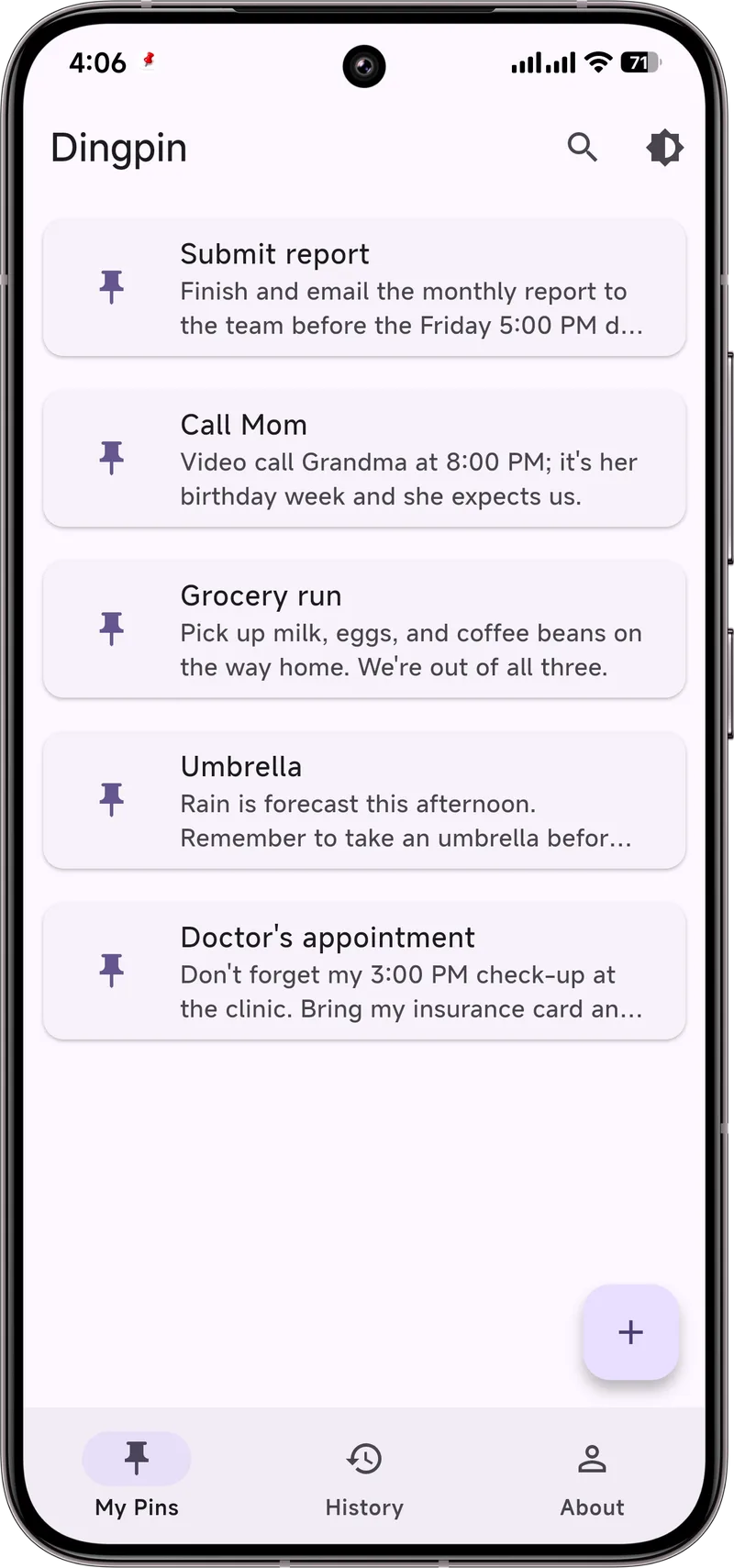
Pin the ones that matter
Pinning freezes a notification at the top so it cannot be pushed down. On Samsung you can use the built-in Pin; on most other phones the reliable route is Dingpin, which pins many notifications, survives restarts, and lets you add a note. Pin the one-time code, the address, the “remember to call” — not the whole stream.
Raise their importance
For apps you never want to miss, open Settings → Notifications → [app] and set the relevant channel to the highest level (“make sound and pop on screen”). That keeps the alert loud and visible instead of silently sliding into the shade.
Keep a safety net: history
Android 11 and later keep a notification history (Settings → Notifications → Notification history) that captures dismissed items for a while. Turn it on as a backup so even a cleared alert is recoverable. Dingpin also stores pinned items separately so they are never lost in the shuffle.
A simple routine
Make it a habit: when a notification carries something you will need later, pin it immediately. Let everything else flow past. You end up with a short, intentional list at the top instead of a shade you are afraid to clear.
Why important alerts vanish
Several mechanisms can quietly remove a notification you cared about:
- You swiped it. Either by accident or on autopilot while clearing the shade.
- System auto-cleared. Some notifications have a TTL (time to live) and expire after a set period.
- Battery optimization. Aggressive battery savers can suppress background notifications.
- App crash. If the sending app crashes, its active notification sometimes disappears.
- Phone reboot. Some notifications do not survive a restart.
Knowing which one removed your alert tells you how to prevent it next time.
Pin as your first line of defence
The most reliable way to keep a notification visible is to pin it the moment it arrives. Dingpin parks the alert at the top of the shade and keeps it there across reboots, app crashes, and accidental swipes. Pinned items are essentially immune to all the disappearance mechanisms above except an explicit unpin.
Notification history as a safety net
Even when a pinned alert survives, you want a backup. Android's built-in Notification History (Settings → Notifications → Notification history) keeps a 24-hour log of every notification that arrives after you enable it. A third-party app like Dingpin extends that window indefinitely and adds search.
Defending against battery optimization
For apps whose notifications you cannot miss:
- Settings → Apps → [app] → Battery → set to Unrestricted.
- Settings → Apps → [app] → Notifications → make sure no channels are muted.
- Check Settings → Battery → Battery Saver → Excluded apps to whitelist the apps you care about.
Right importance level matters
Setting the right importance level on each notification channel prevents auto-dismissal:
- Urgent. Survives the longest; only cleared manually or by app.
- High. Cleared by user or auto-dismiss in shade.
- Low. Cleared most aggressively; often auto-dismissed after a few seconds.
For anything that must stick around, keep it at Urgent.
Build a notification backup habit
Two small habits prevent most lost-alert frustration:
- Pin anything you might need later. Even if it is a 30-second code, pin it until you have used it.
- Export before clearing. Use Dingpin's export feature (by day/week/month/all) to dump important notification groups before bulk-clearing the shade.
For the broader story, see pinning notifications on Android, why notifications disappear, and fixing delayed or missing notifications.