You pull down the shade and there it is — a notification with no sound, no buzz, no pop-up. That is a silent notification: Android's way of keeping you informed without interrupting you. Here is what it means and how to control it.
Alerting vs silent
Google splits notifications into two basic levels:
- Alerting: you hear a sound, feel a vibration, and may see a pop-up banner when the phone is unlocked.
- Silent: the phone makes no sound and no vibration, and the alert does not pop over what you are doing. It simply waits in the shade until you look.
What silent does and doesn't do
A silent notification still lands in your notification shade. On most phones it can still show a status-bar icon and an app badge, so you get a quiet visual nudge — just no ping. It will not light up the screen, vibrate, or steal focus.
How to make a notification silent
You can silence alerts in two ways:
- From the shade: swipe a notification slightly, tap the settings gear or menu, and choose Silent (or Apply). Future alerts from that same category arrive quietly.
- From Settings: Settings → Notifications → App notifications, pick the app, open a category (Messages, Promotions, Background tasks), and set it to Silent. This is the better route when you want to tune a whole category rather than guess from one alert.
Silent is not blocked
This is the key distinction. Blocking stops an alert from arriving at all. Silencing keeps it available for later. That makes silent the right move for apps you want installed but don't want hearing from every hour — promos, shipping updates, and background sync fit here perfectly.
Good times to use it
- Weather and traffic updates.
- Package tracking and receipts.
- Loyalty or "new post" alerts from shopping and social apps.
- Any "check when you have a minute" alert you don't want buzzing in a meeting.
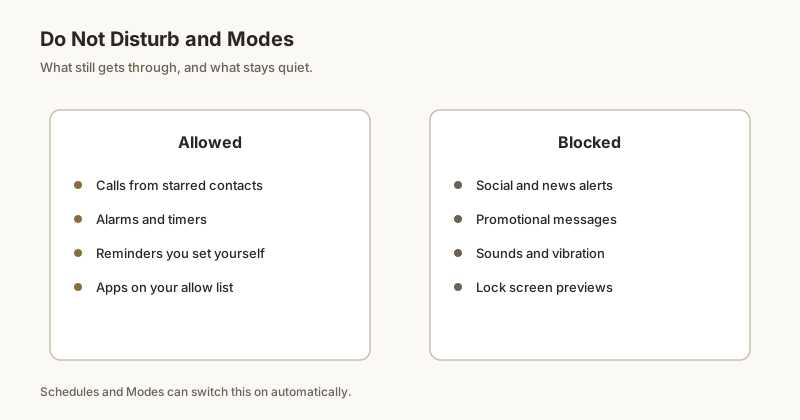
Prefer a stronger boundary? Pair silent categories with Do Not Disturb or per-app muting. And if you want a specific alert to never scroll away, Dingpin can pin it to the top of your shade.
What "silent" means
A silent notification is one with the lowest importance setting. It does not make sound, does not vibrate, and does not show a heads-up banner. The notification still arrives in the shade, but it does not interrupt you.
When silent is useful
Silent notifications shine in a few scenarios:
- Background updates. App updates, sync completions, weather refreshes — useful to see later, not now.
- Low-priority alerts. Group chats, promotional messages, news updates that you do read eventually but do not want interrupted by.
- Conversation continuations. Some chat apps post a silent notification when a conversation updates without a new message.
How to set an alert to silent
- Settings → Notifications → App notifications → [app].
- Tap the channel you want to silence.
- Set importance to Silent.
Some apps also have a per-conversation "silent" toggle in their own settings.
Silent vs. muted
Two different things:
- Silent notification. Still arrives in the shade, just without sound or banner.
- Muted app/channel. Notification does not appear at all.
Use silent when you want to check the alert later; use mute when you do not want to see it at all.
The pile-up risk
If you set too many channels to silent, your shade fills with quiet alerts that are easy to ignore. A weekly sweep of the silent channel list keeps the count manageable. Or pin important alerts so they do not get lost in the silence pile.
For the broader story, see stop notification sound but keep vibration, notification importance, and how to silence notifications on Android.
Official documentation
If you want to check anything against the source, these are the pages this guide is based on:
FAQ
Does a silent notification still appear?
Yes. A silent notification still shows in your notification shade (and may still show a status-bar icon or app badge) — it simply arrives without a sound, vibration, or pop-up.
Is a silent notification the same as a blocked one?
No. Blocked means the alert never arrives at all. Silent means it arrives quietly and waits for you to look. Silencing is the better middle ground for apps you want to keep but don't want pinging you constantly.
Can I silence one app but keep another loud?
Yes. Android lets you set behavior per app and even per notification category (channel), so you can keep message alerts loud while making promos or background sync silent.
How do I make one app silent but keep it visible?
Set that app's notification channel to Silent (no sound or vibration) in Settings, then Apps, then the app, then Notifications. The alert still appears in your shade — just quietly, with no ping.