"Silence notifications" can mean different things: no sound, no vibration, no pop-up, or all three. Android lets you quiet things at several levels — per app, per group chat, or the whole phone with Do Not Disturb. Here is how to silence notifications on Android the smart way, and how to make sure the alerts you actually need still reach you.
Silence one app
- Open Settings → Notifications → App notifications.
- Tap the app.
- Toggle its notifications off, or open a category and set importance to Silent.
Silenced notifications still arrive in your shade — they just stop making noise or vibrating. For the full walkthrough, see how to mute notifications for specific apps.
Silence a group chat
You rarely want to mute a person, just a noisy group. In most chat apps:
- Open the conversation.
- Tap the name or the three-dot menu.
- Choose Mute, often with a duration and a "don't show badge" option.
WhatsApp and similar apps let you mute for 8 hours, 1 week, or always. See muting a WhatsApp group for that specifically.
Do Not Disturb & Focus
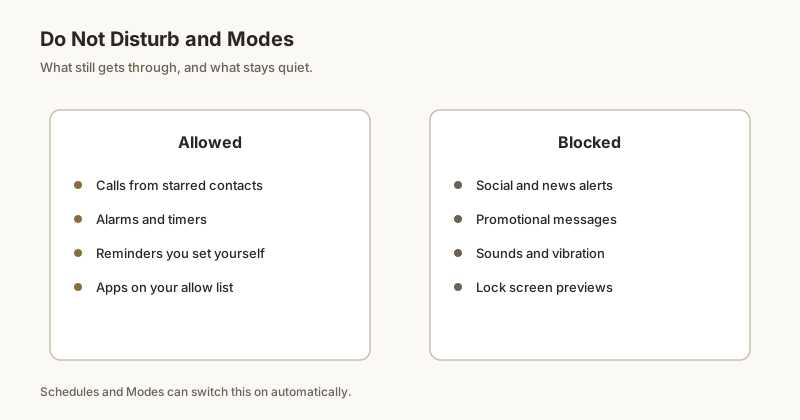
To silence everything at once, use Do Not Disturb (or a Focus mode). It silences the whole phone unless you allow exceptions — specific apps, repeated callers, alarms. It is the nuclear option: great at night, but it also hides the alerts you might still want during the day. Details in Do Not Disturb & Focus mode.
Keep sound, drop vibration (and vice versa)
Sometimes you only want to change one signal. You can keep the sound but disable vibration, or the reverse:
- To keep the alert but lose the banner, see turning off floating notifications.
- To keep sound but stop vibration, or stop the sound entirely while keeping the shade alert, see stop notification sound but keep vibration and silent notifications.
Keep the alerts you need
The risk with silencing is that you silence too much and miss something important — an OTP, a delivery update, a message from a specific person. Built-in muting is per app or per chat, not "keep this one alert but quiet the rest."
Dingpin fills that gap: let noisy apps go silent, then pin the notifications you care about so they stay at the top of your shade instead of getting lost. You get quiet, but never miss what matters. It is free, needs no account, and works on any Android 8+ phone including Pixel, Galaxy, and Xiaomi.
Per-app silence
The simplest way: Settings → Apps → [app] → Notifications → set importance to Silent or off. The app still runs but does not interrupt you.
Per-channel silence
For chat apps with multiple channels, mute just the noisy channel (e.g., group messages) while keeping direct messages loud. Drill into Settings → Apps → [app] → [channel] → set to Silent.
Use DND for time-based silence
Settings → Notifications → Do Not Disturb → schedule. Pick quiet hours (commonly 10pm–7am) and the system mutes notifications during that window. Exceptions let specific contacts or apps through.
Focus Mode for category silence
Settings → Notifications → Focus Mode. Pick the apps to silence in this session and toggle on. Useful during work blocks when you want social apps quiet but email and calendar loud.
Per-chat silence in messaging apps
For noisy chats: long-press → mute. Most chat apps support 8-hour, 1-week, or always. Mute persists across phone reboots.
Scheduling silence
Combine DND schedule with app-level mute:
- DND during sleep (10pm–7am) — silence everything.
- Focus Mode during work (9am–5pm) — silence social apps.
- App-level mute for permanently noisy apps.
The Dingpin exception
When you silence most notifications, the ones you cannot miss should be pinned. Dingpin keeps pinned items visible regardless of DND or per-app silence. See also: Do Not Disturb and Focus Mode and how to stop notifications for an app.
Official documentation
If you want to check anything against the source, these are the pages this guide is based on:
- Limit interruptions with Modes and Do Not Disturb (Android Help)
- Notifications overview (Android Developers)
FAQ
How do I silence notifications on Android?
Open Settings, Notifications, App notifications, choose the app, and set it to Silent or toggle it off. The notification still arrives in your shade without sound or vibration. For the whole phone, use Do Not Disturb with exceptions.
Can I silence just one group chat?
Yes. Open the conversation in your chat app, tap the name, and choose Mute — usually with a duration and a no-badge option. This is safer than muting the entire app.
Does silencing delete the notification?
No. A silenced notification still shows up silently in your shade. It is not removed; it just stops making noise or vibrating.
How do I keep important alerts but stay quiet?
Let noisy apps go silent, then pin the alerts you care about with an app like Dingpin so they stay visible at the top of your shade on your schedule.