A message pops in at the top of your screen, then vanishes before you can read it. That brief, slide-in alert is a floating notification (Android calls it a "heads-up notification"). It is useful for things that need your attention right now — an incoming call, a turn-by-turn direction, a security code — but it can also feel interruptive when apps overuse it. Here is what floating notifications are, how to control them per app, and how to keep the alerts that matter without the noise.
What a floating notification is
When an app sends a notification marked high importance, Android shows it as a temporary banner that floats over whatever you are doing — at the top of the screen on phones, or a small window on some tablets. This is the "heads-up" alert. After a few seconds, or the moment you tap elsewhere, it drops into the regular notification shade.
Not every alert floats. Only notifications with high importance (or a call/ongoing category) appear as heads-up banners; everything else goes straight to the shade silently. You control which apps get to float by changing their notification importance or channel settings.
Turn floating alerts on or off per app
To stop a specific app from popping up — or to make sure it does:
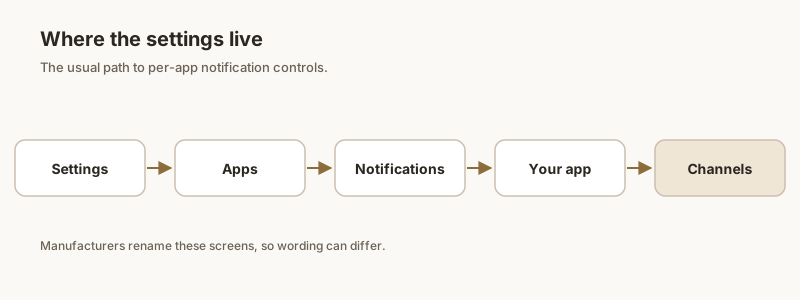
- Open Settings → Notifications → App notifications (on some phones: Settings → Apps → [app] → Notifications).
- Tap the app you want to change.
- Find the relevant category / channel (for example "Messages" or "General").
- Set its importance to Urgent / Make sound and pop up to enable floating, or Alerting / Silent to disable it.
On Samsung Galaxy, the same control is under Settings → Notifications → Advanced settings → Show only while using apps for a global cap, plus per-app importance in each app's notification menu. On Pixel, per-app importance lives in Settings → Notifications → App notifications → [app].
If you want no floating banners at all, you can lower every app's importance, or use Do Not Disturb with "No visuals" — but that also hides the shade alerts you might still want.
Floating banner vs chat bubble
People often confuse the two because both float on screen:
- Heads-up banner: a short, auto-dismissing alert for any high-importance notification. Controlled by notification importance.
- Chat bubble: a persistent floating chat icon for a specific conversation (mostly messaging apps). Controlled by Settings → Notifications → Bubbles, per app and per chat.
Turning off bubbles does not stop heads-up banners, and vice versa. If a chat keeps popping up as a bubble, disable bubbles for that conversation; if it pops up as a banner, lower that app's notification importance.
Keep alerts without the interruption
Floating banners are all-or-nothing: either an app shouts at you, or it goes silent. There is no built-in "show it, but don't interrupt" middle ground for most apps. That is the core frustration — you want to see an OTP or a delivery update, but you do not want a banner yanking your attention mid-task.
The practical workaround is to let important apps stay silent in the shade, then rely on a dedicated tool to surface what matters. Lower the app's importance so it stops floating, and use an app that lets you pin and review alerts on your own schedule.
Pin what matters with Dingpin
Dingpin keeps the notifications you care about pinned at the top of your shade — OTPs, delivery updates, reminders, important messages — so they stay visible long after a floating banner would have vanished. You can turn off the noisy floating pop-ups from those apps and still never lose the alert, because Dingpin holds it in a clean, tappable list. It works across Pixel, Galaxy, Xiaomi, and other Android 8+ phones, with no account required.
Official documentation
If you want to check anything against the source, these are the pages this guide is based on:
FAQ
What does a floating notification mean?
A floating notification is the brief banner that slides in at the top of your screen for an alert set to high importance — Android's "heads-up" notification. It is the same notification you would see in your shade, just shown in a more urgent, on-top-of-everything format for a few seconds.
Are floating notifications the same as chat bubbles?
No. A floating (heads-up) notification is the brief banner that slides in at the top of the screen for any alert set to high importance. A chat bubble is a persistent floating chat icon for a specific conversation. They look similar but are controlled in different settings.
Why do my floating notifications disappear so fast?
Heads-up banners auto-dismiss after a few seconds, or the moment you touch the screen elsewhere. That is normal behavior — the full alert then drops into the notification shade, where it stays until you clear it.
Can I keep important alerts floating longer?
Android does not let you extend the heads-up duration. The reliable way to keep an alert visible is to pin it with an app like Dingpin so it stays at the top of your shade instead of vanishing in seconds.
How do I stop floating notifications from popping up over other apps?
Open Settings, then Notifications, then the app, and turn off Pop on screen or set its importance to Low. The banner stops covering what you are doing, but the alert still lands in your shade.