You installed Android 16 and something about your notifications feels off — an app went quiet, a setting moved, or alerts behave differently than before. That's normal after a major version jump. This guide explains what commonly shifts and how to get your alerts back under control.
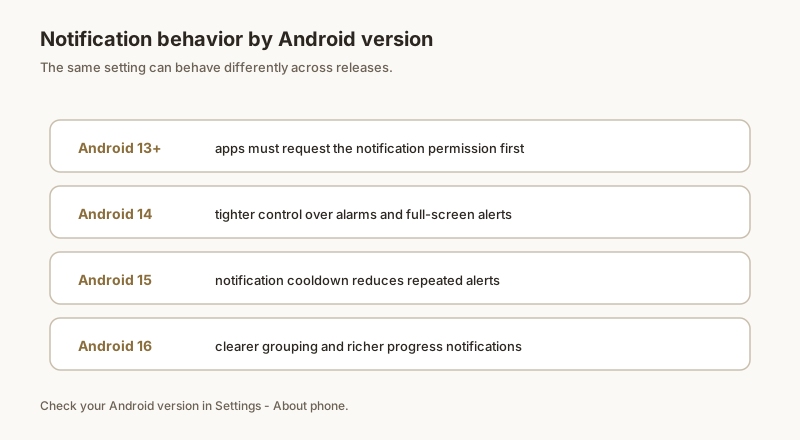
Did Android 16 change notifications?
Android 16 carries forward the notification model from Android 15, including notification cooldown on supported devices (which quietly delays repeated alerts from the same app). The bigger practical change isn't a feature you can see — it's that a major update can reset or reorganize preferences you'd already set. So the "what broke" is usually your own tuned settings reverting, not a new bug.
Common post-update shifts
- Channels reset: per-app importance, sound, and vibrate can revert to defaults.
- Cooldown on by default: if your device supports it, repeated alerts may now be delayed where they weren't before.
- DND exceptions cleared: apps you'd allowed through Do Not Disturb may be dropped.
- Battery optimization reapplied: key apps can be put back into battery saving, delaying alerts.
- Moved menus: some notification entries relocate between versions — look under Settings → Notifications → Advanced.
Re-tune after the update
- Importance: Settings → Apps → [app] → Notifications → tap each channel → set importance (Urgent/Low).
- Cooldown: Settings → Notifications → Notification cooldown — turn off if repeated alerts now feel buried.
- DND: Settings → Notifications → Do Not Disturb → Exceptions — re-add calls, messages, or specific apps.
- Battery: Settings → Battery → Battery optimization → set key apps to "Don't optimize."
- Test by sending yourself a message or using the app's preview notification.
If alerts broke after updating
If an app simply isn't alerting post-update, walk the standard troubleshooters: notification access, the app's channels, DND, and battery. Our Android 15 fixes guide applies to Android 16 too, since the underlying causes are the same.
Stay protected across updates
The annoying part of any upgrade is rediscovering which setting reverted. Dingpin helps by pinning the notifications you can't afford to miss — OTPs, deliveries, key messages — so even if Android silences or buries an alert after an update, the pinned copy stays at the top of your shade. It works the same on Android 15 and 16, no account required.
What Android 16 changed
Android 16 (released mid-2025) refined notification behavior in three meaningful ways:
- Smarter importance default. Apps can no longer default to High importance for new installs; the system promotes to High only after observing real user interaction.
- Per-channel pop-up controls. Heads-up banners can now be disabled per channel, not just per app.
- Notification cooldown. A new API lets apps declare a "cooldown" period — for example, a delivery app may post a single combined update every 5 minutes instead of spamming per-item.
What this means for you
If you upgrade from Android 15 to 16:
- You may notice apps that previously had High importance now have Medium. Adjust per channel if needed.
- Heads-up banners may behave slightly differently per channel.
- Some chatty apps will automatically reduce their notification volume.
Migrating your settings
After upgrading:
- Audit notification channels for your top 5 apps. Importance levels may have shifted.
- Re-test DND exceptions to make sure the apps you expect to break through still do.
- Check per-channel pop-up controls to ensure your most important channels still show heads-up.
Behind the scenes
For developers, Android 16 introduces new APIs that make notification management more granular. The user-visible result is a calmer phone — apps that previously over-notified will tone themselves down automatically. See also: notification channels, Samsung notification cooldown, and notification importance.
Official documentation
If you want to check anything against the source, these are the pages this guide is based on:
FAQ
Did Android 16 change how notifications work?
Android 16 continues the notification behavior introduced in Android 15, including notification cooldown on supported devices. As with any major update, the upgrade can reset or reorganize some notification preferences, move a setting, or change default importance — so apps that alerted loudly before may arrive quieter afterward until you re-check them.
Why did my notification settings reset after Android 16?
Major OS upgrades sometimes rebuild the notification database or apply new defaults. Channels you tuned, importance levels, and cooldown/DND choices can revert. Re-open Settings → Apps → [app] → Notifications and confirm each channel's importance, sound, and vibrate are still what you want.
How do I fix notifications after updating to Android 16?
Re-check four things: per-app notification importance, Notification cooldown (if present), Do Not Disturb exceptions, and battery optimization for key apps. Then test by sending yourself a message. Using Dingpin to pin must-see alerts also protects you from any setting that silently reverts.