You don't want your phone beeping in a meeting, but you still want to feel that a message arrived. The good news: Android can mute the sound while keeping the buzz — either for the whole phone or for a single app. Here's the cleanest way to do it.
Silent mode vs Do Not Disturb
These two are often confused, and they behave differently for vibration:
- Silent mode (ringer off) — mutes notification/ringtone sounds but usually keeps vibration on. This is what you want for "quiet but buzzy."
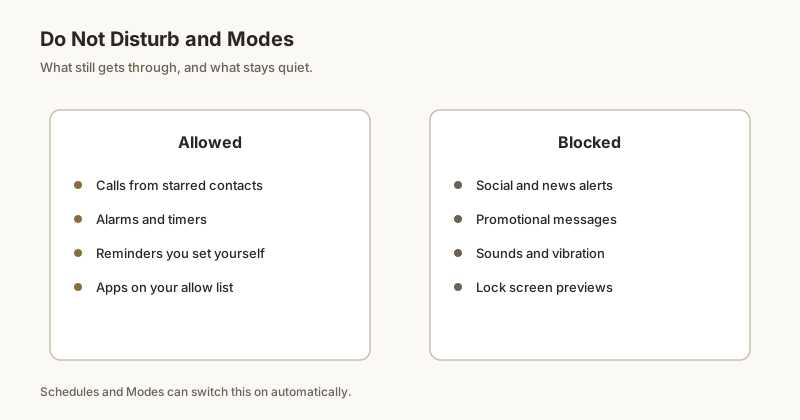
- Do Not Disturb — can suppress both sound and vibration unless you add the app or "alerts" as an exception. Use DND when you want total quiet, not when you want buzz.
So for this goal, prefer Silent mode (press the volume key → tap the bell/slash icon, or use the volume rocker to the bottom).
Per-app: channels
To silence just one app's sound but keep its buzz:
- Open Settings → Apps → [the app] → Notifications.
- Tap the specific category/channel (e.g. "Messages," "Alerts").
- Set Sound → None (or "Silent"), and make sure Vibrate is toggled on.
Because Android 8+ uses per-channel settings, you can fine-tune each alert type within an app independently.
The "Silent" channel trick
Some phones (Pixel stock, many others) offer a dedicated "Silent" channel or a global "Silence notifications" toggle per app that removes the sound while still letting the notification appear and — if you keep vibrate on at the channel level — buzz. This is ideal for apps whose content you want to see but never hear.
Ring vs media volume
Notification sounds follow the Ring & notification volume, not media. If notifications are silent but music plays, your notification volume is probably at zero — raise it, then use the channel's "None" setting instead to kill the sound selectively.
If vibration won't fire
- Confirm the channel's Vibrate is on.
- Check Settings → Sounds & vibration → Vibration (or "Touch vibration") isn't fully disabled.
- Look for a master "Vibrate on silent" switch and enable it.
- Make sure battery optimization isn't killing the app before it can buzz.
When an alert is silent and only buzzes, it's easy to miss visually — Dingpin can pin the ones that matter so they stay at the top of your shade instead of scrolling away.
The three notification channels
Android distinguishes three forms of alert for each channel:
- Sound. An audio tone or ringtone.
- Vibration. A physical buzz pattern.
- Visual. Heads-up banners, lock-screen pop-ups.
Each can be turned on or off independently for each channel. To keep vibration but stop sound:
- Settings → Apps → [app] → [channel].
- Sound → Silent.
- Vibration → on (with custom pattern if you like).
Global sound-only mute
To silence all sounds while keeping vibration everywhere:
- Settings → Sounds & vibration → Volume sliders.
- Drag Ring & notification volume to zero.
- Leave Media and Alarm volumes at preferred levels.
This silences notifications specifically without affecting music or alarms.
Vibration patterns
Each channel can have a custom vibration pattern. For important channels (urgent alerts), use a longer, more intense pattern. For less important, use a short tap. Most Android phones let you create custom patterns in the channel settings.
When sound-off / vibration-on is right
- Open-plan offices. Vibration only; colleagues are not disturbed.
- Meetings. Vibration for urgent items; no sound for ambient alerts.
- Quiet hours. Vibration for calls and messages; no sound for app updates.
Where vibration is not enough
If you miss vibration-only alerts, the next step is to pin important notifications so they remain visible in the shade. Dingpin keeps the alert at the top regardless of vibration. See also: how to silence notifications on Android and keeping important notifications from disappearing.
Official documentation
If you want to check anything against the source, these are the pages this guide is based on:
FAQ
Does silent mode keep vibration?
Usually yes. On most Android phones, the physical volume Silent mode mutes the ringtone and notification sounds but keeps vibration on by default. Do Not Disturb is different — it can suppress vibration too, depending on your 'alerts' exceptions. If you want buzz but no sound, Silent mode (ringer off) is the safer choice; use DND only if you configure vibration as an allowed exception.
How do I mute sound but keep vibrate for one app?
Open Settings → Apps → the app → Notifications, tap the specific channel, and set its sound to 'None' (or 'Silent') while leaving 'Vibrate' enabled. On Android 8+ this is per notification channel, so you can silence just that app's alerts while it still buzzes.
Why is there no vibration even on silent?
Check three things: the channel's 'Vibrate' toggle is actually on, system 'Vibration' / 'Touch vibration' isn't disabled in Sounds & vibration, and battery optimization isn't killing the app before it can buzz. Some phones also have a separate 'Vibrate on silent' master switch that must be enabled.
How do I mute one app's notifications on Android?
Open Settings, Notifications, App notifications, choose the app, and toggle its notifications off or mute specific categories. You can also long-press a notification and tap Settings.
Can I mute just one group chat?
Yes. In most chat apps, open the conversation, tap the name, and choose Mute, often with a duration and a badge option.
Does muting an app delete its notifications?
No. Muted notifications still arrive but silently. They appear in the shade without sound or vibration.
Is muting the same as Do Not Disturb?
No. Per-app muting silences one app while others ring. Do Not Disturb silences the whole phone unless you allow exceptions.
Can you mute notifications for just one person on Android?
Yes. In most chat apps you can open the contact or group and choose Mute. For SMS or RCS in Google Messages you can also mute a single conversation. This silences that person only, not your whole phone.
How do I mute one contact in WhatsApp?
Open the chat with that contact, tap the three-dot menu or the contact name at the top, choose Mute, pick a duration (8 hours, 1 week, or Always), and confirm. Their messages stop making sound and vibrating but still arrive.
Does muting a contact hide their messages?
No. Muting only stops the sound, vibration, and pop-up. The messages are still delivered and visible in the chat when you open it. If you also want privacy, see the lock-screen guide.
What if my phone has no per-contact mute option?
Use the chat app's own mute setting — almost every messenger (WhatsApp, Telegram, Messenger, Signal) supports it. As a fallback, you can set that app's notification channel to Silent in Android settings.
Can I mute a contact in Google Messages or Samsung Messages?
Yes. Open the conversation, tap the three-dot menu (or the contact name), and choose Mute / Notifications — Silent. Their messages keep arriving but stop making noise.
What are the pop-up notifications on Android called?
They're called heads-up notifications (or "peeking" notifications). They slide in at the top of the screen over whatever you're doing — handy for calls and alarms, annoying for every group chat ping.
How do I stop an app's pop-ups but keep its sound?
Long-press the app's notification → gear icon → the app's channel → set "Importance" or "Pop on screen" to a lower level (e.g. "Low" or "Min"). The alert still arrives in the shade and can still make a sound, but it stops floating over your screen.
Is there a global way to silence all pop-ups?
Yes — turn on Do Not Disturb, or set the phone to a Focus mode. DND suppresses heads-up pop-ups for everything (with optional exceptions). For a lighter touch, lower the importance per app as above.
Why do pop-ups still show for some apps after I changed settings?
Ongoing notifications (like navigation or a foreground call) always pop up by design. Also, some apps use multiple channels — you may have lowered one but not the "Calls" or "Alerts" channel. Check each channel under the app's notification settings.
How do I mute a WhatsApp group on Android?
Open the group chat, tap the group name at the top, choose Mute, pick 8 hours, 1 week, or Always, and confirm. Messages still arrive silently; you won't get sound or vibration.
Can I mute only when I'm not mentioned?
Yes. In the same mute settings, turn on Mute notifications except when mentioned (or Notify me when mentioned). You'll only be alerted when someone tags you, which is the best setting for busy groups.
How do I mute several groups at once?
There's no single bulk switch, but you can mute each group from the chat list with a long-press then Mute, or set custom notifications per chat. For many groups, muting except-mentions per group is the fastest.
Does muting a group hide new messages?
No. The group stays in your list and new messages are visible when you open it; muting only stops the alert. If you also want privacy on the lock screen, hide previews separately.
How do I turn on Do Not Disturb?
Swipe down twice for Quick Settings and tap Do Not Disturb. Most sounds and vibrations are then suppressed.
Can I let important calls through DND?
Yes. Set DND to Priority only and allow starred contacts, repeat callers, alarms, and specific apps.
What is the difference between DND and Focus Mode?
DND silences alerts. Focus Mode, found in Digital Wellbeing, also pauses chosen apps so you are not tempted to open them.
Does DND help me find a notification later?
Not by itself. Pin a delivery update or OTP with Dingpin before enabling DND so it stays easy to find afterward.
Does a silent notification still appear?
Yes. A silent notification still shows in your notification shade (and may still show a status-bar icon or app badge) — it simply arrives without a sound, vibration, or pop-up.
Is a silent notification the same as a blocked one?
No. Blocked means the alert never arrives at all. Silent means it arrives quietly and waits for you to look. Silencing is the better middle ground for apps you want to keep but don't want pinging you constantly.
Can I silence one app but keep another loud?
Yes. Android lets you set behavior per app and even per notification category (channel), so you can keep message alerts loud while making promos or background sync silent.
How do I make one app silent but keep it visible?
Set that app's notification channel to Silent (no sound or vibration) in Settings, then Apps, then the app, then Notifications. The alert still appears in your shade — just quietly, with no ping.
Can I turn off all notifications at once on Android?
There is no single switch that disables every app at once. The closest options are Do Not Disturb (silences alerts without deleting them) or turning off notifications app by app. Some launchers and OEM tools offer bulk toggles, but they vary by device.
Does turning off notifications break the app?
No. Disabling an app's notifications only stops it from alerting you; the app still works, your account and messages stay intact, and you can re-enable alerts anytime.
What is the difference between muting and turning off?
Turning off removes the notification entirely (no banner, no sound). Muting keeps the notification visible but silent. If you still want to see an alert but not be interrupted, mute it instead of turning it off.