Notifications show up but stay silent — no chime, no buzz. Before you dig through settings, the key idea: the alert is arriving; its sound is just being suppressed somewhere. That narrows the hunt to a handful of switches. Here are the seven fixes, in order of how often they're the culprit.
Fix 1: Silent switch & media volume
Some phones (notably Pixels) have a physical silent/mute toggle; if it's flipped, every notification is muted. Also press a volume key, tap the settings icon in the volume popup, and make sure Alarm/Notification volume — not just media — is up. Plenty of "no sound" cases are just the notification slider sitting at zero.
Fix 2: Do Not Disturb & Focus mode
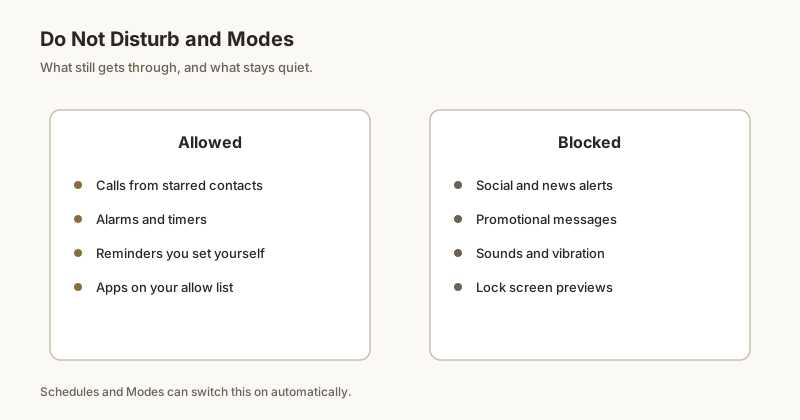
Do Not Disturb (or a Focus mode like Driving/Bedtime) silences alerts except your allow-list. Pull down the shade and look for a circle-with-a-line icon. If it's on, tap to turn it off, or open Settings → Notifications → Do Not Disturb to check schedules — many phones auto-enable it at night or while driving.
Fix 3: Per-app notification channels
Since Android 8, each app has separate channels (e.g. "Messages", "Promotions"), and each can have its own sound — including Silent. Go to Settings → Notifications → [app] → [category] and confirm the channel's sound isn't set to None and its importance isn't "Silent". This is the most common reason one specific app goes quiet while others are fine.
Fix 4: Bluetooth routing
If headphones, earbuds, or a car stereo are paired, Android may route the notification sound there — so your phone stays silent while the sound plays (invisibly) through Bluetooth. Disable Bluetooth or unpair the device, then test. Also check Separate app sound on Samsung if you use it.
Fix 5: Battery optimization
Aggressive battery savers (especially on Xiaomi, Huawei, OnePlus) can throttle an app into "standby", delaying or silencing its alerts. Open Settings → Apps → [app] → Battery and set it to Unrestricted (or turn off battery optimization for that app).
Fix 6–7: Restart & clear cache
A plain restart clears transient audio-glitch states and fixes a surprising number of cases. If it persists, clear the app's cache (Settings → Apps → [app] → Storage → Clear cache) — not data, so your login stays. A factory reset is almost never required; try it only after every step above fails.
Want the alerts that matter to never slip by silently? Dingpin pins important notifications to the top of your shade and keeps a searchable history — no digging through sound settings required.
The volume checks first
Three sliders control notification sound on Android:
- Ring & notification volume. The main slider for notification sound.
- Media volume. Affects music and video, not notifications — easy to confuse.
- Alarm volume. Affects alarm clock only.
Make sure Ring & notification volume is up. Quick Settings → drag the volume slider (the longest one).
DND can silence without showing
Check that DND is off. When DND is on, notifications still arrive in the shade but do not make sound. Quick Settings → look for the DND tile state.
Per-channel sound
Each channel has its own sound. To set:
- Settings → Apps → [app] → [channel].
- Tap Sound → pick a tone.
If the channel is set to Silent, no sound will play regardless of system volume.
Importance set to Low or Silent
Notifications with Low or Silent importance do not play sound even if a sound is selected. The setting is in the same channel screen as the sound picker. Bump to Medium, High, or Urgent to hear the alert.
Ringer is muted but volume is up
Some Android phones have a hardware mute switch or a "ringer" toggle that overrides volume. On Samsung, the side buttons adjust media volume by default in some setups — press the side key during an incoming call to confirm.
Third-party apps that block sound
Some accessibility apps, volume boosters, or "Do Not Disturb" apps can intercept notification sounds. Temporarily disable such apps to test. If a recently installed app is the cause, uninstall it.
When sound is the wrong answer
If you are in a meeting or quiet space, sound is the wrong solution. Pin the notification with Dingpin instead — silent but visible. See also: stop notification sound but keep vibration and how to silence notifications on Android.
Official documentation
If you want to check anything against the source, these are the pages this guide is based on:
FAQ
Why do notifications appear but make no sound?
The alert is arriving but its sound is suppressed — usually by Do Not Disturb, a silent notification category, a per-app channel set to Silent, or audio routed to Bluetooth. The notification itself is not blocked.
Why are only some apps silent?
Each app has its own notification channel with its own sound setting. One app's channel can be set to Silent or Low while others are normal. Check that app's channel under Settings → Notifications → [app] → [category].
Does a factory reset fix missing notification sounds?
Rarely needed. A restart and re-checking Do Not Disturb, channels, and Bluetooth resolves the vast majority of cases. Treat a factory reset as a last resort, since it erases your data.