Floating (heads-up) notifications are useful for an incoming call, but annoying when a shopping app shouts at you mid-scroll. The good news: you can stop the banners without losing the notifications entirely. Here is how to turn off floating notifications on Android, with the exact steps for Samsung, Pixel, and Xiaomi.
Why banners float in the first place
A notification only appears as a heads-up banner when its app is set to high importance. Lower that importance and the banner stops covering your screen — the notification still arrives in your shade, just silently. So "turning off floating notifications" really means "lowering notification importance" for the apps you find interruptive.
Turn them off per app (stock Android)
- Open Settings → Notifications → App notifications.
- Tap the app you want to quiet.
- Open the relevant category / channel (for example "Messages").
- Set importance to Silent / Low, or toggle off Pop on screen.
To stop all floating banners at once, you can drop every app's importance — but that also hides shade alerts you might want. A cleaner approach is to quiet only the noisy apps and keep important ones floating (see how to silence notifications).
Samsung Galaxy
On One UI:
- Settings → Notifications → Advanced settings.
- Turn off Show only while using apps if you want fewer global pop-ups, or leave it on for a cap.
- For a specific app: Settings → Notifications → App notifications → [app], then set its importance or toggle Show pop-up off per category.
Samsung also has its own "brief" vs "detailed" display; see floating notifications on Samsung for the full picture.
Google Pixel
- Settings → Notifications → App notifications → [app].
- Tap a category, then set Importance to Low (no sound, no pop-up) or Minimized.
Pixel shows a small preview at the bottom of the screen for some alerts even when "pop on screen" is off — that is normal and not a full heads-up banner.
Xiaomi / Redmi / HyperOS
- Settings → Notifications → [app].
- Turn off Show on lock screen / Float notifications, or set the app to No sound, no pop-up.
- In HyperOS you can also use Settings → Notifications → More notification settings → Floating notifications to cap them globally.
Keep alerts without the pop-ups
The catch with turning off floating notifications is that you may then miss the alert you actually wanted — an OTP, a delivery update, a message from a specific person. The built-in options are all-or-nothing per app.
Dingpin solves this differently: let noisy apps stop floating, then pin the notifications you care about so they stay at the top of your shade instead of vanishing in seconds. You get peace and quiet, but never lose an important alert. It works on Pixel, Galaxy, Xiaomi, and other Android 8+ phones, with no account required.
Turn off floating notifications globally
- Settings → Notifications → Pop on screen (stock Android / Pixel).
- Settings → Notifications → Floating notifications (Xiaomi HyperOS).
- Settings → Notifications → Brief pop-up settings (Samsung One UI).
All three disable the pop-up banners globally.
Per-app disable
For finer control, drill into each app:
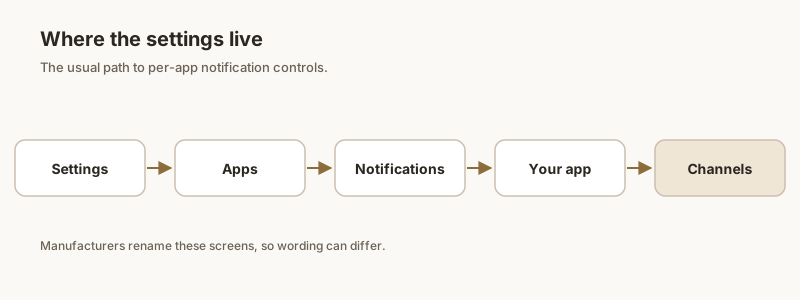
- Settings → Apps → [app] → [channel].
- Set importance to Low or Medium.
- Toggle off "Pop on screen" if visible.
This keeps notifications audible but stops pop-up banners.
Per-channel disable
Useful for chat apps with multiple channels (e.g., direct vs. group messages):
- Settings → Apps → [chat app] → [group channel].
- Toggle off pop-up for the group channel only.
Direct messages still pop up; group messages only show in the shade.
Using DND instead
Do Not Disturb silences pop-ups without affecting the shade. If you want the notification visible (to read later) but no pop-up, DND during certain hours is the cleanest solution. Settings → Notifications → Do Not Disturb → schedule.
Chat heads vs. floating notifications
Chat heads (Messenger, Telegram) are separate from floating notifications. Disabling floating notifications does not affect chat heads. To disable chat heads, use the chat app's own settings.
When you should keep floating notifications
Floating banners are useful for:
- Incoming calls (where you want to answer without unlocking).
- Critical alerts (OTPs you need to see right now).
- Navigation apps where the next turn is imminent.
For everything else, pop-up is mostly noise. Pinning important alerts with Dingpin gives you visibility without the interruption.
For related guides, see what is a floating notification, floating notification meaning, and floating notifications on Samsung.
Official documentation
If you want to check anything against the source, these are the pages this guide is based on:
FAQ
How do I stop notifications from popping up on my screen?
Open Settings, then Notifications, then the app, and turn off "Pop on screen" or set its importance to Low. The banner stops covering what you are doing, but the notification still lands in your shade.
Is turning off floating notifications the same as muting?
Close, but not identical. Lowering importance stops the pop-up and the sound. If you only want to kill the banner but keep the sound, pick a setting that keeps sound on while disabling "pop on screen."
Why do floating notifications still appear after I turned them off?
You may have changed the wrong category, or a system app (calls, alarms) is allowed to float regardless. Re-check the specific channel, and for calls keep at least "Urgent" so you don't miss them.
Can I keep important alerts but stop the pop-ups?
Yes — pin them with an app like Dingpin. Let the app stop floating, then Dingpin holds the alert in a clean, tappable list so it stays visible on your schedule.