Samsung's One UI is generous with lock-screen notifications — by default it shows message bodies, OTPs, and email snippets right on the always-on display and lock screen. If your Galaxy lives in your pocket but lands face-up on a desk, that is a privacy leak. Here is how to lock it down.
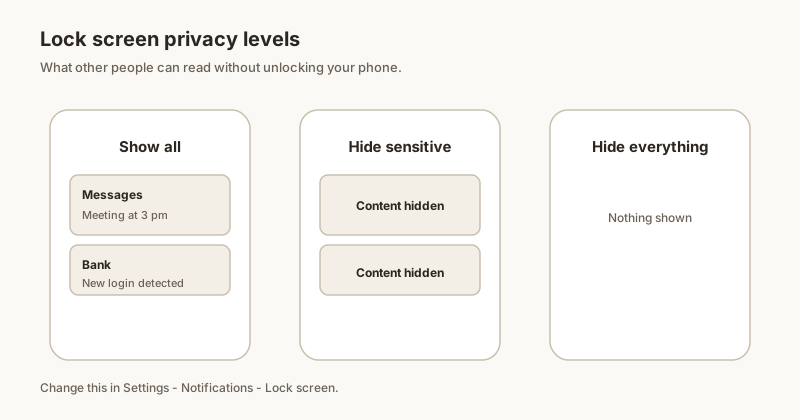
Quick hide: Brief vs Detailed
One UI offers two lock-screen styles:
- Detailed shows the full notification card, including the message body.
- Brief shows a shorter stacked preview — less content exposed.
Go to Settings → Lock screen → Notifications and pick Brief for less exposure, or keep reading to hide content entirely. (Full comparison in our Brief vs Detailed guide.)
Hide sensitive content
- Open Settings → Lock screen → Notifications.
- Turn on Hide content.
- The sender and app icon stay, but the body shows "Contents hidden" on the lock screen and AOD.
This is the single best privacy toggle on Galaxy phones — one switch, every app covered.
Per-app lock-screen control
- Open Settings → Notifications → App notifications.
- Tap the app you want to protect (for example Messages or WhatsApp).
- Tap Show on lock screen and choose Don't show or Hide content for that app only.
Use this to keep delivery and calendar alerts visible while hiding personal chats.
Good Lock / LockStar
For the deepest control, install Samsung's free Good Lock app and open the LockStar module. LockStar lets you:
- Hide the entire notification layout on the lock screen and AOD.
- Reposition or shrink the notification area.
- Apply different rules per lock-screen style.
Combine it with our full Good Lock notifications guide to fine-tune alerts without sacrificing privacy. (General steps in our lock-screen content guide also apply.)
Privacy with Dingpin
Dingpin runs fully on your device — no account, no cloud sync. Pin what matters and it stays only on your phone. Hidden lock-screen content plus on-device pinning means private notifications never leave your handset.
The One UI path
Samsung's One UI exposes lock screen notifications in two places:
- Settings → Notifications → Lock screen notifications. Three levels: Show content / Hide content / Do not show.
- Per-app: Settings → Apps → [app] → Notifications → Lock screen. Overrides the global setting.
Brief vs. Detailed interaction
Your choice in Brief vs. Detailed interacts with the lock-screen setting:
- Detailed + Show content. Full card with sender and message preview on the lock screen.
- Detailed + Hide content. Sender and app name only.
- Brief + Show content. Small pop-up, collapses to status-bar dot. Full content visible only after unlock.
- Brief + Hide content. Just the status-bar dot, no preview.
Always-on display settings
One UI's AOD is highly customizable. For lock-screen notifications on the AOD:
- Settings → Lock screen → Always On Display.
- Toggle "Show notifications."
- Choose between icons only, icons + brief content, or full content.
Good Lock's "Notification Star"
The Good Lock "Notification Star" module adds an additional layer of customization. With it installed, you can star specific notifications to keep them visible even when global settings would hide them. Worth installing for Samsung power users.
Secure Folder and lock-screen notifications
Notifications from apps inside Secure Folder are hidden from the lock screen by default for privacy. To allow them, open Secure Folder settings and adjust notification visibility.
For related Samsung-specific guides, see Brief vs. Detailed, Samsung notification history, and hide notification content on lock screen.