What 'Brief' means
Brief notifications appear as a small pop-up at the top of the screen and then collapse into the status bar as an icon. They are quick, less intrusive, and disappear on their own — good if you want fewer full-screen interruptions.
What 'Detailed' means
Detailed notifications show the full card — sender, text, and actions — as soon as they arrive, and stay in the shade. You see more at a glance but get more interruptions.
How to switch between them
- Open Settings → Notifications → Notifications style (path varies slightly by One UI version).
- Choose Brief or Detailed for lock screen and the notification shade.
- Per-app: tap an app under App notifications and set its style.
Which should you pick?
Pick Brief for a calmer phone and Detailed if you need the full message without opening the shade. Many people use Brief on the lock screen and Detailed in the shade.
Either way, keep the important one
Style changes how alerts look, not whether they stick. With Dingpin you can pin the notification that matters so it survives the brief pop-up and stays until you clear it.
When Samsung introduced the two styles
The Brief/Detailed split arrived with One UI 5 (early 2023). Before that, Samsung only had one notification style, and there was no per-app override in the same place as the global toggle. Now you can set Brief globally and Detailed for a single chatty app, or vice versa, and the choice can be different on the lock screen versus the shade. The change was Samsung's answer to complaints that detailed cards were too noisy on the lock screen during the day.
Side-by-side behavior
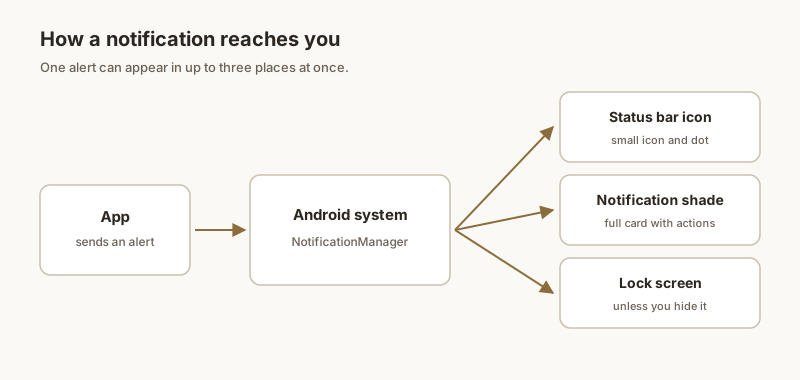
Here is what happens to the same alert under each style:
- Brief, lock screen. A small icon appears briefly, then collapses into a status-bar dot. The full text shows up only when you unlock the phone.
- Detailed, lock screen. The full card with sender, preview, and any action buttons appears immediately. It stays until you dismiss or handle it.
- Brief, shade. The notification arrives with a small chip-style entry. Tap to expand the full message.
- Detailed, shade. Same as before One UI 5: full card, expanded by default, with all controls visible.
Which combination most people prefer
For most users, this setup is the calmest:
- Lock screen: Brief. Prevents random glances at previews when you are not actively checking the phone.
- Shade: Detailed. Lets you scan a full list at a glance when you do pull it down.
- Per-app override: Set messaging apps to Detailed so you never miss a critical text, even if Brief is global.
Edge cases worth knowing
Two situations where the style toggle behaves unexpectedly:
- Good Lock's "Notification Stars" module can override the global style. If you have installed Good Lock, check its settings if style changes stop applying.
- Always-on display preview may still show a snippet of the message even with Brief selected. See always-on display notification previews for the related setting.
For the broader Samsung notification story, see also: Samsung notification history, floating notifications on Samsung, and hiding lock screen notifications on Samsung.