What the always-on display shows
The always-on display (AOD) is the dim screen you see when the phone is locked but not fully off. It can show the clock, notification icons, and — depending on settings — a preview of incoming alerts.
How to control what shows
Open Settings → Lock screen → Always On Display (or Notifications on some models). You can choose to show notification icons only, show content, or hide notifications entirely on the AOD.
Hiding sensitive content
To keep things private, set lock-screen notifications to hide content. The AOD then shows an icon without the message text, so someone glancing at your phone sees you have a notification but not what it says.
Turning the AOD off
If the AOD drains battery or you prefer a black screen, set it to Off or Tap to show. Notifications then appear only after you wake the screen.
When the AOD is not enough
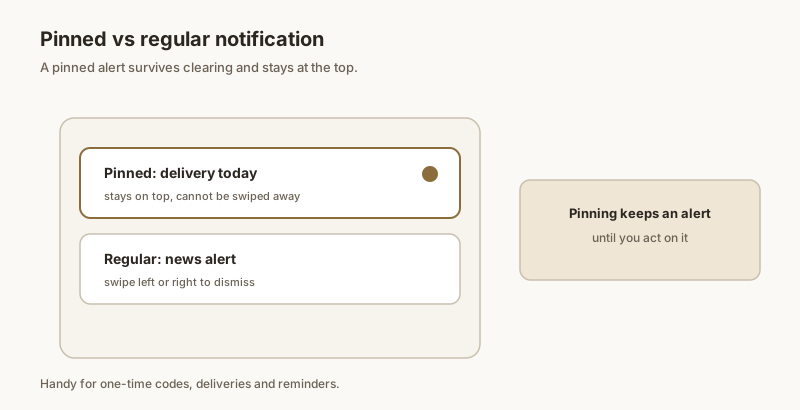
The AOD shows you have an alert; it does not keep that alert at the top once you are in the phone. Dingpin pins the notification you care about so it stays put in the shade until you clear it.
Does AOD kill your battery?
The honest answer: it costs some, but modern OLED panels make it small. Typical impact is around 5–10% per day on a mid-range phone. The display only lights the pixels for actual content (clock, icons, notification text), so a black background with a tiny clock is far cheaper than a full screen-on experience. If you want the clock but no notifications at all on the AOD, set it to show icons only or hide notifications entirely.
How each brand handles AOD
Always-on display exists on most premium Android phones, but the implementation varies:
- Samsung One UI offers the richest AOD customization — you can pick clock styles, add images, and choose whether notification previews appear.
- Pixel AOD is minimal: clock, date, and notification dots. Tap-to-wake reveals the full notification.
- Xiaomi AOD depends heavily on the model. Mid-range Redmi phones may not have it at all.
Privacy vs. glanceability
AOD is one of the easiest places for someone near you to read your notifications without your phone being unlocked. The trade-off:
- Show everything. You can read previews without waking the phone — convenient but exposed to anyone nearby.
- Show icons only. You see you have a notification but not what it says. Tap to wake reveals the message.
- Hide notifications. AOD only shows the clock and date. You will not know about an alert until you actively check.
Most people settle on "icons only" as a sensible middle ground. For details on lock-screen content privacy more broadly, see hiding lock screen notification content and hiding notifications on the lock screen for privacy.
Scheduling the AOD
If you want AOD sometimes but not always (say, off overnight to save battery), every modern Android phone lets you schedule it:
- Settings → Display → Always On Display (path varies by brand).
- Find the schedule option. Most phones let you set a window — for example, AOD on from 8am to 11pm, off overnight.
- Pair this with Do Not Disturb to silence alerts while AOD is off.
For the broader notification story, see also: Samsung Brief vs. Detailed notifications and what is a floating notification.