By default, Android prints notification text — message bodies, OTP codes, work alerts — straight onto the lock screen. That is handy until a stranger, a coworker, or a commuting neighbor reads it over your shoulder. The good news: Android has layered controls, and you can hide as much or as little as you like in a few taps.
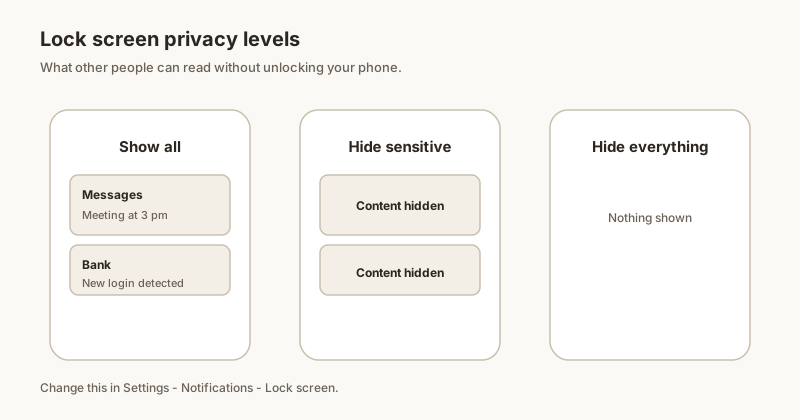
Diagram: lock screen privacy ranges from showing everything to hiding it all.
Hide all sensitive content
The quickest privacy win is a global rule:
Open Settings → Notifications.
Tap Lock screen (some phones call it Notifications on lock screen).
Choose Hide sensitive content. The app icon and sender stay, but the body becomes "Contents hidden".
Or pick Don't show notifications at all for maximum privacy.
This single switch covers every app at once. If you only want to protect a couple of apps, skip to per-app control below.
Hide content for one app
You rarely need an all-or-nothing rule. To keep calendar and delivery alerts visible while hiding personal chats:
Open Settings → Notifications → App notifications.
Tap the app (for example Messages or WhatsApp).
Open its notification category (see our channels guide).
Set Lock-screen to Hide for sensitive categories, leaving others visible.
Per-app control is the sweet spot: important alerts still surface, private ones stay blank until you unlock.
Keep the sender, hide the body
Hide sensitive content is purpose-built for this. You will still see "Messages: Contents hidden" — enough to know who pinged you, without exposing what they said. This is usually better than hiding everything, because you keep the at-a-glance awareness.
Hide everything until unlock
If your phone is often left face-up in public, choose Don't show notifications at all. Nothing appears on the lock screen; you only see notifications after unlocking. Pair this with muting non-urgent apps so the lock screen stays clean even after you unlock.
Android 12 to 15 paths
The setting lives in slightly different places across versions and makers:
Dingpin is built private by design: notifications are handled on your device, with no account and no cloud sync. You decide what to pin, and pinned items live only on your phone. Layer it under hidden lock-screen content and you get both convenience and real peace of mind.
The global hide-content setting
On most Android phones:
Settings → Notifications → Notifications on lock screen.
Choose "Hide sensitive content" or "Hide all."
"Hide sensitive content" keeps app icons and names visible but masks message previews. "Hide all" removes the lock-screen notification entirely.
Android automatically flags notifications as sensitive when:
The app category is banking, OTP, password manager, or healthcare.
The notification uses a sensitive-content flag (e.g., SMS verification codes).
The user has explicitly marked the channel as sensitive.
When "Hide sensitive content" is on, these alerts show an icon and app name but no preview.
Always-on display interaction
The AOD respects lock-screen visibility settings. If you want different behavior on AOD vs. lock screen, configure each separately in Settings → Display → Always On Display → Notifications.
How do I hide notification content on the lock screen?
Open Settings, then Notifications, then Lock screen (the label varies by maker). Choose Hide sensitive content to keep the sender but replace the body with "Contents hidden", or Don't show notifications at all for full privacy.
Can I hide lock-screen content for just one app?
Yes. Go to Settings, Notifications, App notifications, choose the app, open its notification category, and set Lock-screen to Hide. Other apps stay visible.
Will hiding content also hide the sender name?
Hide sensitive content keeps the app icon and sender but hides the message body. If you want to hide everything, pick Don't show notifications at all — then nothing appears until you unlock.
Does hiding lock-screen content affect Dingpin?
No. Dingpin keeps pinned items on your device with no account and no cloud sync. Hiding system lock-screen previews adds a second privacy layer on top of what you choose to pin.
How do I hide notification content on a Pixel lock screen?
Open Settings, Notifications, Lock screen, then choose Hide sensitive content. The sender stays but the body becomes 'Contents hidden'. Pick 'Don't show notifications at all' to hide everything.
Can I hide lock-screen content for one app on Pixel?
Yes. Settings, Notifications, App notifications, choose the app, open its category, and set Lock-screen to Hide. Other apps keep showing.
Does this affect Adaptive notifications?
No. Adaptive notifications (Android learning which alerts you dismiss) still run; hiding lock-screen content only changes what is visible before you unlock, not how alerts are ranked.
Does hiding content affect Dingpin on Pixel?
No. Dingpin keeps pinned items on your Pixel with no account and no cloud sync. Hidden lock-screen previews add a privacy layer on top of what you choose to pin.
How do I hide notification content on a Samsung lock screen?
Open Settings, Lock screen, Notifications, then turn on Hide content. The sender shows but the message body is replaced with 'Contents hidden'.
Can I hide lock-screen notifications per app on Samsung?
Yes. Settings, Notifications, App notifications, choose the app, then set Show on lock screen to 'Don't show' or 'Hide content' for that app only.
What is the difference between Brief and Detailed on Samsung?
Brief shows a short stacked preview on the lock screen; Detailed shows the full notification card with content. Switch to Brief or hide content for more privacy. See our Brief vs Detailed guide for the full comparison.
Does Good Lock give more lock-screen control?
Yes. Samsung's free Good Lock app (with the LockStar module) lets you hide the notification layout entirely, move it, or hide it on the AOD. It is the deepest privacy control Samsung offers.
How do I hide notification content on a Xiaomi lock screen?
On HyperOS/MIUI open Settings, Notifications, then Lock screen notifications, and turn on Hide sensitive content. The sender shows but the body is hidden until you unlock.
Can I hide lock-screen content per app on Xiaomi?
Yes. Settings, Notifications, App notifications, choose the app, then set Lock screen notifications to 'Don't show' or 'Hide content' for that app only.
What is the notification shade lock on Xiaomi?
HyperOS lets you lock the notification shade (swipe down panel) so it does not open accidentally, and you can hide notification content there too. It is a useful extra privacy step alongside lock-screen hiding.
Does this affect Dingpin on Xiaomi?
No. Dingpin keeps pinned items on your device with no account and no cloud sync. Hiding system lock-screen previews adds a privacy layer on top of what you pin.
Can I hide lock-screen notifications for one app only?
Yes. Settings, Notifications, App notifications, choose the app, open its category, and set Lock-screen to Hide while keeping other apps visible.
Does hiding content also hide the sender?
Hide sensitive content keeps the sender but hides the body. Don't show notifications at all hides everything until you unlock.
Is Dingpin private?
Yes. Dingpin handles notifications on device with no account and no cloud sync. Pinned items stay only on your phone.
What does the always-on display show for notifications?
It can show notification icons and, depending on settings, a preview of incoming alerts while the screen is off. You control how much is visible.
How do I hide notification content on the always-on display?
Set lock-screen notifications to hide content in Settings. The AOD then shows an icon without the message text.
Can I turn the always-on display off?
Yes. Set it to Off or Tap to show in Settings. Notifications then appear only after you wake the screen.
Does the always-on display show all my notifications?
Only what you allow. You can limit it to icons, show content, or hide notifications entirely on the AOD.