On Xiaomi and Redmi phones running HyperOS (and older MIUI), notifications show content on the lock screen and the always-on display by default. If your phone sits on a desk or gets handed to someone, that exposes messages and codes. Here is how to hide it.
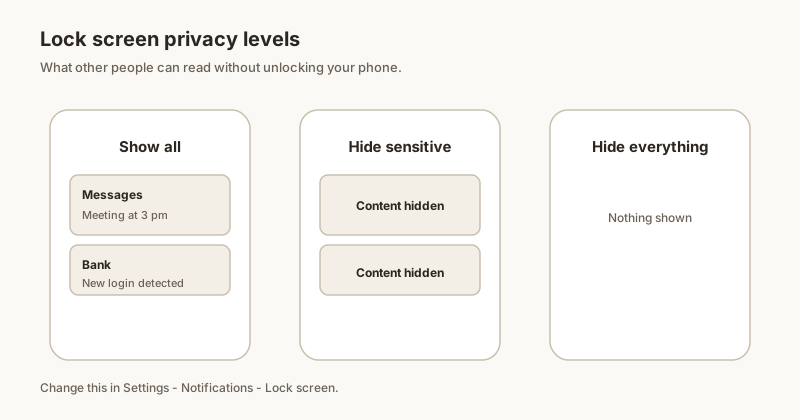
Hide sensitive content
- Open Settings → Notifications.
- Tap Lock screen notifications.
- Turn on Hide sensitive content. The sender and icon stay, the body is hidden until unlock.
This single toggle covers all apps. (Paths differ slightly by maker — see the general guide.)
Per-app lock-screen control
- Open Settings → Notifications → App notifications.
- Tap the app (Messages, WhatsApp, Telegram…).
- Set Lock screen notifications to Don't show or Hide content for that app only.
Use this to keep delivery and calendar alerts visible while hiding personal chats.
Lock the notification shade
HyperOS adds a bonus: you can lock the notification shade (the swipe-down panel) so it does not open by accident, and you can hide notification content there too. It is a handy extra privacy step on top of the lock screen. More in our full Xiaomi notification guide.
Privacy with Dingpin
Dingpin runs fully on your device — no account, no cloud sync. Pin what matters and it stays only on your phone. Hidden lock-screen content plus on-device pinning keeps private notifications private.
HyperOS vs. MIUI — what changed
Xiaomi rebranded MIUI to HyperOS in late 2023. Most notification settings carried over, but a few paths shifted. On HyperOS:
- Lock screen notifications still live in Settings → Notifications → Lock screen.
- Privacy / content hiding moved slightly: Settings → Notifications → Lock screen → Hide content.
- Always-on display options are now under Settings → Wallpaper & lock screen → Always-on display.
On older MIUI builds (12 and earlier), the same options exist but the labels and paths are slightly different. The screenshots and steps in this guide assume HyperOS on a recent Redmi, Mi, or Poco phone.
Step-by-step for HyperOS
- Settings → Notifications.
- Tap Lock screen.
- Toggle off Show notifications on lock screen to hide everything, or choose Hide content to keep icons visible without the text.
- For per-app control: Settings → Apps → Permissions → Notifications → [app] → toggle off.
Region and carrier variations
Xiaomi phones sold in mainland China often have a different settings layout than global ROMs. On China ROM:
- Look under Settings → Notification & control center → Lock screen notifications.
- Some MIUI / HyperOS China builds default to "Hide content" already, treating sensitive content as the default.
If the global ROM option is missing entirely, install a global ROM (when available for your model) or use a third-party locker app.
Chat heads and floating chat windows
Xiaomi's HyperOS supports floating chat windows for select apps (WhatsApp, Telegram, Messenger). These are separate from lock-screen notifications — they appear over the home screen when the phone is unlocked. To control them:
- Settings → Home screen → Floating windows.
- Toggle off for apps where you do not want floating chat.
When the setting does not stick
Two common reasons your changes might not take effect:
- Permissions revoked. Some Xiaomi phones quietly revoke notification permissions in the background after a week of no use. Check Settings → Apps → Permissions → Notifications for the affected app.
- Battery saver kicking back in. HyperOS is known for aggressive battery management. Set the affected app to "No restrictions" in Settings → Apps → Battery.
For the broader Xiaomi notification story, see managing notifications on Xiaomi and Xiaomi / Redmi notification history. For cross-brand comparison, see Samsung and Pixel.