Those little numbers and dots on your app icons are notification badges. They exist to tell you, at a glance, that something is waiting. But they can also pile up and stress you out. Here is what they mean and how to control them.
Badges vs. dots
- Numeric badges show a count (e.g., "3" unread messages). Common on Samsung and many launchers.
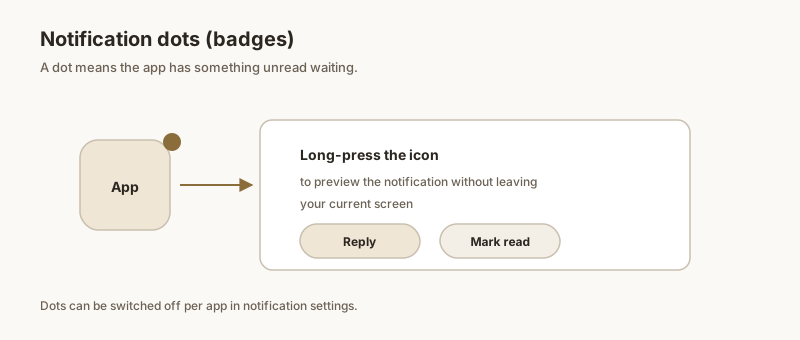
- Notification dots are a small dot with no number, introduced in stock Android 8+. Long-press the app icon to preview the notification behind the dot.
- App-icon unread counters in some launchers count badge separately from the notification shade.
How to clear them
A badge usually disappears when you open the app or clear its notification from the shade. If a badge sticks around after you have read everything, it is often a separate unread counter (common in messaging apps) — open the conversation or mark it read in the app to reset it.
Turn them off
- Stock Android / Pixel: long-press the home screen → Home settings → Notification dots → toggle off.
- Samsung: Settings → Notifications → Advanced settings → App icon badges → choose "Show without number" or turn off entirely.
- Third-party launchers (Nova, Microsoft Launcher): launcher settings → Badge style → None.
You can also disable badges per app from Settings → Notifications → App notifications → [app] → toggle "Show badge".
When a badge is not enough
A badge tells you something is unread, but it does not keep that specific notification from scrolling away. With Dingpin, pin the exact notification — an OTP, a tracking number, a reminder — and it stays at the top until you choose to clear it, badge or no badge.
What notification badges (dots) are
A notification badge — also called a notification dot — is the small colored indicator on an app icon when the app has unread alerts. Most launchers show a small dot; some show a numeric count. The dot is independent of the notification shade: even if the shade is clear, badges stay on the home screen until you open the app.
How to turn off badges
For per-app control:
- Long-press the app icon.
- Tap the small "i" or info icon.
- Toggle off Show notifications or Show notification dot.
For global control (most launchers): Settings → Home screen → Notification dots → off.
Numeric count vs. simple dot
Some launchers show a number (3 unread messages), others show only a dot. The number is more informative but more visually busy. To switch between count and dot:
- Stock Pixel launcher. Always shows dot only.
- Samsung One UI Home. Shows count by default; toggle in Home screen settings.
- Third-party launchers (Nova, Action). Almost always let you pick.
How badges interact with muted apps
When you mute an app (mute notifications for a chat, hide a conversation), the badge usually clears too. If you want to mute the shade but keep the badge — useful for chats you check when you choose to — you have to disable the mute and instead lower the notification importance to Low. The badge stays because the app is still posting notifications, just silently.
For the broader story, see what the notification shade is and how to pin notifications on Android.