Google Pixel runs close-to-stock Android, which means notifications are front and center on the lock screen by default — including message previews and one-time passwords. If you want privacy without losing useful alerts, Pixel gives you clean, layered controls.
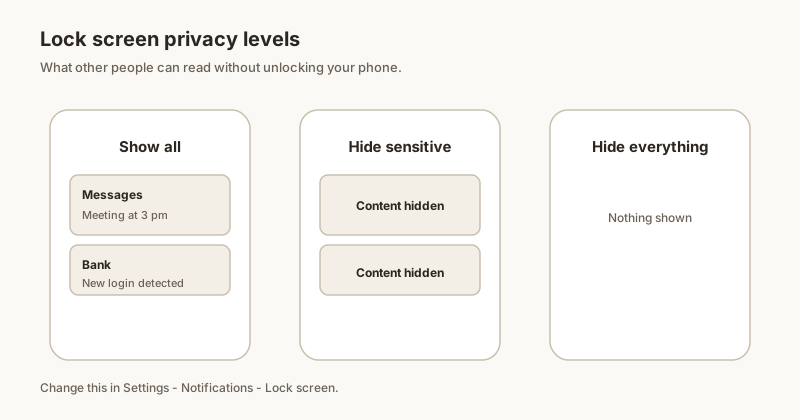
Hide all sensitive content
- Open Settings → Notifications → Lock screen.
- Choose Hide sensitive content: the sender and icon stay, the body becomes "Contents hidden".
- Or pick Don't show notifications at all for full privacy until unlock.
This global switch covers every app at once. (General steps for other makers are in our lock-screen content guide.)
Per-app lock-screen control
- Open Settings → Notifications → App notifications.
- Tap the app (Messages, WhatsApp, Gmail…).
- Open its category (see our channels guide).
- Set Lock-screen to Hide for sensitive categories only.
This is the best balance: delivery and calendar alerts stay visible, private chats go blank on the lock screen.
Adaptive notifications
Pixel's Adaptive notifications learns which alerts you usually dismiss and ranks them lower. Hiding lock-screen content does not change that ranking — it only changes what is visible before unlock. You can keep both: smart ranking plus a private lock screen. More in our full Pixel customization guide.
Privacy with Dingpin
Dingpin is built for privacy: notifications are handled on your Pixel, with no account and no cloud sync. Pin what matters and it stays only on your device. Pair it with hidden lock-screen content for a clean, private setup.
The stock Android path
Pixel phones run a near-stock version of Android, so the lock-screen notification settings are at the default path:
- Settings → Notifications → Notifications on lock screen.
- Choose: Show all content / Hide sensitive content / Hide all.
Sensitive content is automatically detected by Android based on the app's notification category (banking, OTP, certain messaging apps) and you can override the choice per app from Settings → Apps → [app] → Notifications.
How "sensitive content" is determined
Android decides what counts as sensitive in two ways:
- By app. Some apps are flagged as sensitive by default (most banking apps, password managers, OTP generators).
- By notification category. Some apps use Android's notification categories to mark certain types as sensitive (e.g., a "verification code" category).
The Hide sensitive content option respects these signals but still shows icons. For absolute privacy, pick Hide all.
Face Unlock and lock-screen previews
On Pixel 8 and newer, the phone's Face Unlock lets you see the lock screen before fully unlocking. Notifications still respect the lock-screen visibility setting even with Face Unlock active. If a notification preview is hidden, you see the icon only until you fully unlock with your fingerprint or PIN.
Always-on display interaction
Pixel's always-on display shows a clock and small notification icons while the phone is locked. Sensitive content is hidden by default on the AOD too, but you can adjust:
- Settings → Display → Lock screen → Always show time and info.
- Toggle off "Show notification content" to keep previews off the AOD even when the lock screen normally shows them.
For the broader Pixel notification story, see customizing notifications on Pixel and Pixel notification history.