HyperOS (and older MIUI) is powerful but noisy — out of the box it loves to throw app recommendations, ads, and system nudges at you. Here is how to tame notifications on Xiaomi and Redmi without losing the alerts you actually care about.
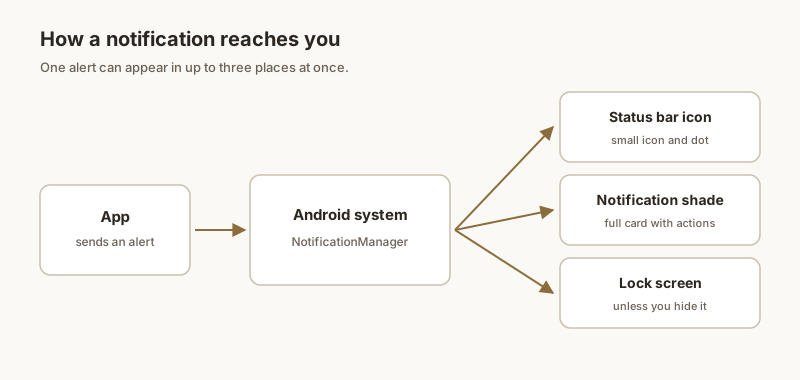
Per-app rules
- Open Settings → Notifications → App notifications.
- Tap an app to see Show notifications, Lock screen, Sound, and Pop-up toggles.
- Turn off what you don't want; for a chatty app, set No sound / No pop-up but keep banners so you can still spot it in the shade.
Notification channels
Most apps split alerts into categories (messages, promotions, reminders). To control them:
- Long-press a notification from the app → tap the gear/info icon → Categories.
- Set each category to silent, minimal, or off.
- This is the difference between muting all of an app and just silencing its promo spam.
Lock screen & pop-ups
HyperOS can show alerts as floating pop-ups or on the lock screen:
- Settings → Notifications → Lock screen — choose what content shows (hide for privacy).
- Settings → Notifications → More settings → Floating notifications — turn banners on/off per app.
DND & Focus
Use Do Not Disturb (swipe down → tile) to suppress everything except starred contacts or specific apps. Set schedules for sleep or meetings so alerts don't wake you.
A longer history
Xiaomi's built-in Notification History (Settings → Notifications → More settings) only keeps ~24 hours and stores previews. If you need to recover a notification on Xiaomi from days ago, or search full text, that buffer falls short.
That is where Dingpin helps: it captures every alert on-device into a searchable log you control, with no account and no server uploads — a longer memory than HyperOS gives you by default.
HyperOS notification overview
Xiaomi's HyperOS (formerly MIUI) is the most aggressive of the major Android skins in managing notifications. The system tries to group, delay, and silence alerts aggressively to save battery. To take back control:
- Settings → Notifications — global defaults.
- Settings → Apps → [app] — per-app overrides.
- Settings → Battery → Battery Saver → Excluded apps — whitelist apps whose notifications you cannot miss.
The battery angle
HyperOS treats every notification as a battery drain candidate. By default, background apps get notifications paused within hours of screen-off. If you depend on instant alerts from a specific app (a chat, an alarm service, a delivery tracker):
- Settings → Apps → [app] → Battery → No restrictions.
- Settings → Battery → Battery Saver → make sure the app is in Excluded apps.
- Settings → Apps → [app] → Autostart → enable.
All three settings are needed for some apps; one alone is often insufficient.
Floating notifications
HyperOS supports floating (heads-up) banners per app:
- Settings → Notifications → Floating notifications.
- Toggle on globally, then per app as needed.
To disable for a chatty app, toggle the app's switch off in this same screen.
Lock screen notifications on HyperOS
Settings → Notifications → Lock screen controls whether notifications show on the lock screen. There are three levels (show all content / hide content / hide all) similar to other Android skins. See the dedicated lock screen guide.
The Autostart permission
HyperOS apps must explicitly be granted "Autostart" permission to post notifications in the background. Without it, an app can install and run when you open it but is silently killed when you close it — and never receives notifications. Always enable Autostart for any app whose notifications you depend on.
For the broader Xiaomi story, see Xiaomi notification history and managing notifications on Xiaomi.
Official documentation
If you want to check anything against the source, these are the pages this guide is based on:
FAQ
How do I stop one app from sending notifications on Xiaomi?
Go to Settings → Notifications → App notifications, find the app, and turn its alerts off (or set it to 'No sound / No pop-up'). You can also long-press a notification from that app and tap the gear to reach the same channel settings.
Where are notification channels on HyperOS?
Long-press any notification from the app, tap the gear/info icon, then 'Categories' (or 'Notification categories'). Each category — messages, promotions, reminders — can be set to silent, minimized, or off independently.
Can I keep a longer history than Xiaomi's 24-hour log?
Xiaomi's built-in Notification History is a ~24-hour rolling buffer with preview-only content. For a longer, searchable, full-text log on-device, use a local app like Dingpin, which captures alerts as they arrive and lets you scroll back days later.