Updated to Android 15 and suddenly messages, emails, or app alerts go quiet? You are not alone. The update brings useful changes — but a couple of them can silently throttle the notifications you rely on. Here is what changed and the nine fixes that bring your alerts back.
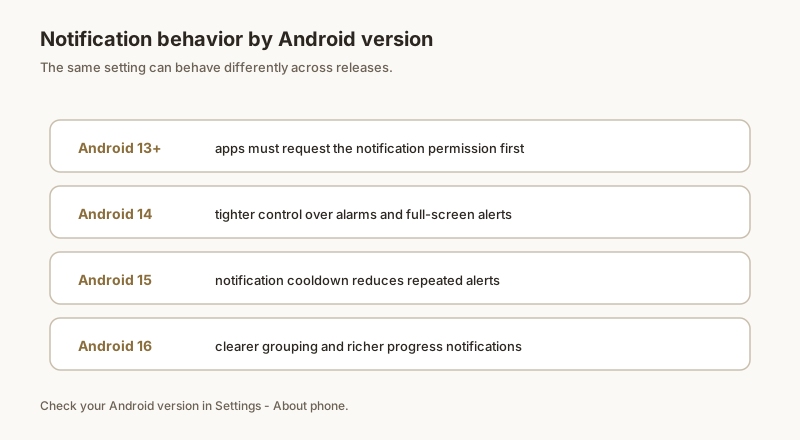
Why Android 15 changed notification behavior
Two things commonly catch people after a major update:
- Notification cooldown: Android 15 can automatically quiet repeated notifications from the same app. If an app pings you several times in a row, later pings arrive silently or with a delay instead of a loud alert.
- Permission resets: Major updates sometimes reset an app's notification and battery settings, especially on heavily customized skins like One UI, ColorOS, or HyperOS.
9 fixes to try
1. Restart your phone
It sounds trivial, but a reboot clears stuck system processes and re-registers notifications. Try it first.
2. Check Do Not Disturb (and schedules)
Swipe down to Quick Settings and make sure Do Not Disturb is off. Also check Settings → Notifications → Do Not Disturb for a schedule that turns it on automatically.
3. Re-enable the app's notification toggle
Go to Settings → Notifications → App notifications, find the app, and make sure its master switch is on. Then open its categories and confirm the important ones are enabled.
4. Set battery optimization to Unrestricted
Settings → Apps → [app] → Battery and choose Unrestricted. This stops the system from killing the app's background activity.
5. Turn off Adaptive Battery for that app
Adaptive Battery learns your habits and can limit noisy apps. Set the problem app to Unrestricted (same path as above) rather than leaving it to the algorithm.
6. Allow background data
If you miss alerts on mobile data, check Settings → Network & internet → Data saver and make sure the app is allowed to use background data.
7. Clear the app's cache
Settings → Apps → [app] → Storage → Clear cache. This fixes corrupted notification registrations without deleting your account data.
8. Check notification channels
Since Android 8, apps split alerts into channels. Open the app's notification settings and confirm the specific channel (Messages, Promotions, etc.) you care about is set to alert, not silent.
9. Update the app and the system
A post-update bug in the app itself is common. Update it from the Play Store, and install any pending system update that may fix notification behavior.
The notification-listener caveat
Apps like Dingpin that organize or log your notifications need a notification listener permission. Android sometimes revokes this after a major update. If your history or pinned items stop updating, open Dingpin and re-grant the listener permission when prompted — everything stays on-device.
What changed in Android 15
Android 15 (released late 2024) brought two notification-related changes that occasionally break existing apps:
- Stricter background restrictions. Apps can no longer post notifications from background services unless they hold a foreground service.
- Notification permission for new installs. Apps that target Android 13+ already require explicit permission; Android 15 expanded this to certain system services.
What tends to break
Common patterns after upgrading to Android 15:
- A specific app suddenly stops posting notifications.
- Notifications arrive in batches instead of instantly.
- Foreground apps still work; background apps do not.
The fixes
- Update the affected app from the Play Store. Most major apps have already shipped Android 15 compatibility fixes.
- Settings → Apps → [app] → Battery → Unrestricted.
- Settings → Apps → [app] → Notifications — make sure the toggle is on and the relevant channel is enabled.
- Re-grant Notification Access for any notification manager apps (Dingpin, etc.) after major OS upgrades.
For developers
If you maintain an app: audit your notification posting paths. Android 15 is stricter about background notifications — make sure your foreground service is correctly declared for any persistent notifications, and that you hold the right permissions for transient alerts.
A workaround
For apps that have not yet shipped Android 15 fixes, pin the alert you want with Dingpin as soon as it arrives. Even if the underlying notification is delayed or unreliable, Dingpin captures whatever does land. See also: fixing delayed or missing notifications and unblocking notifications on Android.
Official documentation
If you want to check anything against the source, these are the pages this guide is based on:
FAQ
Did Android 15 block notifications by default?
No. Android 15 does not block notifications by default, but it adds a notification cooldown that can quiet repeated alerts from the same app, and system updates sometimes reset an app's notification permissions.
Why did my alerts stop right after updating?
Updates can reset notification permissions and turn on features like notification cooldown. Re-check the app's notification settings and its battery optimization after a major update.
Will Dingpin still show notifications after the update?
Yes, as long as its notification listener permission is still granted. If Android revoked it during the update, re-enable it when the app prompts you.