You want to mute an app or turn on history, but the "Notification settings" option just isn't where the guide says it should be. That is normal — unlike stock Android, every phone maker rearranges this menu. The settings are rarely gone; they are just renamed, relocated, or hidden behind a long-press. Here is how to find them on any Android phone.
Why the menu moves around
Android is open, so Samsung (One UI), Xiaomi (HyperOS/MIUI), OnePlus (OxygenOS) and others build their own settings apps on top of Google's base. They move things for branding and to add features, which means the exact path to "Notifications" differs by brand and even by Android version. A 2021 Samsung path may not match a 2026 one.
Find the global notification settings
The global menu (where you manage history, DND, and the master list of apps) is usually reachable two ways:
- Settings → Notifications (stock Android / Pixel).
- Settings → Notifications → Advanced settings (Samsung, for extras like notification history and badge controls).
- Settings → Apps → Manage apps → [menu] → Notification settings (some Xiaomi builds).
If you cannot spot it, use the settings search bar at the top of Settings and type "notifications" — it jumps straight to the right screen on virtually every phone.
Reach per-app controls fast
You almost never need to dig through Settings for a single app. The fastest universal method:
- Long-press the app icon on your home screen or app drawer.
- Tap the info (ⓘ) button (or the small gear).
- Tap Notifications.
From there you can toggle the app on/off, open its channels/categories, and change importance. This works on Samsung, Pixel, Xiaomi, and most others.
Samsung, Pixel, Xiaomi differences
- Samsung (One UI): Global notifications sit under Settings → Notifications, with extras in Advanced settings. Per-app channels appear after tapping the app in App notifications.
- Pixel (stock): Settings → Notifications → App notifications shows a clean list with a "Turned off" tab. Simplest of the three.
- Xiaomi (HyperOS): Settings → Notifications shows app toggles; deeper per-app category control is under each app's info page. HyperOS also adds "App lock" and " floating windows" that can obscure alerts.
When settings are truly hidden
A few cases make notification settings genuinely inaccessible:
- Work profile: company-managed devices split personal and work; work-app notification controls live in the work tab and may be admin-locked.
- Guest / child profile: restricted profiles hide system settings.
- App itself disables categories: some apps collapse all alerts into one untoggleable channel.
If you are on a personal phone and the menu still will not open, a quick restart clears most transient settings-app glitches.
A simpler way with Dingpin
Instead of hunting through OEM settings every time, Dingpin gives you one place to see and manage the notifications that actually matter. It pins important alerts to the top of your shade and keeps a searchable history, so you rely less on the buried system menus. It works the same across Pixel, Galaxy, Xiaomi, and other Android 8+ phones, with no account required.
Official documentation
If you want to check anything against the source, these are the pages this guide is based on:
FAQ
Why can't I find notification settings on my phone?
Mostly because of manufacturer skins. Samsung, Xiaomi, OnePlus and others rename and relocate the menu, bury it under 'Advanced settings', or hide per-app controls behind a long-press on the app icon. Stock Android keeps them under Settings → Notifications.
Where are per-app notification settings?
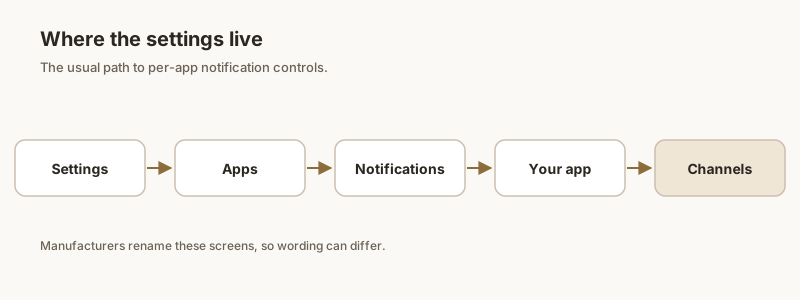
The fastest route on any phone is to long-press the app icon on the home screen, tap the info/i button, then Notifications. You can also go through Settings → Apps → [app] → Notifications.
Do work profiles hide notification settings?
Yes. If your phone has a work profile (common on company devices), notification controls for work apps live inside the work tab of Settings and may be locked by your IT admin, so they can appear 'missing' from the personal side.