Start with importance
The single biggest lever is notification importance. In Settings → Notifications → [app] you can set a channel to make sound and pop on screen, or drop it to silent. Move the apps you care about to the top level and push the noisy ones down. Visibility starts with what is allowed to interrupt you.
Give key apps a distinct sound
A unique ringtone or alert tone for messages, calendar, or your baby monitor means you recognize what arrived without looking. Generic pings all sound the same and get ignored. Set a short, distinct tone per critical app.
Use color and lights
Some phones show a colored edge light or an app icon badge for new alerts. On supported devices (including many Samsung and Xiaomi phones) enable the notification light or edge lighting for priority apps so a glance at the phone tells you what is waiting.
Show on the lock screen
Make sure important apps are allowed to show on the lock screen (Settings → Notifications → lock screen). You will see the alert without unlocking. For privacy you can show the app name without the content.
Keep the critical few on top
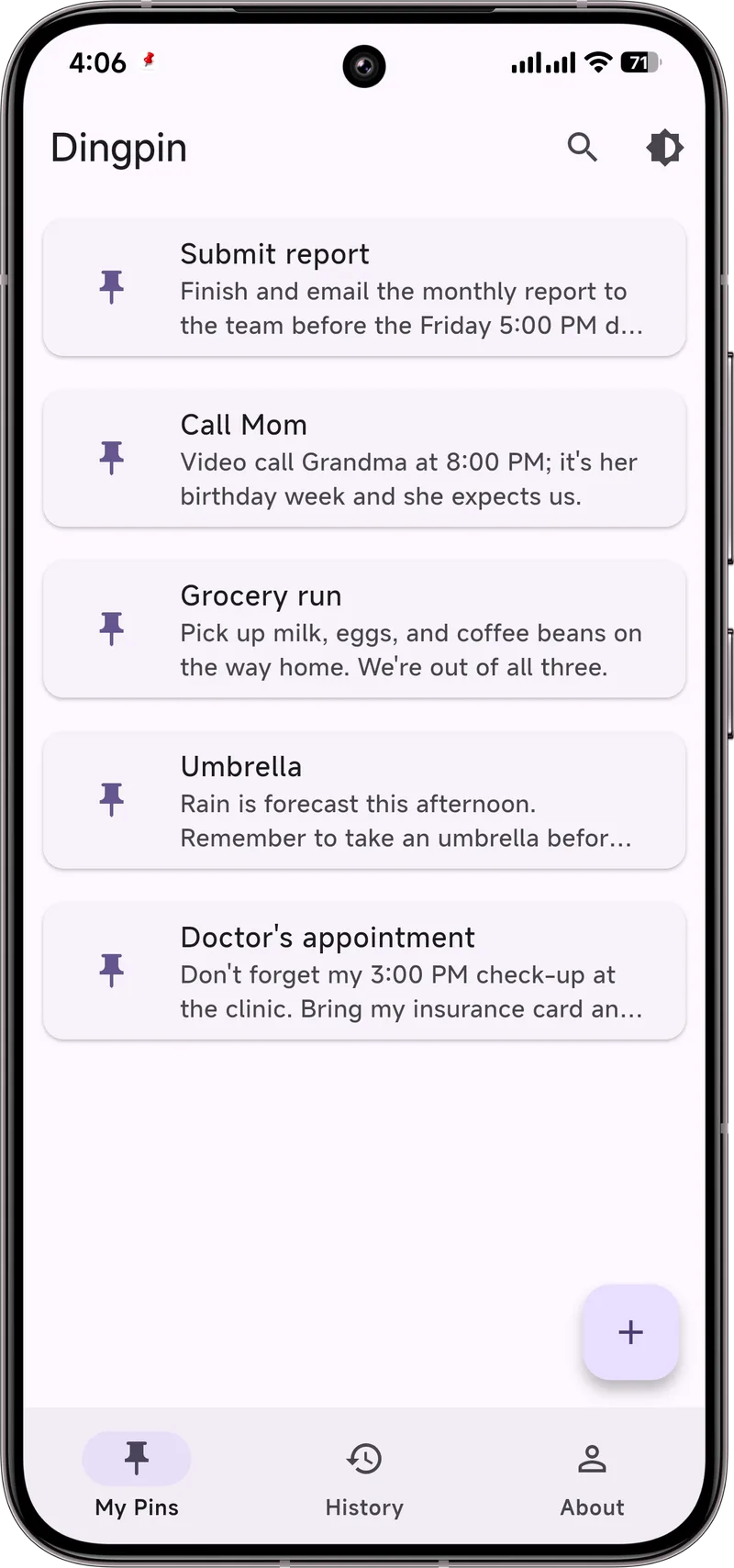
Even with good settings, a busy shade buries things. For the alerts you absolutely must see — a code, an address, a reminder — pin them with Dingpin so they stay at the top, color-coded and impossible to miss.
Notification importance levels
Every Android notification channel has one of four importance levels, and this single setting drives most of the visibility behaviors you see:
- Urgent. Makes sound, vibrates, and shows a full-screen heads-up preview on the lock screen.
- High. Makes sound and shows heads-up, but no full-screen preview.
- Medium. Sound only, no heads-up.
- Low. No sound, no heads-up — appears silently in the shade.
For the alerts that must not be missed, set the channel to Urgent. See notification importance for a deeper look at how to control this.
Make heads-up banners always appear
Heads-up banners float over whatever you are doing. To make sure they show up for the apps that matter:
- Settings → Notifications → App notifications → [app] → [category].
- Set importance to High or Urgent.
- Make sure "Show as pop-up" (or "Heads-up") is enabled.
For more on heads-up banners and how to control them, see what is a floating notification.
Lock-screen visibility
Three settings control what the lock screen shows:
- Lock screen notifications. Toggle whether all notifications appear on the lock screen.
- Hide content. Show icons without the message text.
- Per-app overrides. Some apps let you set them to "show all content" even if global is "hide content."
For privacy-conscious setups, see hiding lock screen notifications and hiding notification content.
Vibration and sound
Three knobs to make alerts more physically noticeable:
- Sound. Pick a distinctive ringtone for important channels, not the default.
- Vibration pattern. Long vibration for urgent channels; short or none for less important.
- Blink light. Some phones let the LED notification light flash for specific channels.
For a non-distracting setup, see stop notification sound but keep vibration and notification light.
Pin for absolute certainty
No matter how many settings you tune, some alerts will still slip past you — especially when you are deep in another app or your phone is in your pocket. The reliable trick is to pin the notification when it arrives so it sits at the top of the shade until you handle it. Dingpin makes this one tap. For the broader story, see how to pin notifications and keeping important notifications from disappearing.