"Delayed" is a different problem from "missing." If the alert eventually shows up — a minute or two late, or only after you unlock the phone — Android Auto is mirroring correctly but the sync is lagging. The good news: latency issues are usually quick to fix. Here's what causes the delay and the order that works.
Why alerts arrive late, not missing
Android Auto mirrors notifications the phone already shows, but it does so over a live connection (USB or Wi-Fi). Each notification has to cross that link and be re-rendered on the car screen. Delays creep in from:
- A shaky connection — wireless Android Auto dropping and re-handshaking.
- Notification sync lag — Android Auto batches/queues alerts, and a busy phone falls behind.
- Battery optimization deferring the Android Auto app or the messaging app in the background.
- Bluetooth priority — media or phone-call audio pre-empting the notification channel.
Stabilize the connection
The single biggest cause of lag is an unstable link:
- If you use wireless Android Auto, try a wired USB connection — it's far more stable and removes Wi-Fi handshake delays.
- For wireless, sit closer to the head unit and remove other paired devices competing for the band.
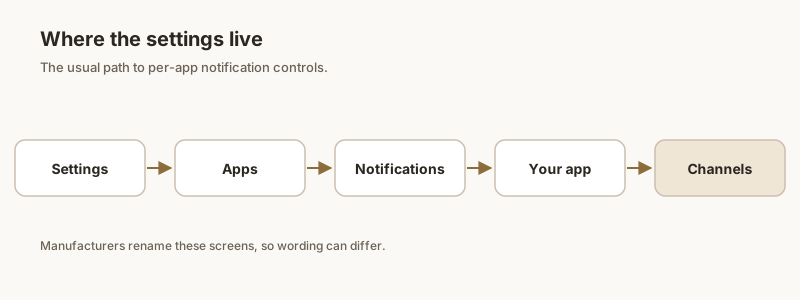
- Clear the Android Auto app cache: Settings → Apps → Android Auto → Storage → Clear cache (and Clear data if it keeps re-handshaking). Re-pair the car afterward.
- Update both the Android Auto app and your phone's Google Play Services.
Notification sync lag
Android Auto needs "Notification access" to mirror alerts, and it processes them in a queue:
- Confirm access: Settings → Apps → Android Auto → Notifications is on, and Settings → Notifications → Notification access → Android Auto is enabled.
- If your phone is flooded with notifications (news, social, promos), the mirror queue backs up. Mute or bundle low-priority apps so important alerts aren't stuck behind them.
- Restart the phone after a long uptime — a stuck system service often clears the lag.
Battery optimization
Battery saver can defer background work for both Android Auto and your chat apps:
- Settings → Apps → Android Auto → Battery → set to Unrestricted.
- Do the same for the app sending the alerts (WhatsApp, Messages, your email): Unrestricted or Don't optimize.
- Turn off Adaptive Battery if it keeps re-deferring these apps (Settings → Battery → Adaptive Battery).
Bluetooth priority
When the car is on a call or streaming media, the notification channel can be deprioritized:
- Check the car's Bluetooth profile priority — some head units route phone audio above media, which can delay spoken alerts.
- In Android Auto, enable "Read aloud incoming notifications" so a delayed alert is at least spoken when it lands, instead of silently sitting on the screen.
- If alerts only lag during music, lower the media volume or pause briefly to let the notification through.
If a critical alert still lands too late to act on while driving, Dingpin lets you pin important messages and OTPs on your phone so they're parked in one place to check when you park — no reliance on the car's timing.
Official documentation
If you want to check anything against the source, these are the pages this guide is based on:
FAQ
Why do Android Auto notifications show up a minute or two late?
Android Auto mirrors the phone's notifications over a live USB or Wi-Fi link and processes them in a queue. An unstable wireless connection, a flooded notification queue, or battery optimization deferring the apps can all add latency. Stabilize the link (try wired), grant Notification access, and set Android Auto and your messaging app to Unrestricted battery.
Does wired Android Auto reduce notification delay?
Usually yes. A wired USB connection is more stable than wireless and avoids Wi-Fi handshake drops that force Android Auto to re-sync, which is a common source of lag. If you mainly see delays on wireless, switching to a cable is the fastest test.
Why are notifications delayed only when music is playing?
The car's Bluetooth may prioritize phone or media audio over the notification channel, so spoken or on-screen alerts wait. Enable Read aloud incoming notifications in Android Auto, and lower or pause media briefly so the alert comes through. Check the head unit's Bluetooth profile priority as well.
Can battery optimization make Android Auto alerts late?
Yes. If Android Auto or the sending app is battery-optimized, the system may defer their background work, so alerts arrive late instead of on time. Set both apps to Unrestricted in Settings, Apps, [app], Battery, and consider turning off Adaptive Battery if the problem persists.