You connect your phone, the car screen lights up, but incoming texts and app alerts never appear — or they show silently with no sound. Android Auto is supposed to mirror the notifications your phone already produces, so when something goes wrong it's almost always a settings or compatibility gap. Here's what's happening and how to fix it.
How Android Auto shows alerts
Android Auto does not generate notifications itself. It mirrors what your phone is already alerting you to. So if a message arrives on your phone but the app is muted, set to silent, or blocked, Android Auto will never see it. That single fact explains most "missing notification" cases in the car.
It also respects your phone's Do Not Disturb and the car-linked Driving Do Not Disturb mode. When either is active, Android Auto may suppress pop-ups even though the notification technically exists.
Why they disappear
- The app is silent or blocked on the phone — Android Auto can only mirror enabled alerts.
- Driving Do Not Disturb is on (often auto-enabled when connected to the car's Bluetooth).
- Android Auto's "Show notifications" toggle is off in the app's settings.
- Notification access for Android Auto was revoked.
- Bluetooth / head-unit incompatibility — some cars only surface calls and media, not app alerts.
- Outdated Android Auto or Google app — update both from the Play Store.
Step-by-step fixes
- On your phone, open Android Auto → Notifications (or Settings → Notifications) and turn on "Show notifications from your phone."
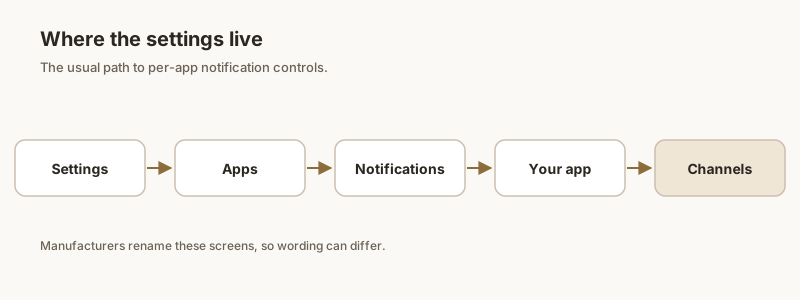
- Open Settings → Apps → [the app] → Notifications, and confirm alerts are enabled and not set to Silent.
- Check Settings → Notifications → Do Not Disturb → Schedules / Driving. If a Driving rule turns DND on automatically, either disable it or add your car/Android Auto as an exception.
- Confirm Android Auto has Notification access: Settings → Notifications → Notification access → Android Auto → on.
- Update Android Auto and Google from the Play Store, then restart the phone and reconnect.
Message read-aloud not working
Seeing the message on screen but no voice? Read-aloud relies on Google Assistant:
- In Android Auto's notification settings, enable "Read aloud incoming notifications."
- Make sure Assistant is set up and the car microphone works (try "Hey Google" verbally).
- If Assistant is disabled or the car's audio route is wrong, the text shows but stays silent.
If alerts still don't show
Some head units simply don't support app-notification mirroring over their Bluetooth profile — only calls and media. In that case no setting will force it. A practical workaround: keep the alerts on your phone visible at a glance when you stop, and use a tool like Dingpin to pin the messages and OTPs you can't afford to miss, so they're waiting in one place when you park rather than lost in the car's silence.
First checks
Five things to verify when Android Auto notifications stop appearing:
- Phone connection. USB cable firmly connected or Bluetooth paired.
- Android Auto app open. Sometimes the app needs to be foregrounded on the phone.
- Notification permission. Settings → Apps → Android Auto → Notifications → on.
- Battery optimization. Settings → Apps → Android Auto → Battery → Unrestricted.
- Android Auto version. Update from the Play Store.
Cable issues
For USB connections, a bad cable is the most common silent failure. Symptoms include Android Auto connecting but not showing notifications, or notifications appearing with a long delay. Try a different cable — preferably the one that came with the phone or a known-good USB-C.
Bluetooth vs. USB
Wireless Android Auto is more prone to notification delays because the connection shares bandwidth with audio. If notifications are intermittent over Bluetooth, try USB or check for Bluetooth firmware updates on your car's head unit.
Per-app notification visibility in Android Auto
Some apps have separate Android Auto notification settings:
- Open Android Auto on the phone.
- Settings → Notifications.
- Choose which apps show notifications while driving.
Pinning for the drive
For a specific alert you need during the drive — an address, a coordinate change — pin it with Dingpin before you start. Pinned items mirror to Android Auto on the car's screen.
Safety considerations
Android Auto intentionally limits some notifications to reduce driver distraction. If a notification type is not appearing, it may be blocked by Android Auto's safety rules, not a bug. To check, look in Android Auto settings → Notifications → see which categories are enabled.
For related guides, see Android Auto group chat notifications and Android Auto notifications not showing on lock screen.
Official documentation
If you want to check anything against the source, these are the pages this guide is based on:
FAQ
Why don't my text messages show on Android Auto?
Most often it is one of three things: the messaging app's notifications are off or set to silent on the phone, Driving Do Not Disturb is muting alerts, or Android Auto's 'show notifications' toggle is disabled. Android Auto only mirrors notifications the phone is already generating, so if the app isn't alerting on the phone, it won't appear on the car screen either.
How do I enable notifications on Android Auto?
Open the Android Auto app on your phone → Notifications (or Settings → Notifications) and make sure 'Show notifications from your phone' is on. Then open the phone's Settings → Apps → the app in question → Notifications and confirm alerts are enabled and not set to silent.
Why does Android Auto not read messages aloud?
Read-aloud uses Google Assistant and requires 'Read aloud incoming notifications' to be enabled in Android Auto's notification settings, plus notification access granted to Android Auto. If your car's microphone or Assistant isn't responding, the message may still appear on screen but won't be spoken.
Does Android Auto need notification access to show messages?
Yes. Grant it in Settings, then Apps, then Android Auto, then Permissions, then Notifications (or Notification access). Without it, Android Auto can't mirror the phone's alerts to the car screen.