A different headache from "messages don't show": the banner appears on the car screen, but nobody reads it to you. Android Auto's hands-free promise is only real if the message is spoken. Here's why read-aloud breaks and the fixes that actually work.
Why it reads some messages, not others
Android Auto doesn't just mirror the screen — it asks the phone's assistant to speak the notification text using the system text-to-speech (TTS) engine. For that to happen, four things have to line up:
- The "Read aloud incoming notifications" toggle is on.
- A default digital assistant is set (Google Assistant, or your OEM's assistant).
- Notification access is granted so Assistant can read the text.
- The notification is something Android Auto classifies as a message worth speaking.
Miss any one and the alert shows silently. None of these mean the app is broken.
Turn on read-aloud
The most common miss is the toggle itself:
- Open Android Auto → Settings → Notifications.
- Enable "Read aloud incoming notifications" (sometimes labeled "Play message notifications aloud").
- Also enable "Show message notifications" if it's off — if the notification isn't shown, it can't be read.
- Restart Android Auto (or the phone) so the new setting takes effect.
Set a default assistant
If no assistant is wired up, there's nothing to do the speaking:
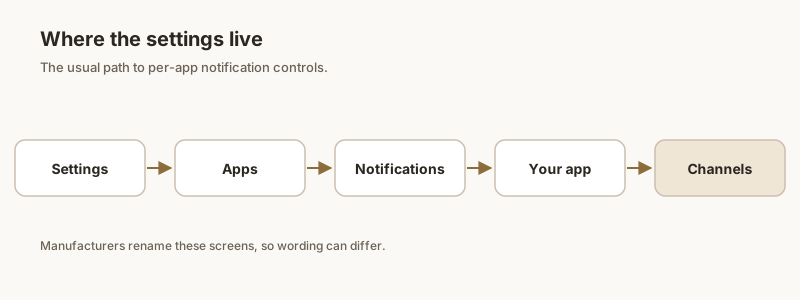
- Go to Settings → Apps → Default apps → Digital assistant app (the wording varies by brand).
- Set it to Google Assistant (or Gemini on newer phones). If it's set to "None" or a disabled app, read-aloud silently fails.
- Open the assistant once and complete any setup so it's ready.
Notification access
Assistant needs permission to read notification text:
- Settings → Notifications → Notification access and make sure Android Auto (and your assistant) is enabled.
- If you denied it, or a system update reset it, read-aloud stops even though the banner still appears.
Message classification
Even with everything on, some messages stay silent because Android Auto decides they aren't "messages":
- Silent or summary notifications — group chats and some third-party clients send a bundled "summary" instead of individual messages. Android Auto often ignores summaries.
- In-app settings — in WhatsApp, make sure the chat isn't muted and "Use high-priority notifications" is on; in Google Messages, check the conversation's notification category.
- Individual vs group — if group chats specifically won't read, see our group chat fix.
Audio focus
If the voice starts but gets cut off, audio is the issue:
- During a phone call or loud media, the assistant's speech can be deprioritized. Lower media volume or pause briefly.
- Check the car's Bluetooth profile priority — some head units route phone audio above media/notification.
- Make sure your phone's TTS language pack is installed: Settings → System → Languages → Text-to-speech output, and download the voice for your language.
If a message is spoken too late — or you're away from the car and still worried you'll miss the reply — Dingpin lets you pin the important one so it stays at the top of your phone to check when you park. No account, fully on-device.
Official documentation
If you want to check anything against the source, these are the pages this guide is based on:
FAQ
Why does Android Auto show the message but not read it aloud?
Android Auto speaks notifications through your phone's assistant and text-to-speech engine. If the "Read aloud incoming notifications" toggle is off, no default assistant is set, notification access is missing, or the notification isn't classified as a message, the banner appears silently. Turn on read-aloud in Android Auto settings and set a default assistant app.
Why won't Android Auto read group chat messages?
Group chats often arrive as a bundled "summary" notification rather than individual messages, and Android Auto tends to skip summaries. Mute settings, "high-priority notifications" being off, or the app sending silent summaries also block speech. See the dedicated group-chat guide for the per-app steps.
Do I need Google Assistant for Android Auto to read texts?
You need some default digital assistant set in Settings, Apps, Default apps, Digital assistant app. On most phones that's Google Assistant (or Gemini). If it's set to None, read-aloud has nothing to do the speaking and fails silently.
Why does the voice cut off halfway through a message?
Audio focus is usually the cause — a phone call or loud media can deprioritize the assistant's speech. Lower media volume or pause it briefly, check the car's Bluetooth profile priority, and confirm the TTS voice pack for your language is installed in Text-to-speech output settings.