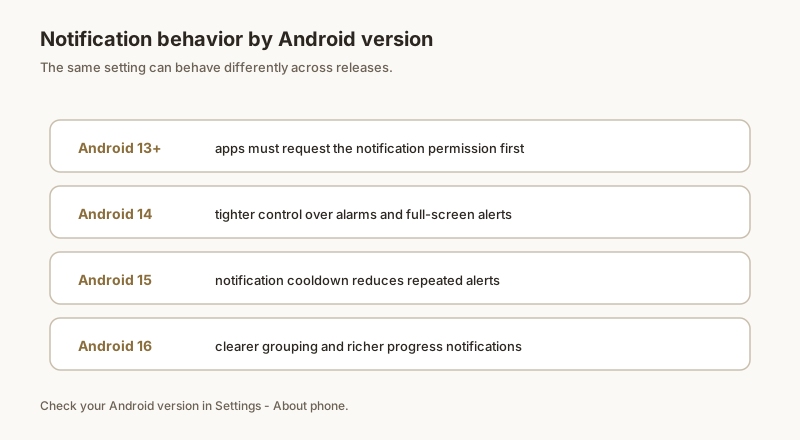
After updating to Android 15 you might notice that an app's second, third, and fourth alerts no longer pop up — they just land silently in the shade. That is Notification Cooldown, a new system feature designed to quiet apps that spam you. It is helpful for noisy apps, but it can also swallow alerts you actually want. Here is what it does and how to control it.
What notification cooldown does
When a single app sends several notifications within a short period, Android 15's cooldown kicks in and temporarily reduces their importance. Instead of each one sliding in as a heads-up banner, the repeated alerts are demoted to silent entries in the notification shade. The first alert still pops up; the follow-ups are muffled for a brief window, then importance returns to normal.
The goal is to stop an app from hijacking your screen with a burst of alerts, while still letting each notification reach the shade so you don't miss the content.
Which phones have it
Cooldown is part of Android 15 (API level 35), so it appears on:
- Pixel phones updated to Android 15 (and later).
- Other devices that ship or upgrade to stock/near-stock Android 15.
Samsung (One UI 7+), Xiaomi (HyperOS on Android 15), and others may include, rename, or omit the feature depending on their skin. If you don't see the toggle, your manufacturer likely disabled or relocated it.
How cooldown behaves
- It triggers on repeated alerts from the same app in a short window.
- Affected alerts keep arriving in the shade — they are not blocked, just silenced.
- Importance auto-restores after the cooldown period, so a later alert pops up again normally.
- It is separate from Do Not Disturb and from per-app importance — turning those off does not disable cooldown.
Turn it off (global & per app)
To disable cooldown entirely:
- Open Settings → Notifications.
- Tap Notification cooldown (on some builds it is Alerts cooldown under Advanced settings).
- Toggle it off.
On supported devices you can also keep it on globally but exclude a specific app: open the app's notification settings and turn off "Apply cooldown" for that app. That way noisy apps stay quiet while your important apps (banking, messages, deliveries) always break through.
If alerts still don't show
Disabling cooldown fixes the "repeated alerts go silent" problem, but if an app still isn't alerting, check the usual suspects covered in our other guides: the app's notification importance, Do Not Disturb exceptions, and battery optimization. Cooldown is just one of several ways Android can quiet an app.
Keep important alerts visible
Dingpin is a useful companion here: even when Android demotes or buries an alert, Dingpin pins the notifications you care about to the top of your shade and keeps a searchable history. So a delivery update or security code that Android cooled down is still one tap away instead of lost in a silent stack. It works across Pixel, Galaxy, Xiaomi, and other Android 8+ phones, with no account required.
Official documentation
If you want to check anything against the source, these are the pages this guide is based on:
FAQ
What does Android 15 notification cooldown do?
When one app sends multiple alerts in a short span, cooldown briefly lowers their importance so they no longer pop up as heads-up banners. The alerts still arrive in the shade, but the repeated ones are silenced for a short window to reduce interruption.
Which phones have notification cooldown?
It ships with Android 15 (API 35) on phones running stock or near-stock Android, such as Pixel. OEMs like Samsung and Xiaomi may include, rename, or omit it depending on their skin and Android 15 rollout.
How do I turn off notification cooldown?
Open Settings → Notifications → Notification cooldown (or 'Alerts cooldown' under Advanced), then toggle it off. On some builds it is also reachable from the notification shade's settings gear. A per-app toggle is available on supported devices.