That notification that refuses to swipe away — the one from your music app, VPN, or file downloader — is called a persistent notification. It isn't a bug. It's how Android shows an app is actively running in the foreground. Here's how to clear or quietly hide it.
What a persistent notification is
Android apps that run a foreground service — playing music, running a VPN, recording the screen, or managing an active download — must show a persistent notification. It stays put so you know the app is working and can get back to it fast. You can't swipe it away the normal way because the system considers it essential.
Stop the app's foreground service
The clean fix is to stop whatever the app is doing:
- Music / podcast: pause or quit the player.
- VPN: disconnect or tap the app's "stop" / "turn off" button.
- Screen recorder: stop the recording.
- Download manager: pause or cancel the active download.
Once the service ends, the notification disappears on its own. Some apps also have a "Show notification" toggle in their settings — turning that off hides the icon while the service runs.
What persistent means
A persistent notification is one that the system shows indefinitely. Music playback, screen recording, navigation, file transfers, and ongoing downloads all use persistent notifications — removing them stops the underlying activity. The system treats them specially: they cannot be bulk-cleared with "Clear all," and they appear with a small "ongoing" indicator.
Why the system uses them
Persistent notifications serve two purposes:
- Visibility. The user always knows what is running in the background and can return to it quickly.
- Background survival. Android aggressively kills background processes to save battery. Apps running a foreground service (which requires a persistent notification) are protected from that kill.
How to clear persistent notifications
- Open the relevant app and stop the activity manually (pause music, end navigation, stop the recording).
- The persistent notification usually clears automatically when the foreground service ends.
- If it sticks, force-stop the app: Settings → Apps → [app] → Force stop.
Media controls are persistent
Music and video playback notifications stay even when the app is in the background. To remove them, you must stop playback from the notification itself (tap pause) or close the app. Force-stopping a media app may interrupt playback oddly; the cleanest path is to pause from the notification.
When a persistent notification is stuck
Two patterns where persistent notifications refuse to clear:
- App crash. The foreground service crashed but the system still holds the notification. Force-stop the app.
- Bluetooth device issue. Some apps tie media playback to a Bluetooth device; if the device disconnects oddly, the notification sticks. Force-stop the app or clear its notifications from Settings → Notifications → App notifications.
Dingpin and persistent notifications
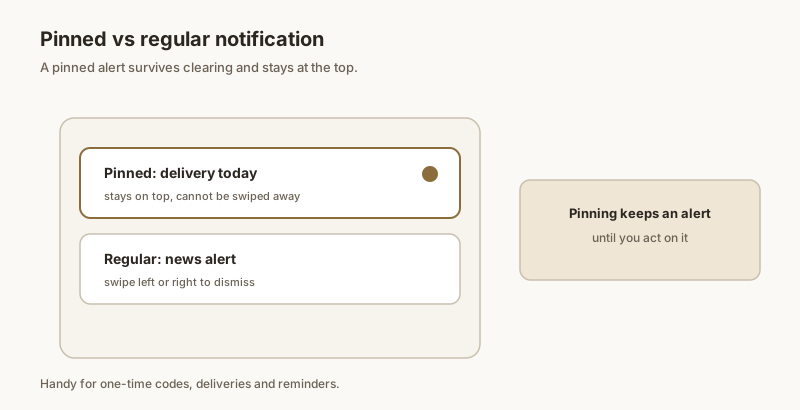
Dingpin captures persistent notifications just like any other — they appear in your history. But Dingpin's own pinning feature is for non-persistent alerts; pinning a media notification would be confusing since the media card is already persistent. Use Dingpin's pin for non-media alerts that you want to keep visible.
For the broader story, see media notifications on Android and how to pin notifications on Android.
Hide it via notification channels
If you can't stop the service but don't want to see the icon:
- Long-press the persistent notification → tap the gear / Settings icon.
- Set that specific notification channel to Silent, or turn the channel off.
This hides the banner and removes the icon, but be careful: if that channel also carries useful alerts from the same app, you'll silence those too. Prefer muting only the channel the persistent notification uses.
When it keeps coming back
If the notification reappears the moment you clear it, the foreground service is still alive and re-posting it. To fully clear it:
- Force-stop the app: Settings → Apps → the app → Force stop, then clear the notification.
- Reboot: a restart kills running services and clears the shade.
- Disable auto-start: if it returns after a reboot, the app is set to auto-launch. Turn that off in Battery / Autostart settings (path varies by brand — Xiaomi, Samsung, and OnePlus each name it differently).
Once the underlying service isn't running, the persistent notification won't come back.