A classic Android Auto complaint: notifications worked fine, then a system update (Android 14 or 15) or an app update landed overnight, and suddenly nothing shows on the car screen. The app isn't broken — an update quietly reset something. Here's the checklist that actually restores alerts.
Why updates break notifications
Updates don't usually "remove" Android Auto support. What they do is reset state that Android Auto depended on:
- Notification access can be revoked or flipped off after a major OS update.
- Battery optimization is re-applied to apps after an update, putting them back to sleep.
- Per-app notification channels (Android 13+) can change categories, hiding messages behind new rules.
- Driving Do Not Disturb sometimes turns on by default after an update.
- The Android Auto app itself may have updated and reset its own in-app toggles.
Walk the steps below in order — most people fix it at step one or two.
Re-grant notification access
This is the #1 post-update culprit:
- Open Settings → Notifications → Notification access.
- Find Android Auto (and your assistant app) and make sure the toggle is on.
- If it's already on, toggle it off then on to force a re-bind — updates love to leave it in a half-state.
- Restart the phone, then reconnect to the car.
Battery optimization reset
After an update, Android often re-adds apps to battery optimization. Put the messaging apps back to unrestricted:
- Settings → Apps → [your messaging app] → Battery → set to Unrestricted (or "Don't optimize").
- Do the same for Android Auto itself.
- On Samsung, also check Device care → Battery → Background usage limits and remove the apps from "Sleeping" and "Deep sleeping" lists — see our Samsung-specific guide.
Notification channels (Android 13+)
Android 13 separated notifications into per-category "channels." An update can mute or reclassify the one your messages use:
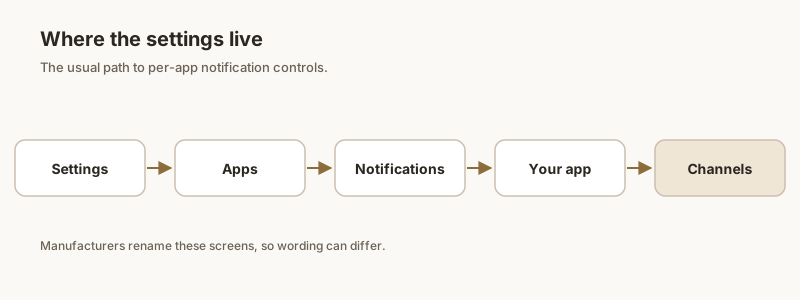
- Settings → Apps → [messaging app] → Notifications → [category, e.g. "Messages"].
- Make sure the category is enabled and set to Default or Urgent importance (not "Silent").
- In WhatsApp, ensure the conversation isn't set to "No notifications"; in Google Messages, check the conversation's category. Our WhatsApp and Google Messages guides cover the per-app steps.
Driving Do Not Disturb
Some updates enable a driving mode that suppresses alerts:
- Open Android Auto → Settings → Do Not Disturb and turn it off (or allow "Priority only" with messages allowed).
- Also check Settings → Sound & vibration → Do Not Disturb → Exceptions → make sure Conversations and Messages are allowed.
Clear Android Auto cache
If toggles look right but nothing appears, the app's cached state may be stale:
- Settings → Apps → Android Auto → Storage & cache.
- Tap Clear cache first. If that doesn't help, tap Clear storage (this resets Android Auto's settings — you'll re-pick your car and toggles).
- Reopen Android Auto, re-enable "Show message notifications," and reconnect.
One more safety net: if a message arrives while you're driving and you can't act on it, Dingpin keeps it pinned on your phone so you can deal with it the moment you park — no account, fully on-device.
Official documentation
If you want to check anything against the source, these are the pages this guide is based on:
FAQ
Why did Android Auto notifications stop after an update?
Updates frequently reset notification access permission, re-apply battery optimization, change per-app notification channels, or enable a driving Do Not Disturb mode. The Android Auto app itself may also reset its in-app toggles. Re-granting notification access and setting messaging apps to unrestricted battery are the two fixes that solve most cases.
Do I need to undo the Android update to fix notifications?
No. You don't need to roll back the OS. The problem is almost always a reset permission or setting, not the update removing support. Re-grant notification access, set apps to unrestricted battery, and check notification channels and driving Do Not Disturb.
Android 14/15 changed my notification settings — where do I look?
On Android 13+ notifications are split into per-app channels. Go to Settings, Apps, the messaging app, Notifications, then the specific category, and make sure it is enabled and set to Default or Urgent importance rather than Silent. Also re-check Settings, Notifications, Notification access for Android Auto.
Clearing Android Auto storage — will I lose everything?
Clearing storage resets Android Auto's own settings and car pairing, but it does not delete your messages or app data. You'll just re-select your car and re-enable "Show message notifications" once. Clear cache alone is safer and often enough.