Android Auto can read and announce your incoming texts and chat messages through the car's speakers, then let you reply by voice — hands-free. But the feature isn't on by default, and it only works for apps your phone is already actively notifying you about. This guide walks through the exact settings to turn message notifications on in Android Auto, for every supported app.
Which apps Android Auto can read
Android Auto surfaces messages from apps that send notification-based messages and that you've granted notification access to. In practice that means:
- Google Messages (SMS, MMS, and RCS) — the default on most Pixels and many Android phones.
- WhatsApp — the most common third-party chat app people want in the car.
- Other chat apps that post normal notifications (Telegram, Signal, Facebook Messenger, etc.) — support varies by app and car head unit.
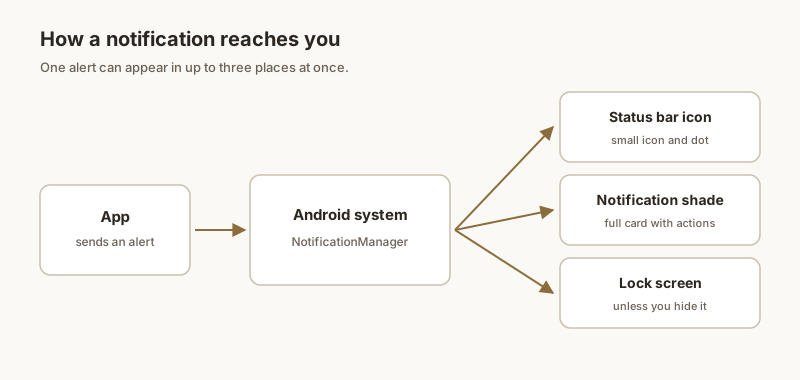
Important: Android Auto mirrors the phone's notifications. If an app is muted, set to Silent, or blocked on the phone, its messages will never reach the car screen or speakers. So the first step is always the phone, not the car.
Turn on message notifications
- On your phone, open the Android Auto app, tap Notifications (or go to phone Settings → Notifications), and make sure "Show notifications from your phone" is on.
- Still in Android Auto's notification settings, confirm "Read aloud incoming notifications" is enabled if you want voice announcements (see the next section).
- On the phone, open Settings → Apps → [the messaging app] → Notifications, and verify alerts are enabled and not set to Silent. For WhatsApp specifically, check Notification categories and ensure Messages (and Group notifications, if you want groups) are allowed and not muted.
- Confirm Android Auto has Notification access: phone Settings → Notifications → Notification access → Android Auto → on.
- Connect to the car and send yourself a test message. It should appear on the car screen and (if read-aloud is on) be spoken through the speakers.
Enable read-aloud
The spoken announcement comes from Google Assistant, not Android Auto itself. To make it work:
- In Android Auto's notification settings, keep "Read aloud incoming notifications" on.
- Make sure Google Assistant is set up and your car's microphone works — try saying "Hey Google" and confirm it responds.
- If the message shows on screen but stays silent, the audio route or Assistant is the culprit, not the app. Check the car's audio source is on Bluetooth/Android Auto and not a muted input.
Reply by voice
When a message is announced, Android Auto shows a Reply prompt. You can:
- Tap the microphone on the car screen, or say "Reply" after the alert.
- Dictate your message; Assistant transcribes and sends it through the original app (WhatsApp, Messages, etc.).
- Some head units also offer preset quick replies you can tap.
Voice reply depends on the same notification access and Assistant setup above. If reply is missing, the app likely isn't in Android Auto's supported messaging list or notification access was revoked.
Troubleshooting checklist
If messages still don't appear, run through this in order:
- Is the app alerting on the phone? Lock the phone and send a test message. No phone notification = Android Auto will never see it.
- Driving Do Not Disturb — check Settings → Notifications → Do Not Disturb → Schedules / Driving. A Driving rule that auto-enables DND when Bluetooth connects will silence car alerts. Disable it or add Android Auto as an exception.
- Battery optimization — for WhatsApp and your SMS app, set battery optimization to Unrestricted / Don't optimize so the system doesn't defer their notifications.
- Update both apps — Android Auto and the messaging app (and Google) from the Play Store, then restart the phone.
- Head-unit limits — a few cars only surface calls and media, not app messages, over their Bluetooth profile. No setting forces it.
For app-specific gaps, see our focused guides on WhatsApp not showing on Android Auto and missing SMS text alerts in Android Auto. And if the car simply won't surface a message you can't afford to miss, Dingpin lets you pin important texts and OTPs on your phone so they're waiting in one place when you park, instead of lost in the car's silence.
Official documentation
If you want to check anything against the source, these are the pages this guide is based on:
FAQ
Which messaging apps work with Android Auto?
Android Auto can read and announce messages from apps that post normal phone notifications and have notification access, most reliably Google Messages (SMS/RCS) and WhatsApp, plus other chat apps like Telegram, Signal, and Messenger where the car head unit supports them. It mirrors the phone's notifications, so the app must be actively alerting on the phone first.
How do I turn on message notifications in Android Auto?
Open the Android Auto app, go to Notifications, and enable 'Show notifications from your phone' (and 'Read aloud incoming notifications' if you want voice). Then on the phone, open Settings, Apps, the messaging app, Notifications, and confirm alerts are enabled and not set to Silent. Finally grant Android Auto Notification access in Settings, Notifications, Notification access.
Why does Android Auto read my messages but not let me reply?
Voice reply uses Google Assistant and the same notification access. If reply is missing, the app may not be on Android Auto's supported messaging list, notification access was revoked, or Assistant isn't set up in the car. The message can still display even when reply isn't available.
Does Android Auto show group chats?
Yes, for apps that separate group notifications into their own category (WhatsApp does). Make sure the group-notification category is enabled and not muted in the app's notification settings; otherwise only one-to-one messages will reach the car.