"Lock screen" can mean two things, and the fix depends on which one you mean. There's your phone's lock screen (the one you see when the phone is in your pocket or on the dash) and the car's Android Auto display. They're controlled by different settings. Let's separate them.
Two different screens
- Phone lock screen is governed by Android's "Notifications on lock screen" setting and per-app visibility.
- Car (Android Auto) screen is governed by Android Auto's own notification settings and notification access — covered in the missing alerts guide.
If the car screen is blank, that's an Android Auto issue (jump to Blank car screen). If your phone lock screen stopped showing messages, use the steps below.
Show on lock screen
First, make sure lock-screen notifications are on at all:
- Settings → Notifications → Lock screen (or "Notifications on lock screen").
- Set it to "Show conversations, default, and silent" (or at least "Show all notification content"). If it's "Don't show notifications," nothing appears.
- Per app: Settings → Apps → [messaging app] → Notifications → make sure the category isn't set to "Silent" or "Minimized."
Android 14 sensitive content
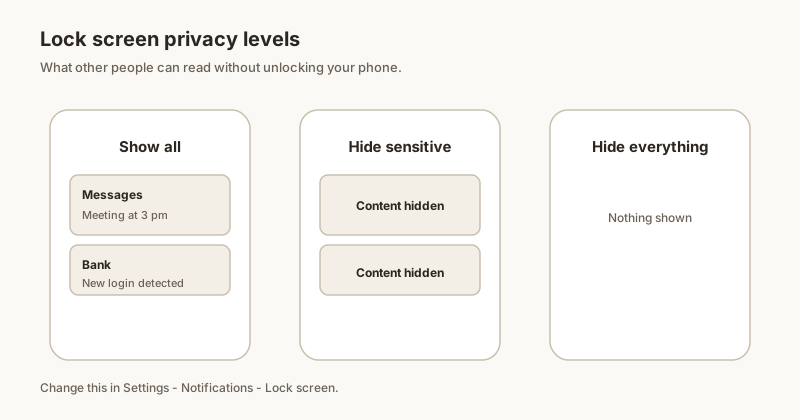
Android 14 changed lock-screen privacy. Even with notifications "shown," message content can be hidden:
- In Settings → Notifications → Lock screen, if you chose "Hide sensitive content" (or "Hide silent conversations"), the sender and text may be replaced with "Content hidden."
- To see full content, switch to "Show all notification content."
- Some launchers and OEM skins (especially Samsung's One UI — see the Samsung guide) add a second "Hide content on lock screen" toggle in the messaging app's settings. Turn it off there too.
Locked phone in the car
When your phone is locked and sitting in the car (common with wireless Android Auto), two things interact:
- The phone may route everything to the car screen, so the phone lock screen shows little — that's expected.
- But if your car screen is also blank, the issue is Android Auto, not the lock screen. Re-check notification access and the "Show message notifications" toggle.
- If you want a record you can read after you park, Dingpin keeps messages pinned on the phone, visible the moment you unlock — no account, fully on-device.
Blank car screen
If the Android Auto car screen itself shows no notifications:
- Open Android Auto → Settings → Notifications and enable "Show message notifications."
- Confirm Notification access is granted (Settings → Notifications → Notification access → Android Auto).
- Make sure the conversation isn't muted in the app, and that the app isn't battery-optimized. The post-update guide covers resets that blank the car screen after an OS update.
Why this happens
Android Auto in the car should show notifications on the car's screen and the phone's lock screen. When lock-screen notifications stop appearing, three things are usually to blame:
- Android Auto notifications setting off. Settings → Apps → Android Auto → Notifications → toggle off.
- Battery optimization on Android Auto. Settings → Apps → Android Auto → Battery → Unrestricted.
- Phone screen lock setting too strict. Some phones hide Android Auto notifications when locked, depending on lock-screen notification settings.
The lock-screen relationship
Android Auto on the lock screen respects your phone's notification visibility setting. If your lock screen is set to "Hide all," Android Auto notifications also hide. To allow Android Auto specifically:
- Settings → Notifications → Notifications on lock screen → Show all content (or Hide sensitive content).
- Per-app: Settings → Apps → Android Auto → Notifications → allow on lock screen.
Driving-mode considerations
Android Auto has its own notification policies when driving. To customize:
- Open Android Auto on the phone.
- Settings → Notifications.
- Choose which apps can show notifications while driving.
Pinning for the drive
If you want a specific notification (an address, a coordinate change) visible during the drive, pin it with Dingpin before you start driving. Pinned items mirror to Android Auto on the car's screen.
For multiple devices
If you use Android Auto on multiple cars, the lock-screen behavior is per-phone, not per-car. Configure your phone's settings once and they apply to all your cars.
For the broader Android Auto story, see Android Auto notifications not showing and Android Auto group chat notifications.
Official documentation
If you want to check anything against the source, these are the pages this guide is based on:
FAQ
Why did my message content disappear from the lock screen?
Android 14 introduced stricter lock-screen privacy. If you set "Hide sensitive content" (or "Hide silent conversations") under Settings, Notifications, Lock screen, the sender and text are replaced with "Content hidden." Switch to "Show all notification content," and turn off any per-app "Hide content on lock screen" toggle in the messaging app's settings (common on Samsung One UI).
Is the Android Auto car screen the same as my phone lock screen?
No. The car screen is controlled by Android Auto's own notification settings and notification access, while the phone lock screen is controlled by Android's lock-screen notification setting. A blank car screen is an Android Auto problem; missing content on the phone lock screen is an Android privacy setting.
Why is the car screen blank when my phone is locked?
When the phone is locked and connected, Android Auto often routes notifications to the car display, so the phone shows little — that's normal. If the car screen is also blank, re-check Android Auto's "Show message notifications" toggle and notification access, and make sure the conversation isn't muted or battery-optimized.
How do I make notifications show full content on the lock screen?
Go to Settings, Notifications, Lock screen, and choose "Show all notification content." Also verify the messaging app's notification category isn't set to Silent, and disable any OEM "Hide content on lock screen" toggle inside the app's notification settings.